Kafka
Connect a Kafka topic to Fyno Connect with your broker details and authentication settings. Once connected, Fyno consumes the messages on the topic and triggers the workflow you specify for each message.
Connect your Kafka topic
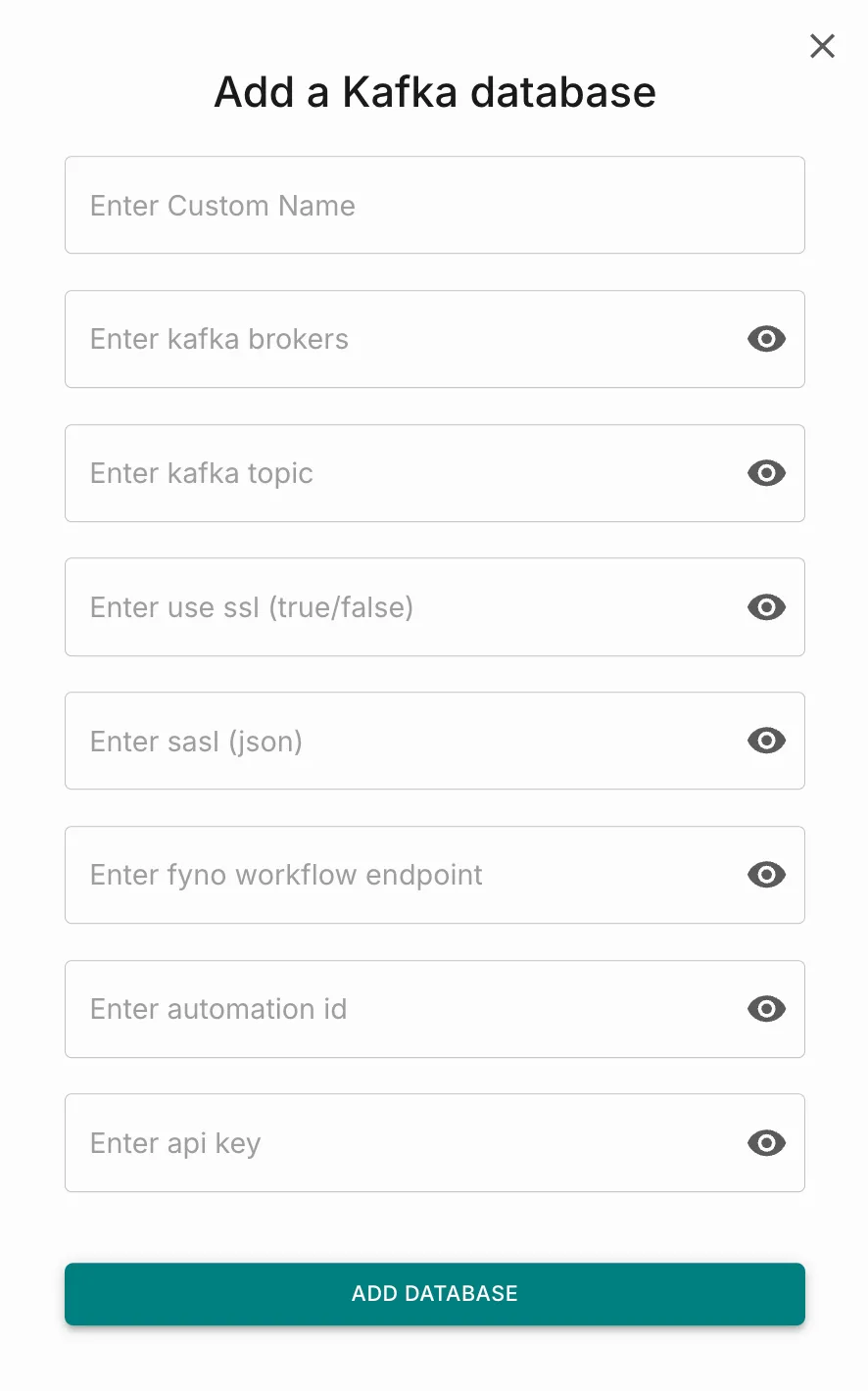
Enter the connection details
Fill in the following fields:
-
Custom Name: A name to identify this connection in Fyno Connect.
-
Kafka Brokers: The addresses of your Kafka brokers in
host:portformat. Separate multiple brokers with commas. -
Kafka Topic: The topic Fyno consumes messages from.
-
Use SSL: Enter
trueif your brokers require an SSL connection, otherwisefalse. -
SASL: Your SASL authentication settings as a JSON object, including the mechanism, username and password. Leave this blank if your brokers do not use SASL.
-
Fyno Workflow Endpoint: The endpoint of the Fyno workflow to trigger for each message.
-
Automation ID: The ID of the workflow to trigger.
-
API Key: The Fyno API key used to call the workflow.
All fields except Custom Name are masked by default. Click the eye icon on a field to view its value.