

SFTP
Connect an SFTP server to Fyno Connect with your server details and credentials. Once connected, Fyno reads the files under the base path you specify, and you can build cohorts from the data in them.
Connect your SFTP server
Enter the connection details
Fill in the following fields:
- Custom Name: A name to identify this connection in Fyno Connect.
- Host Address: The host address of your SFTP server.
- Port: The port your SFTP server listens on.
- User Name: The username used to access the server.
- Password: The password for that user. Leave this blank if you authenticate with a private key.
- Private Key: The private key used to access the server. Leave this blank if you authenticate with a password.
- Base Path: The directory on the server that Fyno reads files from.
All fields except Custom Name are masked by default. Click the eye icon on a field to view its value.
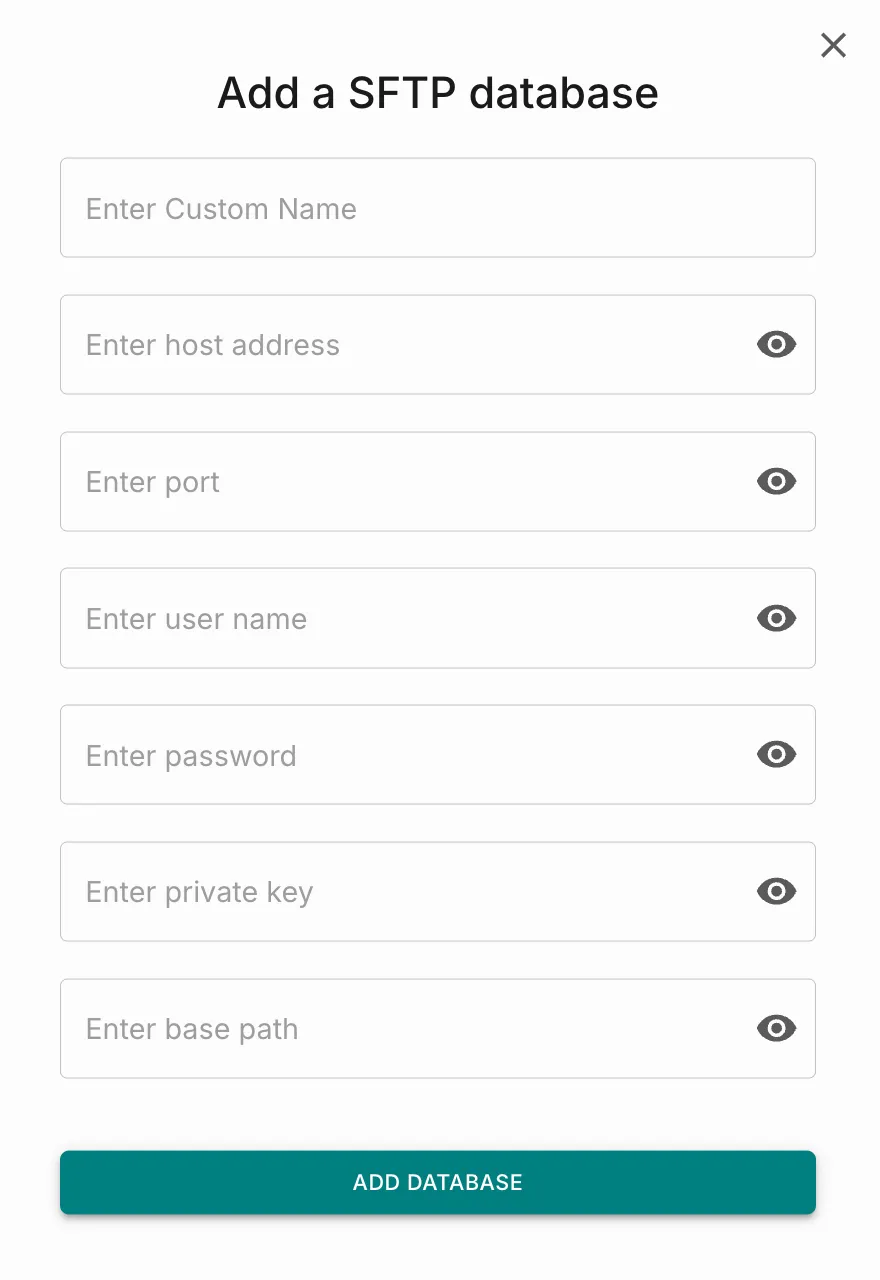
Add the database
Click Add Database. Fyno tests the connection and saves it once the test succeeds. The connection then appears under Connected DBs on the same page.
Create cohorts
You can now create cohorts from the data in the files under the base path. See Create Cohorts.