Oracle DB Picker
Oracle DB Picker connects a table in your Oracle database to Fyno Connect. Fyno picks rows from the table, maps them to a data payload and sends them to the Fyno event or workflow endpoint you specify.
Connect your Oracle database table
Open Oracle DB Picker from Databases
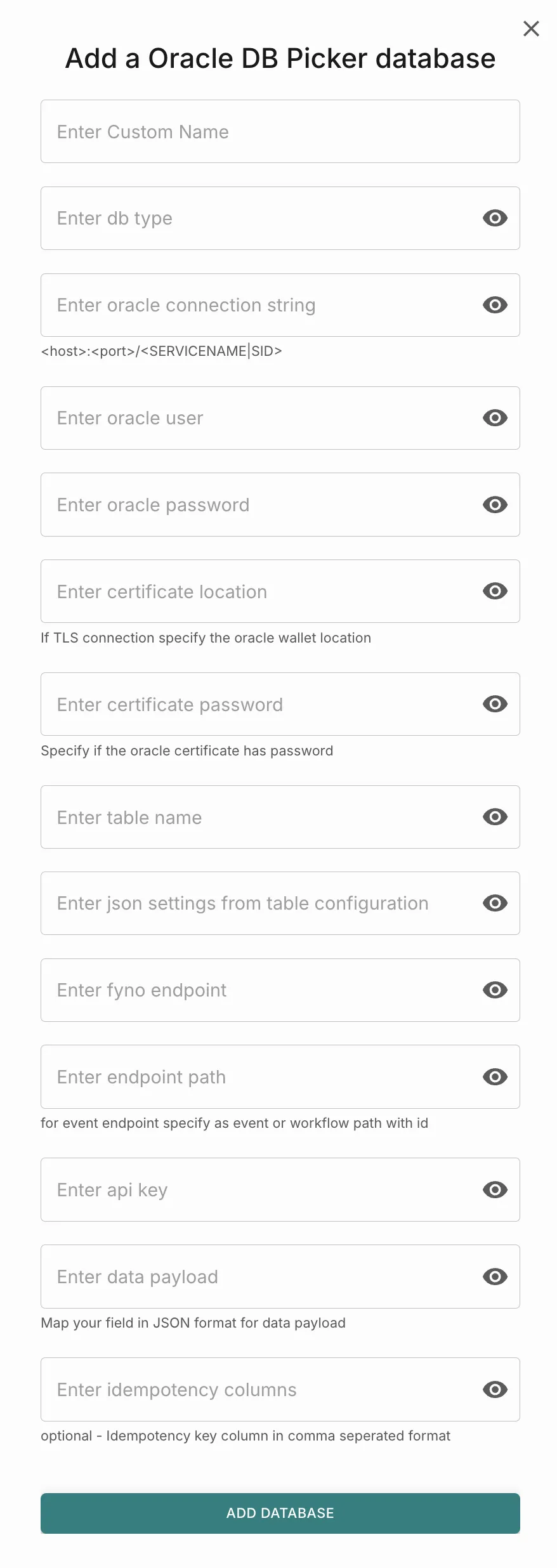
Go to Databases and click Oracle DB Picker. The Add a Oracle DB Picker database pop-up opens.
Enter the database connection details
Fill in the following fields to connect to your Oracle database:
- Custom Name: A name to identify this connection in Fyno Connect.
- DB Type: The type of Oracle database you are connecting.
- Oracle Connection String: The connection string for your database in the format
<host>:<port>/<SERVICENAME|SID>. - Oracle User: The username used to access the database.
- Oracle Password: The password for that user.
- Certificate Location: If you connect over TLS, the location of your Oracle wallet. Leave this blank otherwise.
- Certificate Password: The password for the Oracle certificate, if it has one.
Enter the table and payload details
Fill in the following fields to tell Fyno which rows to pick and where to send them:
- Table Name: The name of the table to pick rows from.
- JSON Settings from Table Configuration: The table configuration settings as a JSON object.
- Fyno Endpoint: The Fyno endpoint to send the rows to.
- Endpoint Path: The path of the event or workflow on that endpoint, including its ID.
- API Key: The Fyno API key used to call the endpoint.
- Data Payload: A JSON object that maps the table columns to the fields of the data payload sent to Fyno.
- Idempotency Columns (optional): The columns that together form the idempotency key for each row, separated by commas. Fyno uses this key to avoid sending the same row more than once.
All fields except Custom Name are masked by default. Click the eye icon on a field to view its value.