For AI agents: a documentation index is available at the root level at /llms.txt. Append /llms.txt to any URL for a page-level index, or .md for the markdown version of any page.
You can now curate a list of up to 20 disposable domains to which sending emails should be restricted. Preventing the sending of email messages to such disposable domains offers benefits such as improved deliverability scores and reduced bounces, which can hurt sender reputation.
In addition to the 20 custom domains, you can also opt to avoid sending emails to over 100K potentially malicious domains. See the complete list here
How to enable the disposable email domain check?
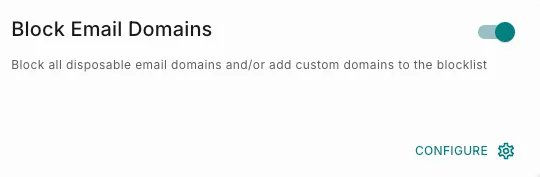
1To enable a disposable email domains check, go to Workspace Settings (bottom left corner in menu) -> Add On’s -> Block Email Domains.
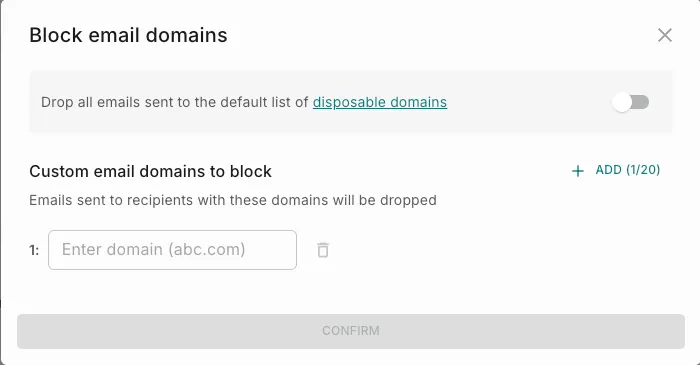
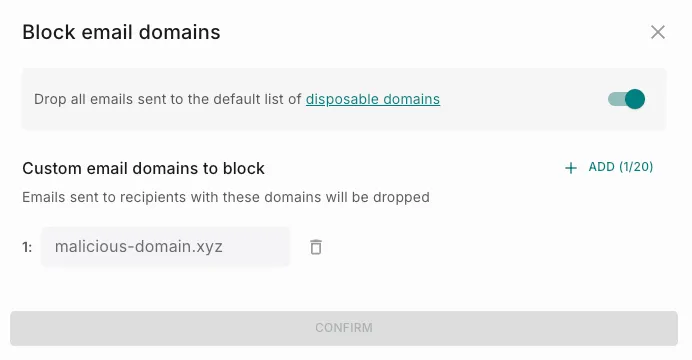
2Enable the toggle. You will see the pop-up as shown below.
When you enable the Drop all emails sent to the default list of disposable domains toggle, you opt not to send emails to the known list of over 100K disposable domains.
2To add custom disposable domains (not in the default list), enter the domain names (in the format abc.com) in the “Custom email domains to block” section.