

Routes
Effective communication needs a reliable, flexible routing system so that messages reach their recipients without delays or failures. Fyno’s Routes let you optimize message delivery across multiple providers and channels. There are two types of routes:
- Single Channel Route: Manage multiple providers within one channel, with traffic distribution, failover setups and conditional routing.
- Omnichannel Route: Move between different channels, such as SMS, WhatsApp, Email, Push, InApp and more, so that your message reaches the user on at least one touchpoint.
You can find both by clicking Routes in the left navigation, under the Omni-Channel and Single Channel tabs.
By combining the two, you can build redundancy, improve reliability and maximize engagement with your audience.
Copy routes to another workspace
You can copy single channel and omnichannel routes from your workspace to other workspaces. Copying is only possible between workspaces that have the same owner.
Only route-related data is copied to the destination workspace. Any dependencies, such as integrations, must be created or copied manually in the destination workspace.
1. Prepare your destination workspace
2. Copy your routes
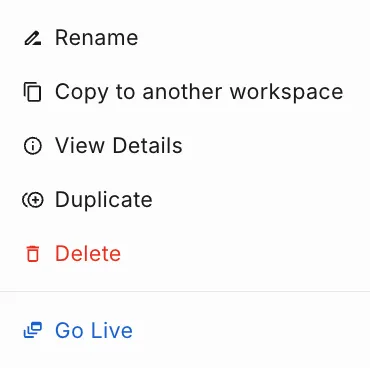
Choose the version to copy:
- Single route with a live version: choose whether to copy the latest live or the latest test version. If the route only has a test version, that version is copied.
- Multiple routes: the latest live or latest test version of each route is copied, depending on the route.
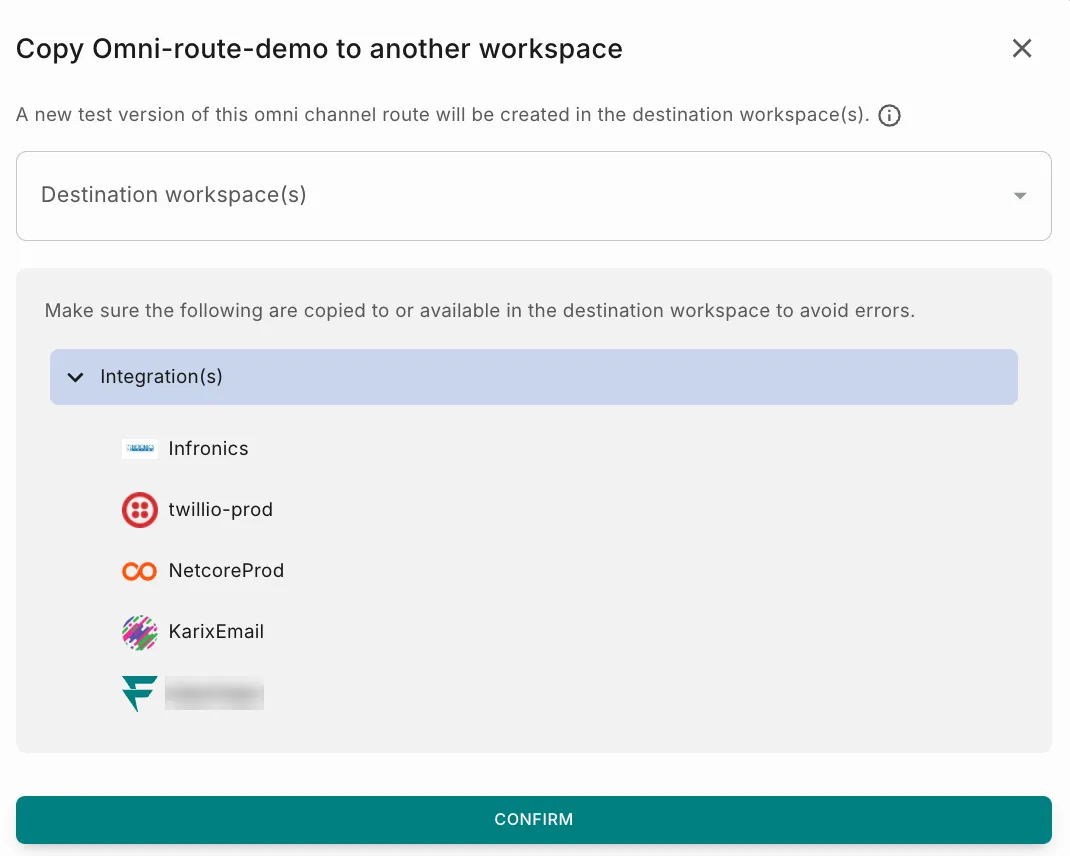
In the copy dialog, select the workspaces to copy to from the Destination workspace(s) dropdown. All workspaces you are a member of are listed, but only those with the same owner as your current workspace can be selected. You can select up to five workspaces.
The dialog also lists the route’s dependencies, such as integrations. Make sure these are copied to or available in each destination workspace to avoid errors.
3. After copying
Open each copied route in the destination workspace, re-select the integration where applicable, and click Save so that the route works correctly.
How versioning works
Say you copy a route from Workspace A to Workspace B. The version created in Workspace B depends on whether the route already exists there.
If the route does not exist in Workspace B
The copy is created as v1 (Test).
If the route already exists in Workspace B
The copy is created as a new version that is neither test nor live. For example, if Workspace B has v1 (Test), the copy is created as v2.
To use the copied version:
Existing versions in the destination workspace are never overwritten, so you decide when to save or make the copied route live.