

Slack Templates
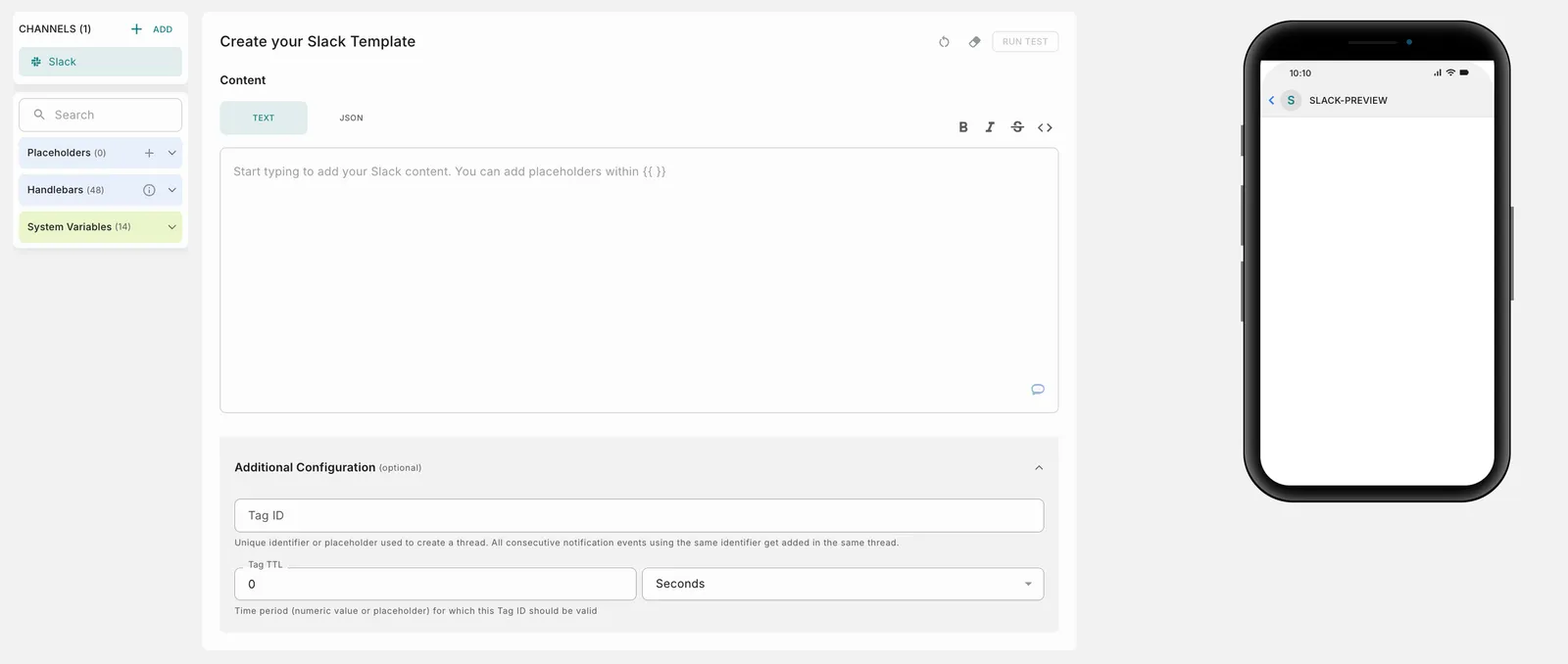
When you add the Slack channel to a template, the Create your Slack Template screen opens. The Preview on the right shows how the message looks in Slack.
Add the content
Under Content, choose how you want to write the message body.
Text
JSON
Use Text to send a simple message. Type your message and use the toolbar above the field for bold, italic, strikethrough and code formatting. You can add placeholders within {{ }}.
Additional Configuration (optional)
Expand Additional Configuration to group related notifications into a Slack thread.
Placeholders
Below the Channels section on the left, you can find placeholders. Placeholders are denoted by {{ }} or Handlebars. Click a placeholder to open a pop-up window where you can define its parameters. See the comprehensive guide on Handlebars.
You can use a period (.), underscore (_) or hyphen (-) within the handlebars. Try it now!
You cannot use only numeric values as placeholder keys.
How to tag users and channels
Use these in your message content:
How to add dynamic content
You can add dynamic content to your templates using one of the four options below:
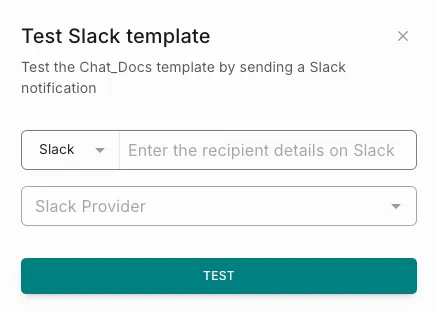
How to test a Slack template
Use this feature to test a template thoroughly before including it in any Notification Event. This ensures early detection and resolution of any potential issues, for a seamless user experience.
Save and go live
Click Save to save the template as a Test version. You can save different versions of the template this way. Use Go Live when you are ready to move your template to the Live version.
If your workspace has a maker-checker workflow enabled for template management, Go Live needs an additional approval step. Choose from your designated approvers, who review and authorize the template changes. See Approval flow for the steps.