

User Profile Details
All the information linked to a particular user can be viewed in User profile details page. You can click any user profile from User listing page to land in the user details page.
User profile details has 4 sections:
- User Details
- User Properties
- Notifications Sent
- Preferences
User Details
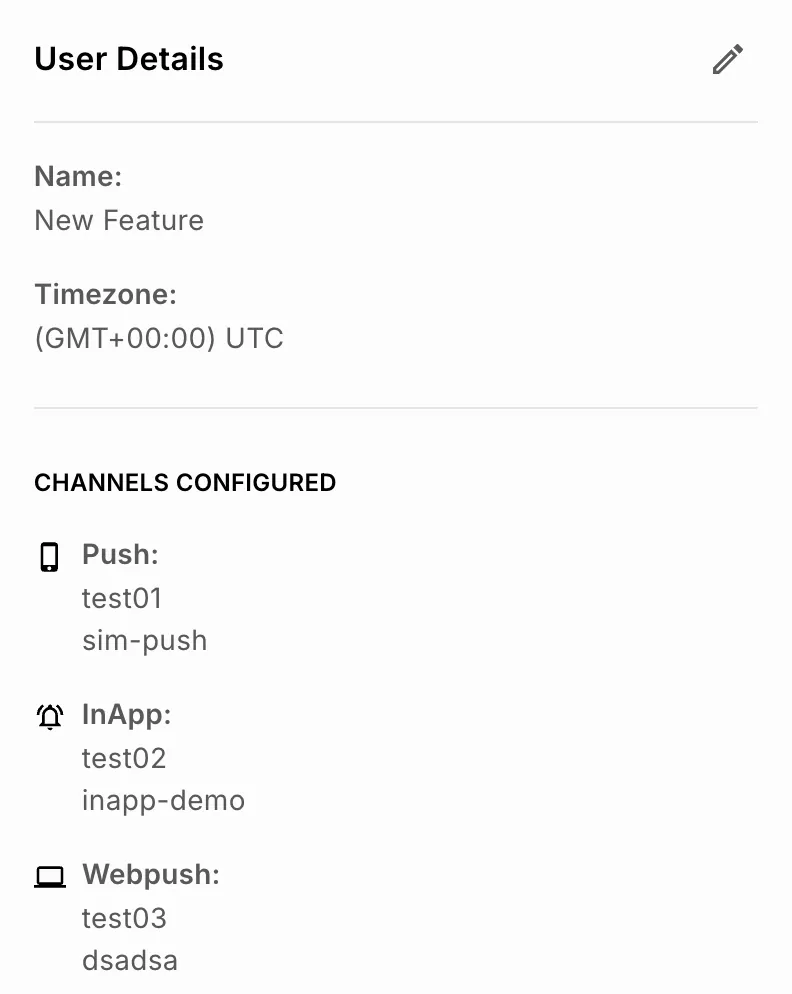
In the User details page, you will see the User information section on the left hand side as shown below. This has 2 sections:
- General - contains Name and Timezone of the user.
- Channels Configured - All the channel information available for that particular user.
You can edit these property values by clicking on the ‘Edit’ icon.
User Property
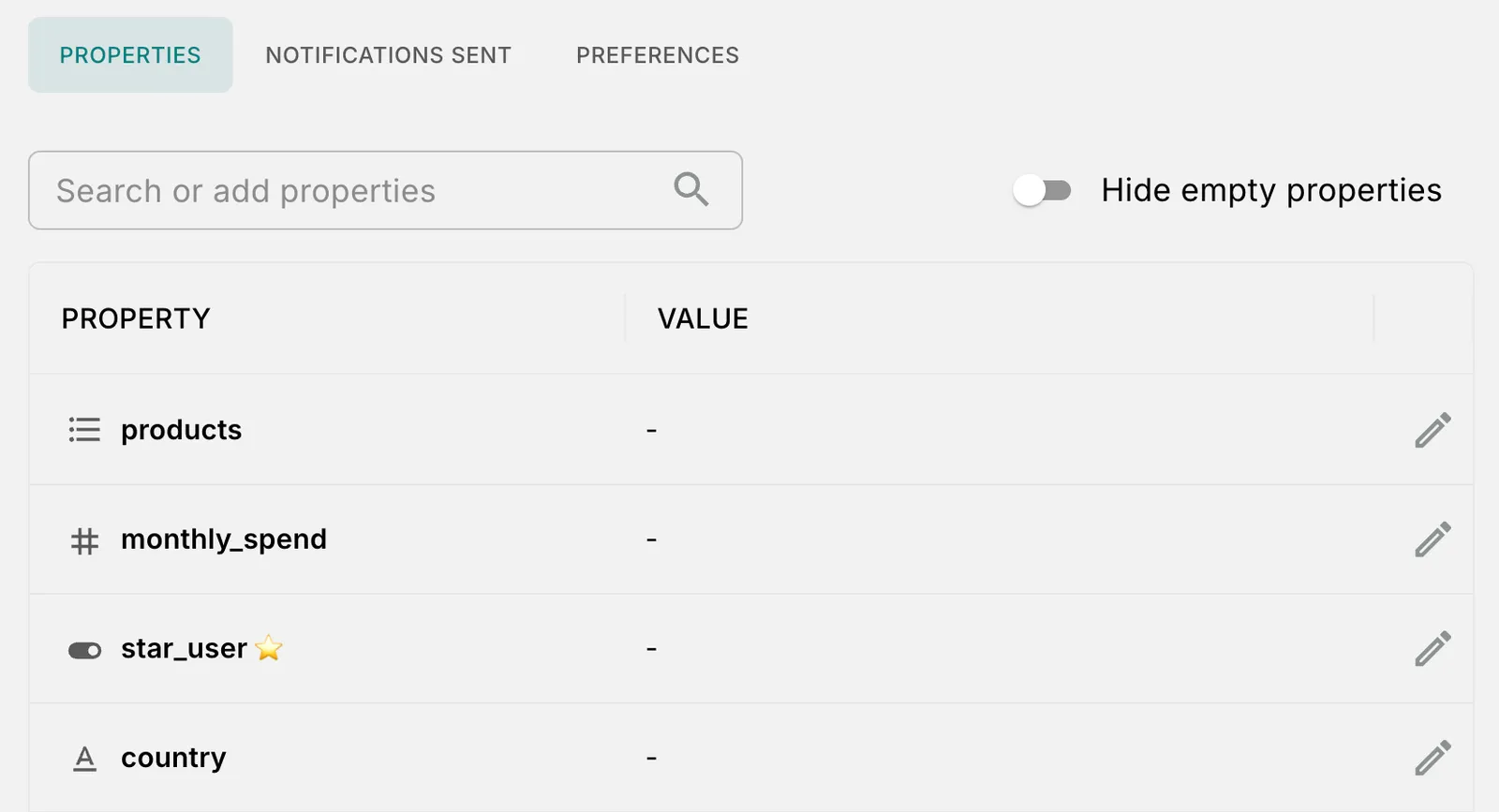
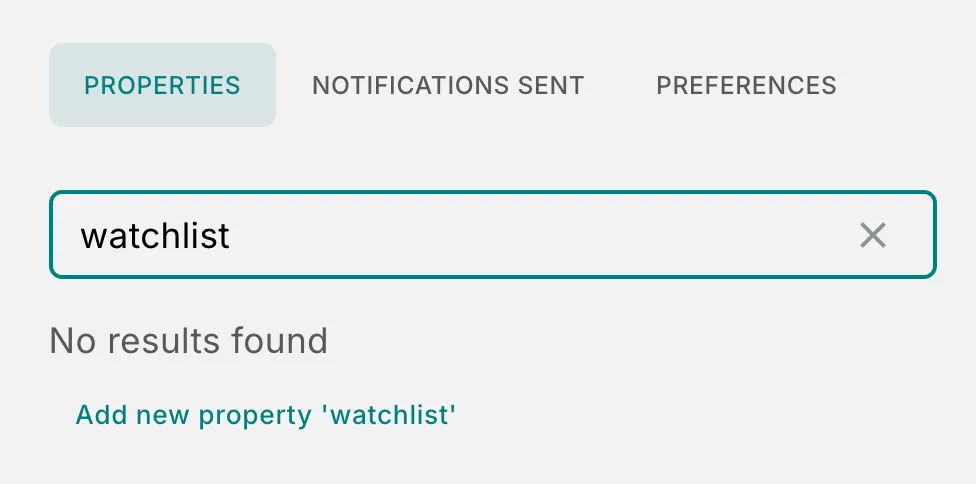
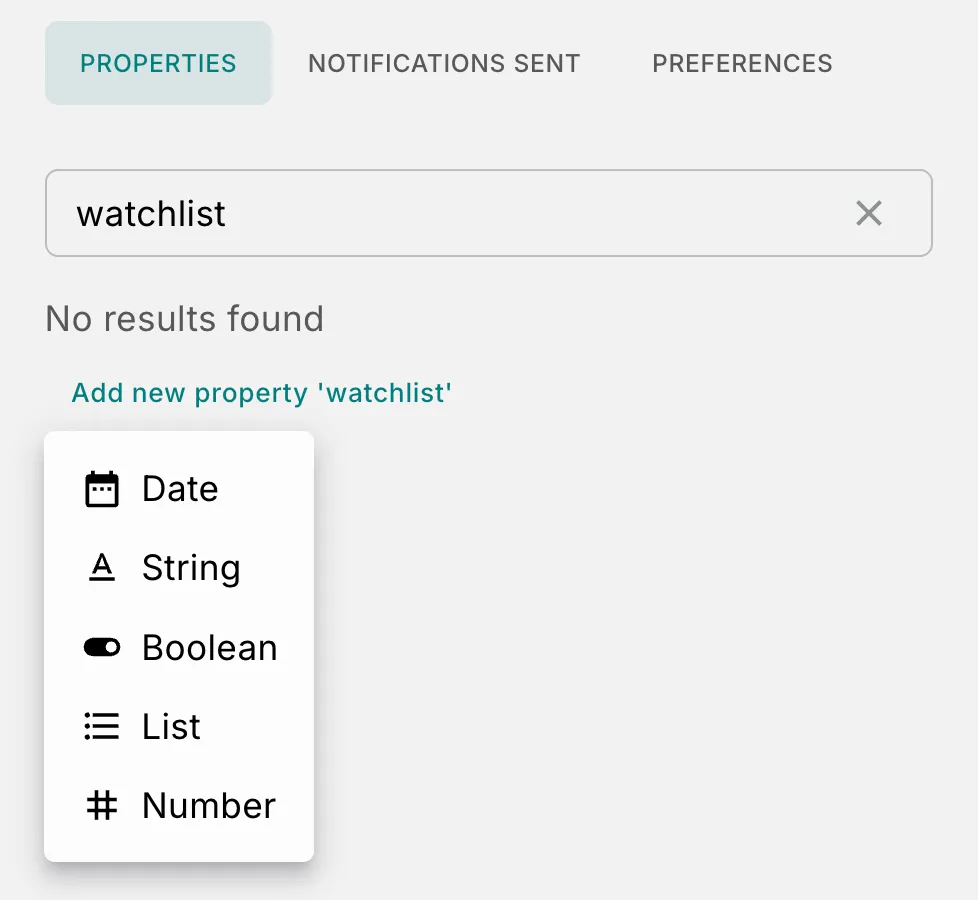
You can also edit any property value manually by clicking the ‘Edit’ icon.
Notifications Sent
All the notifications sent to the user can be seen under the ‘Notification sent’ tab.
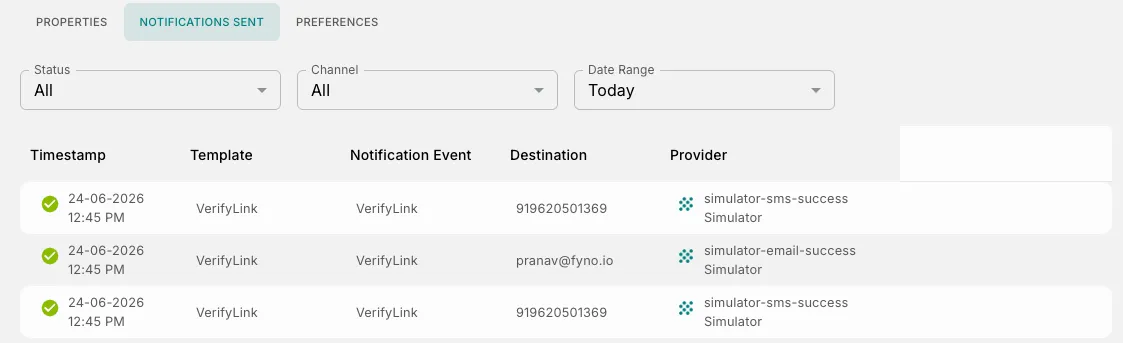
You can filter using User status, Channels or Timestamp. You will be able to see the notifications sent data for the last 7 days only. Clicking on any notification sent will show you the detailed sent logs popup.
Preferences
-
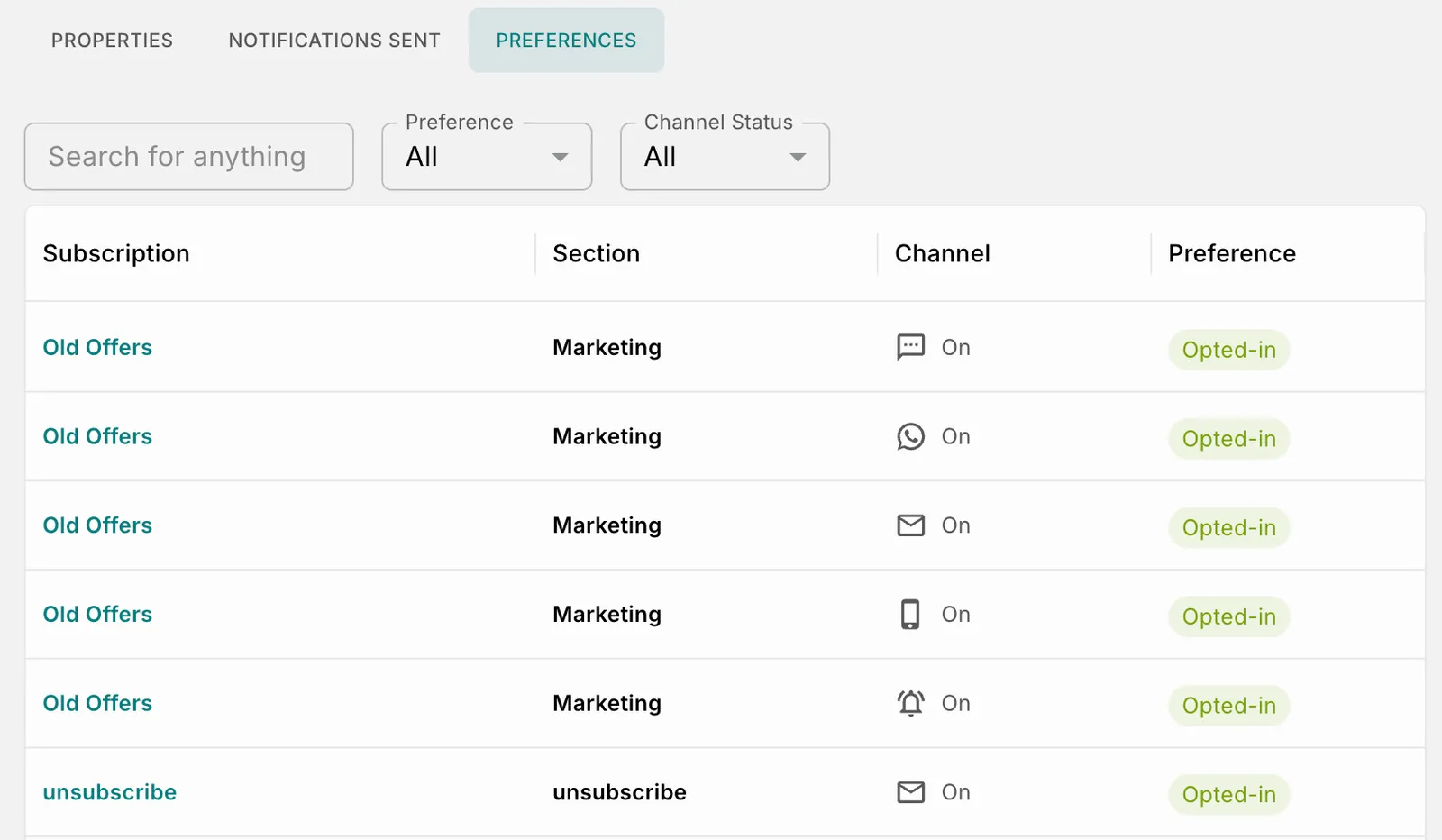
All the sections and subscription topics linked to the user will be shown here.
-
You will see the section, subscription topic, channel’s default status and the preference of the user.
-
You can filter using Channel status and user preference.
SAML Single Sign-On (SSO)
SAML-based Single Sign-On (SSO) allows authentication through an organization’s existing Identity Provider (IdP), offering centralized access control and enhanced security.
Users can log into Fyno using corporate identity tools such as OKTA, AWS, or other SAML-compliant IdPs.
Once SSO is enabled, all workspace members are redirected through the IdP login flow, ensuring secure and policy-driven access management across the organization.
To learn more, visit the SAML Single Sign-On (SSO) documentation.
Important Note:
SAML SSO is available only on the Enterprise plan.
To enable SSO for your organization, contact Fyno Support at support@fyno.io.
Support assistance includes:
- Enabling SAML SSO for the account.
- Providing a step-by-step setup guide based on your company’s IdP.