Sent Log Report Extraction

Report extraction enables you to download Sent Logs for both Live and Test environments.

You can download 5 types of report

  • All Logs
  • Summary
  • Daily Summary
  • DND Period Logs
  • SMS Delivery (mobile number-wise)

Steps to extract report

1Navigate to Sent Logs
2Click ‘Request Report’ on the top right corner.
3

Choose the Version, select Type, Date Range, then click Confirm.
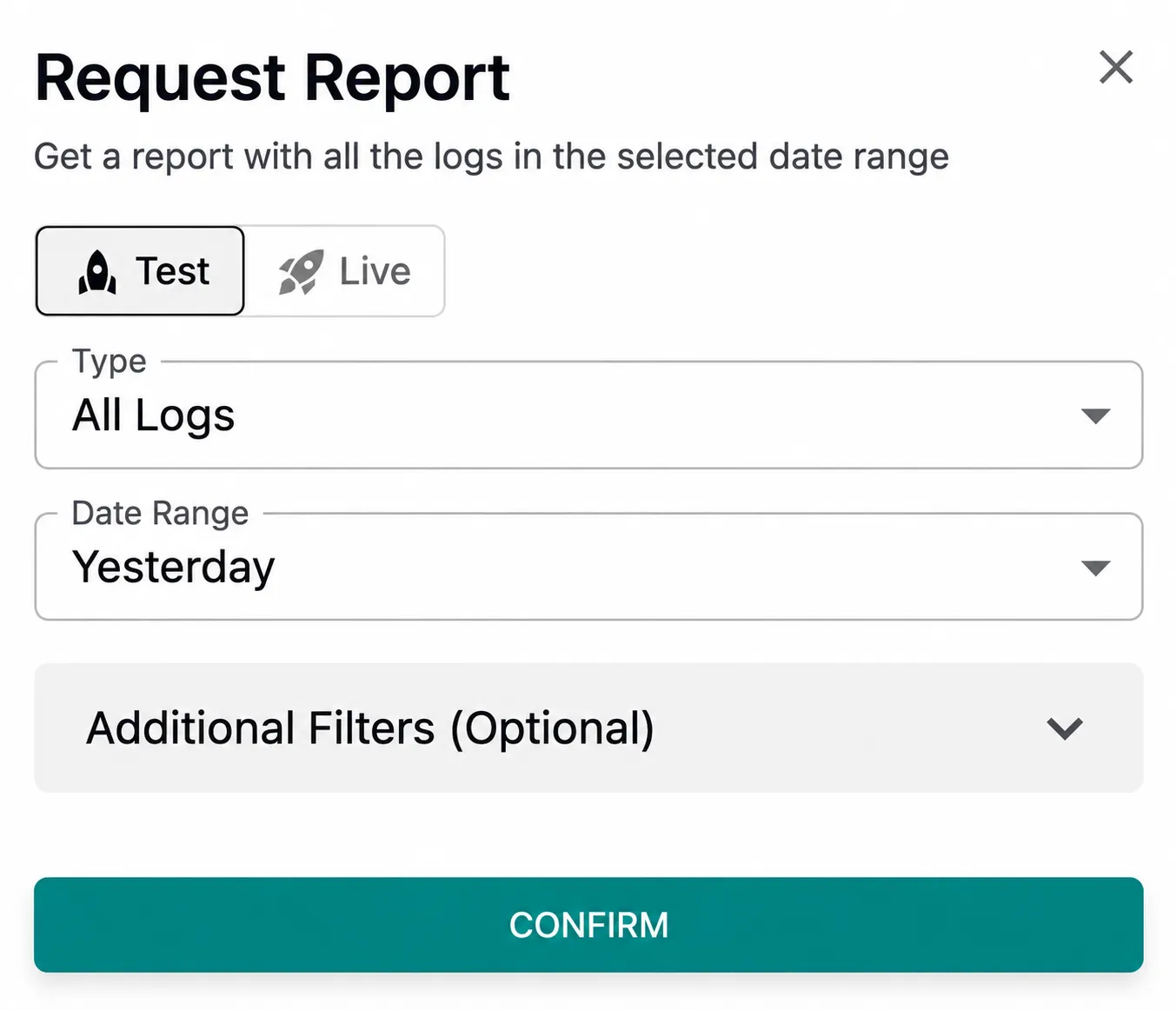
  • Version: Test or Live
  • Date Range: Yesterday, Last 7 days, Last 28 days, Custom (you can select any 30 days within the last 6 months)
You can only export data for 30 days at a time. If you want to export for a longer duration, say 90 days, please create multiple reports - D0 to D30 and D31 to D60 and D61-D90.
4

You will get an InApp notification with the message “Your report request xxxxxx is processing!”.

Your report will be ready for download within 5 minutes.

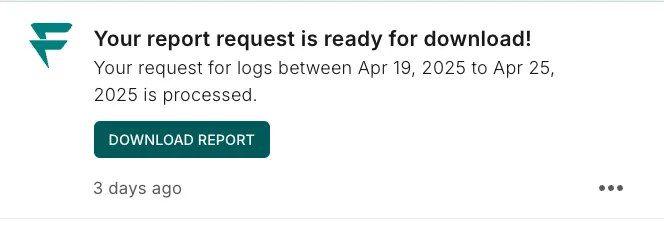
5Upon the completion of your report, an InApp notification will be sent, along with an email containing a ‘Download Report’ call-to-action.
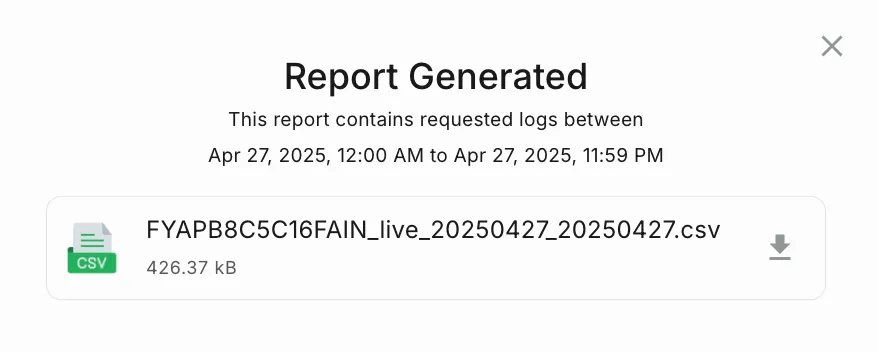
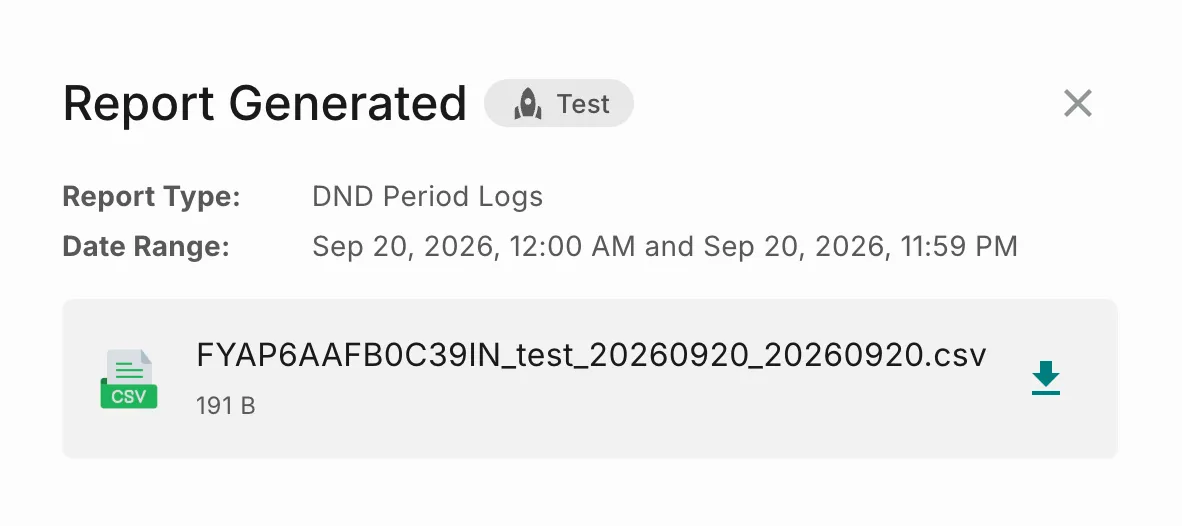
6Upon clicking ‘Download Report,’ a popup will appear, as shown below.
7Upon clicking the download link, the report will start downloading.
Download your report within the next 7 days, as the link will expire after that. For example, if you receive the download link on 1st March at 1 PM, the report link will expire by 8th March at 1 PM.

DND Period Logs report

The DND Period Logs report lists notifications that fall inside your Do Not Disturb (DND) window, so you can check whether any messages went out during restricted hours.

Generating the report

Follow the steps to extract a report. In step 3, set Type to DND Period Logs and choose the period you want to check. Before you click Confirm, expand Optional Additional Filters and select a Channel.
You don’t set the DND start and end times in the form. Fyno takes them from your existing DND settings, as explained in How the DND window is selected.

Which messages are included

Fyno checks each date in the selected period separately. A message is included if any one of these times falls inside that date’s DND window:

Time checkedWhat it records
Request timeWhen Fyno received the notification request
Provider submit timeWhen Fyno handed the message to the provider
Delivery timeWhen the delivery status was received

For example, a message requested just before the DND window starts but delivered after it begins is still included.

How the DND window is selected

Fyno picks the DND setting based on the filters you select, in this order:

PriorityYour filter selectionDND window used
1Group ID and channelThe DND setting for that exact group and channel
2Channel onlyThe first DND setting that matches the channel
3No filterThe first DND setting, whichever it is
Always select a channel

Without a Channel filter, the report uses whichever DND setting happens to be first, which may belong to a different channel than the one you’re checking.