For AI agents: a documentation index is available at the root level at /llms.txt and /llms-full.txt. Append /llms.txt to any URL for a page-level index, or .md for the markdown version of any page.
LoginTalk to us
DocumentationSDKsConnectAPI Reference
    • Home
    • Release Notes
  • Getting Started
    • Quickstart
    • Dashboard
    • Alarms
    • Versioning
  • Core Features
    • Integrations
    • Templates
    • Routes
    • Notification Events
    • Requests/Go Live
    • Logs
  • Advanced Features
    • Workflows
      • Creating a Workflow with Meta
      • Creating a Workflow with webhook trigger
      • Creating a workflow with Incoming message (Virtual Number)
      • Creating a workflow with Mixpanel Cohort
      • Creating a Workflow with MoEngage
      • Creating a Workflow with Notification Event (Journey)
        • Subscription Widget
        • User Profile Widget
        • Subflow Widget
        • Notification Event Widget
          • Configuring Idempotent Key
          • Configuring Overrides
        • API Widget
        • Template Search
        • Send Message Widget
        • Digest Widget
        • Cohort Widget
        • Wait For Reply
        • Wait For
        • Conditions
      • Workflow Logs
    • Campaigns
    • User Profiles
    • Approval Request
  • Settings
    • Profile Settings
    • Workspaces
    • Workspace Settings
LogoLogo
LoginTalk to us
On this page
  • Steps to configure Idempotent Key
Advanced FeaturesWorkflowsNodes and ActionsNotification Event Widget

How to Configure Idempotent Key

Was this page helpful?
Previous

How to Configure Overrides

Next
Built with

Workflows now supports idempotency, ensuring you can safely retry requests without the risk of performing the same operation twice. This feature proves invaluable in scenarios where an API call gets interrupted in transit, leaving you without a response.

For instance, if a request to send a notification doesn’t go through due to a network glitch, simply retry the request using the same idempotency key. This guarantees that no more than one notification will be sent.

You can read more about it here.

Steps to configure Idempotent Key
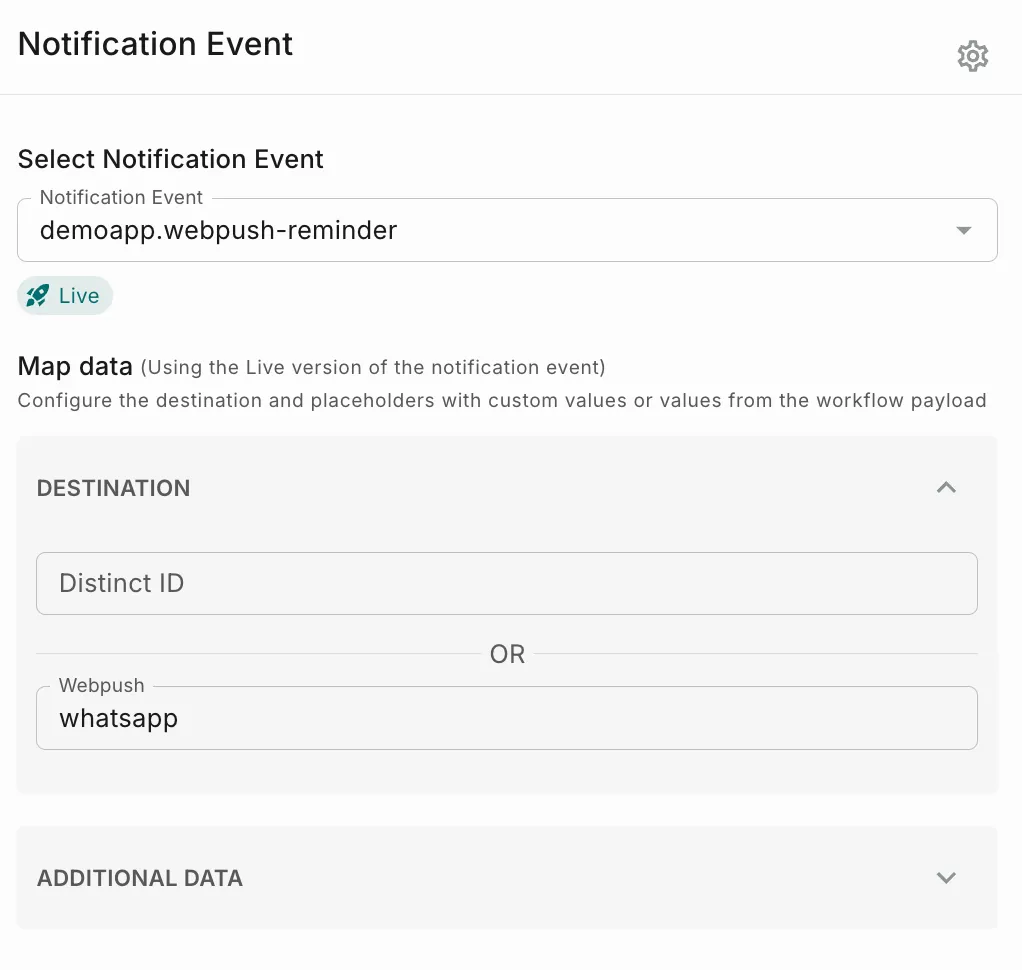
1After adding a notification event to the workflow, click Settings icon on the top right corner.
2

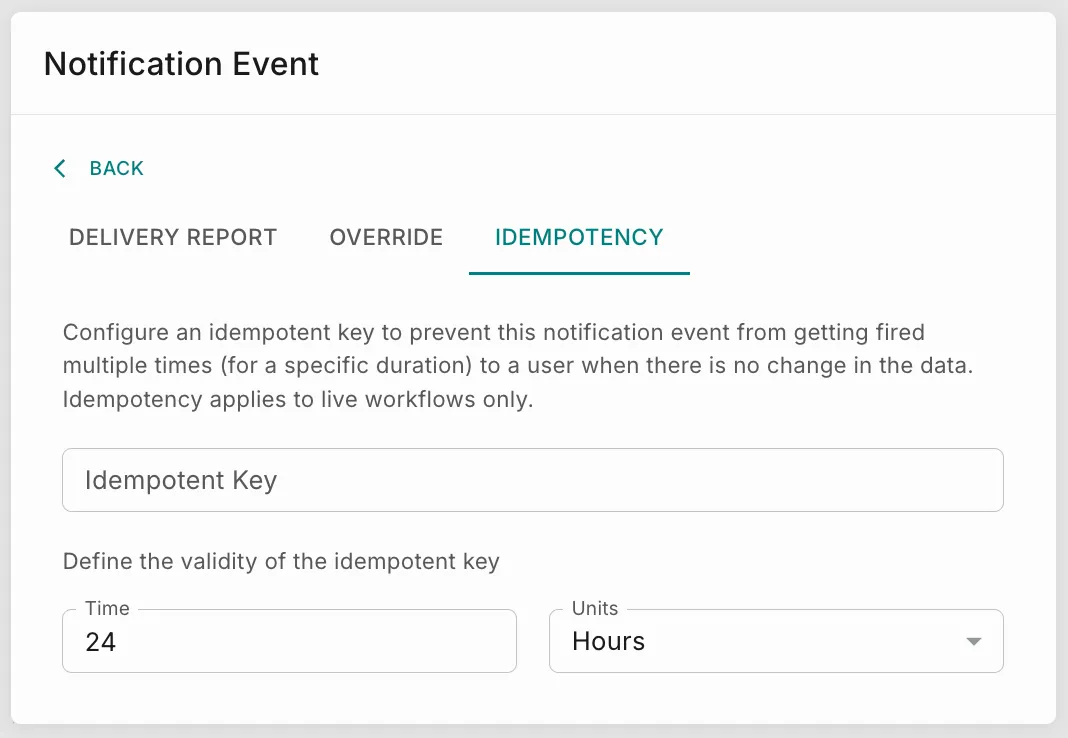
Navigate to Idempotent tab and add the below details:

  • Idempotent Key - Add an idempotent key to prevent this notification event from getting fired multiple times (for a specific duration) to a user when there is no change in the data. Duration should be between 1 second and 24 hours.
  • Time - Enter how long you want to prevent duplicate notification events from sending.
  • Units - You can add time in Seconds, Minutes, Hours or Days.
We don’t have a length limit for idempotency key but we recommend using 256 characters or less for idempotency key. These keys are purged from the system after 24 hours.