

AI Magic Match Widget within a Workflow
The AI Magic Match widget is used to read a user’s message, understand what they are asking for, and continue the workflow on the branch that matches it.
It matches by meaning, not exact words. For example, “Where is my order?” and “Please share the latest update on my order” are worded differently but both ask for the order status, so both go down the same branch.
This is useful for handling customer queries, routing requests to the right follow-up message, or telling apart requests such as order status, cancellations, refunds, or delivery agent details.
Users can configure the widget using:
- User Input
- Conditions
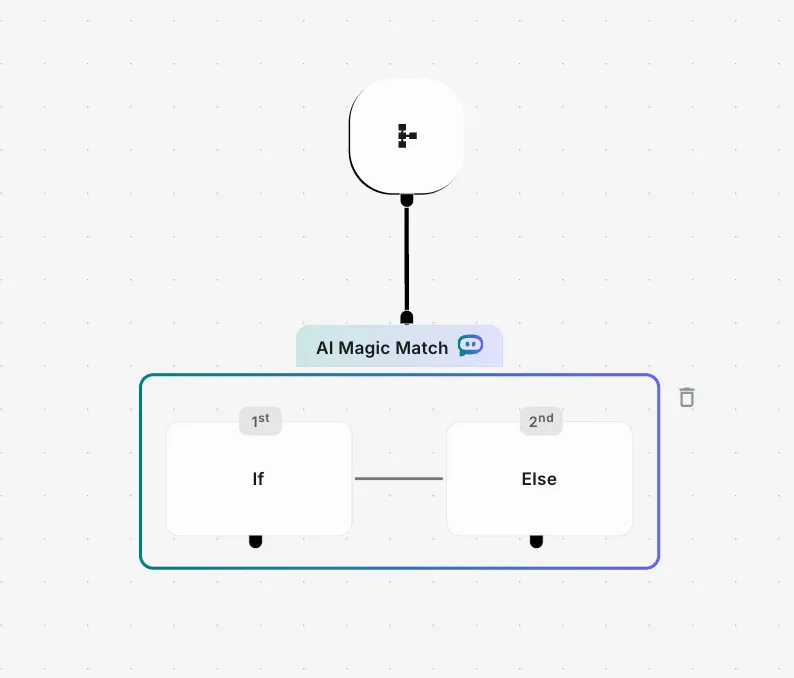
Each condition adds an If branch to the widget, numbered in order (1st, 2nd and so on). The last branch is Else, which the workflow follows when the user’s message does not match any condition.
Steps to configure AI Magic Match Widget
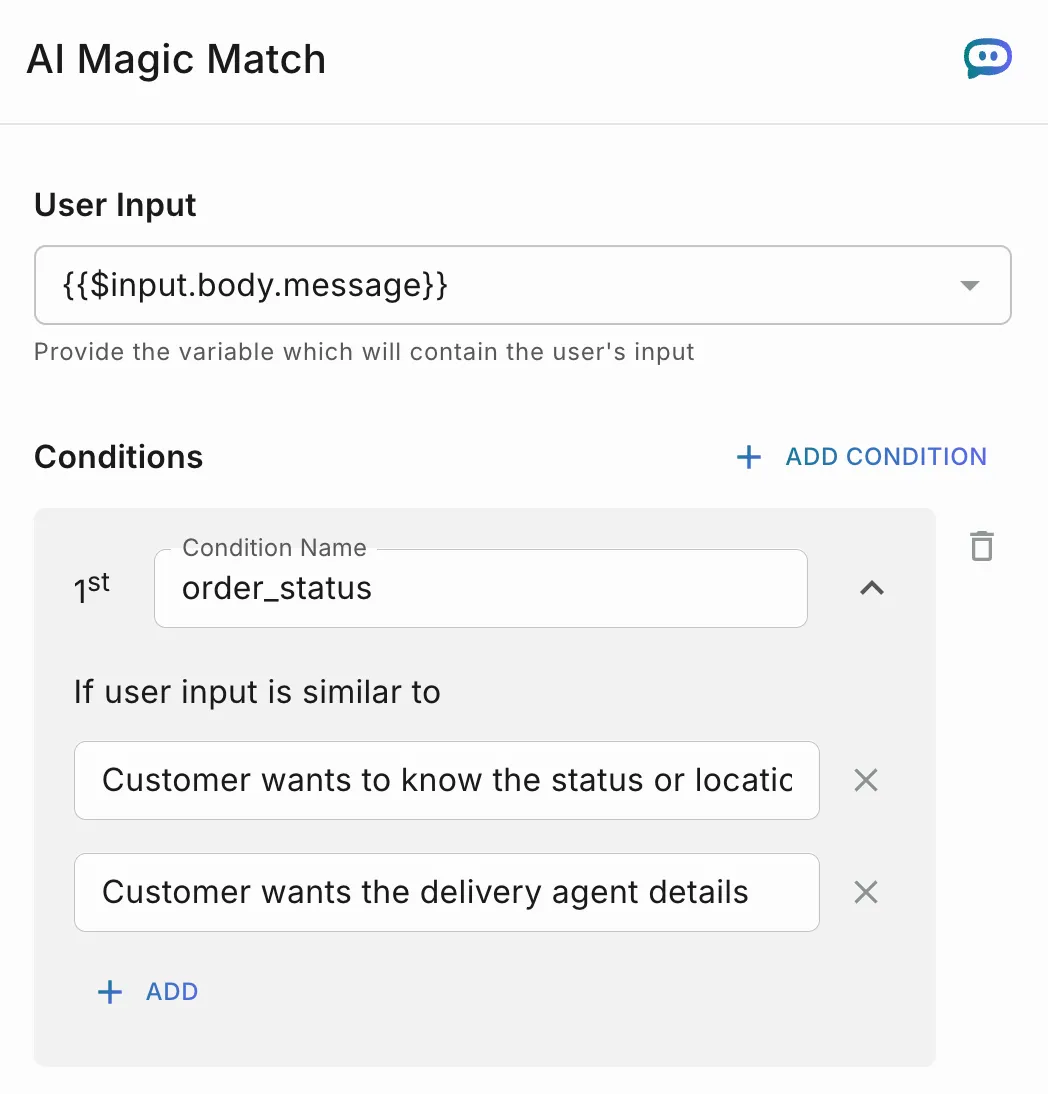
Drag and drop the AI Magic Match widget into the workflow and connect it to the workflow step that receives the user’s message.
Select the User Input.
Choose the variable that contains the user’s message. This is the text the widget reads and compares against your conditions.
Example:
Under If user input is similar to, describe the kind of message that should match this condition.
Click ADD to add more descriptions to the same condition. To remove one, click the X next to it.
Example:
Test Magic Match Conditions
Before going live, check that your conditions match the messages you expect.
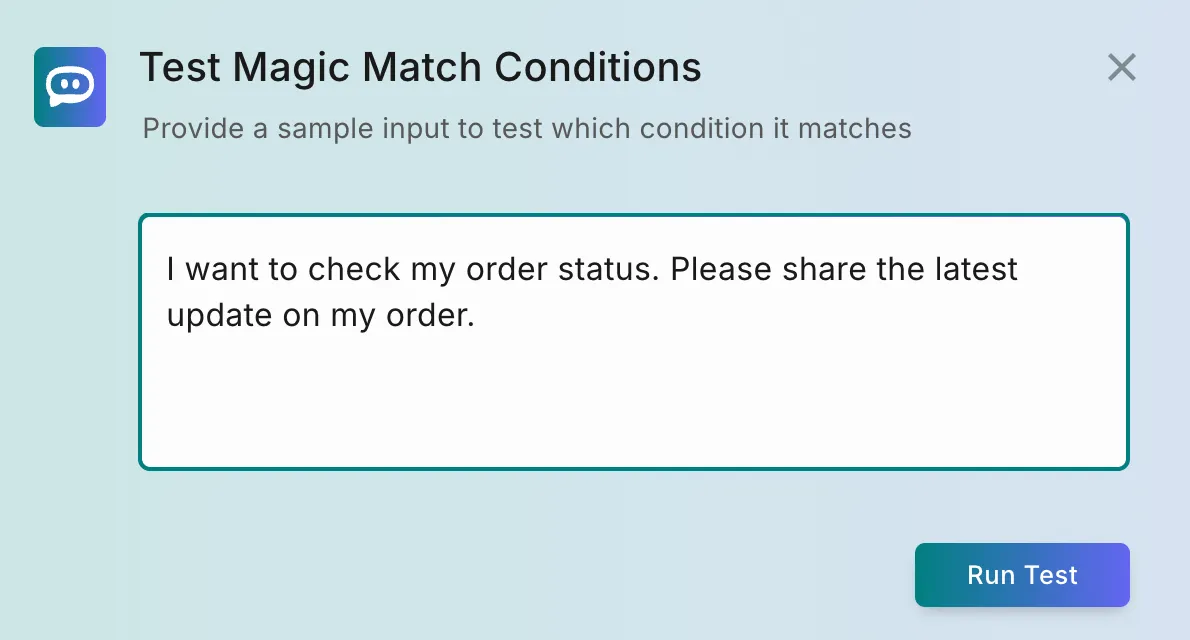
Example
Describe the intent in plain words, like “Customer wants to cancel their order”, instead of listing exact messages. Adding two or three descriptions that cover different ways of asking helps the widget match more accurately.