For AI agents: a documentation index is available at the root level at /llms.txt and /llms-full.txt. Append /llms.txt to any URL for a page-level index, or .md for the markdown version of any page.
LoginTalk to us
DocumentationSDKsConnectAPI Reference
    • Home
    • Release Notes
  • Getting Started
    • Quickstart
    • Dashboard
    • Alarms
    • Versioning
  • Core Features
    • Integrations
    • Templates
    • Routes
    • Notification Events
    • Requests/Go Live
    • Logs
  • Advanced Features
    • Workflows
    • Campaigns
    • User Profiles
    • Approval Request
  • Settings
    • Profile Settings
    • Workspaces
    • Workspace Settings
      • Team
      • API Keys
      • Allowlist
        • HTTP
          • Configuring Endpoint - HTTP
        • SQS
        • Receive Delivery Report
      • Alerts
      • Security
      • Delivery Limit
      • Block Email Domains
LogoLogo
LoginTalk to us
On this page
  • Steps to Add an HTTP Allowlist:
  • Verification Method
  • DNS Verification
  • Steps
  • Web Token Verification
  • How It Works
  • Steps
  • Token Field
  • Send for Verification
  • How It Works
  • Steps
SettingsWorkspace SettingsAllowlist

Allowlist URL

Was this page helpful?
Previous

Configuring Endpoint - HTTP

Next
Built with

The HTTP Allowlist option lets you register and verify external HTTP or HTTPS endpoints that can securely interact with the platform. Once verified, these endpoints can be used for workflows, integrations, callbacks, and delivery reporting.
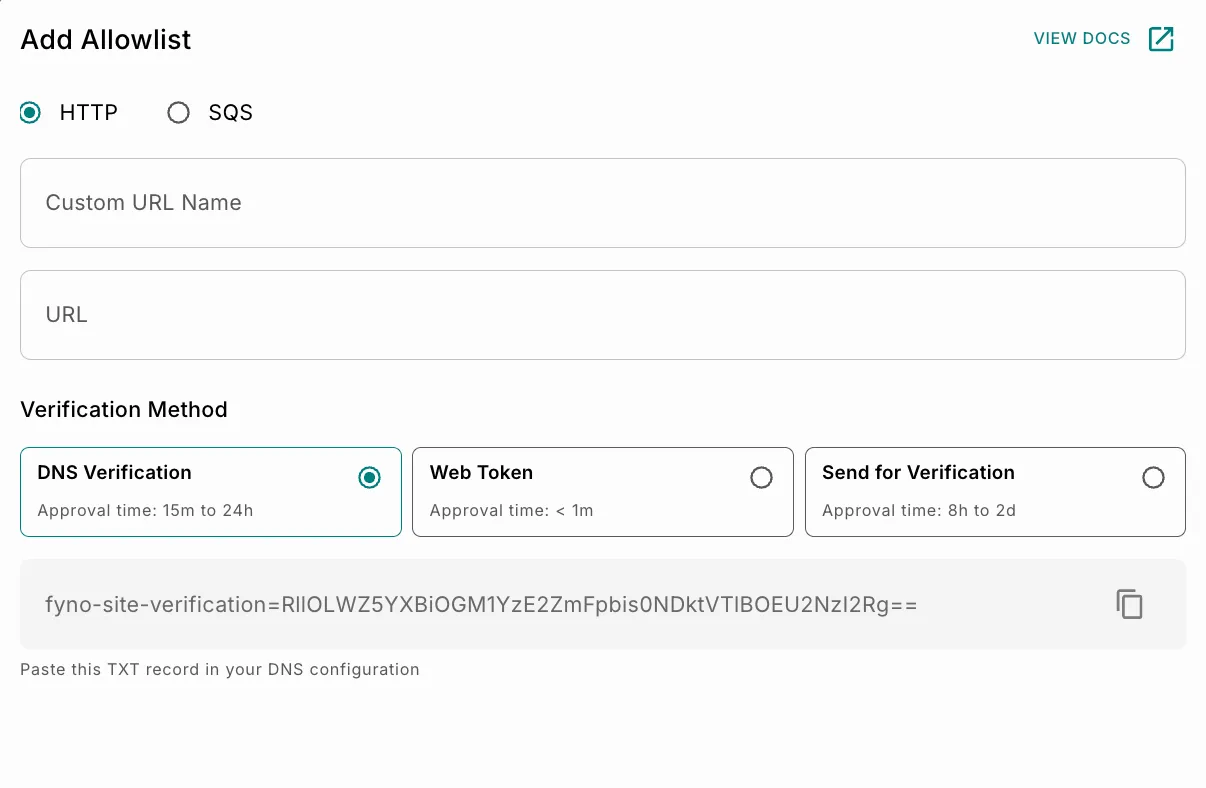
Steps to Add an HTTP Allowlist:

1Navigate to Workspace Settings > Allowlist.
2Click Add, the Add Allowlist screen opens.
3Select the HTTP option from the available allowlist types.
4Enter a Custom URL Name and URL for the Allowlist.

Verification Method

The Verification Method section determines how ownership or access to the provided URL is validated before the endpoint is allowlisted.

Three verification methods are available:

Verification MethodDescriptionApproval Time
DNS VerificationVerifies domain ownership using a DNS TXT record.15 minutes to 24 hours
Web TokenVerifies the endpoint by validating a token returned from the URL response.Less than 1 minute
Send for VerificationSubmits the URL for manual review and approval by the Fyno team.8 hours to 2 days

DNS Verification

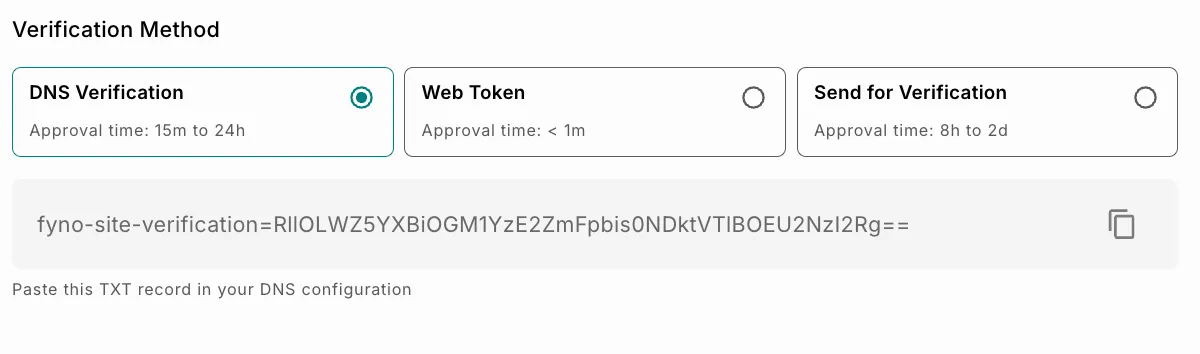
Use DNS Verification when you have access to your domain’s DNS configuration. When you select DNS Verification, the system generates a verification TXT record to confirm domain ownership.
Steps

1Select DNS Verification.
2Copy the generated TXT record using the copy icon.
3Add the TXT record to your domain’s DNS configuration through your DNS provider.
4Wait for the DNS changes to propagate.
5Click Next to verify the domain ownership.

Once the record is detected, the verification is completed automatically.

Web Token Verification

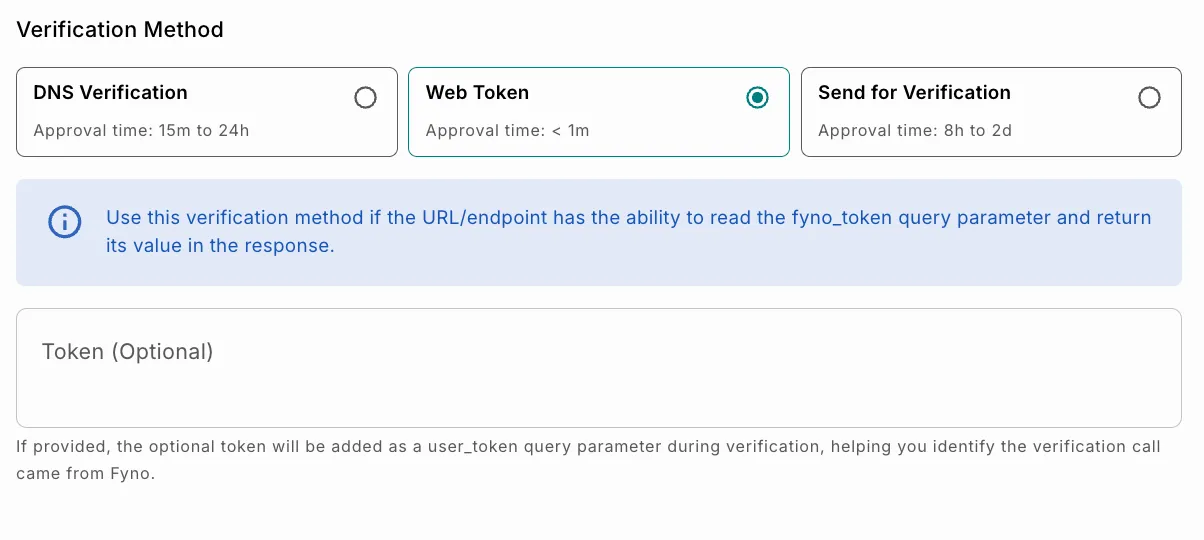
Use Web Token Verification when the endpoint can read query parameters and return the token value in the response.
How It Works

When you select Web Token Verification, the platform sends a request to the specified endpoint with a fyno_token query parameter.

To complete verification, the endpoint must:

  • Read the token value from the request.
  • Return the same token value in the response.

Once the returned token matches the generated token, the endpoint is verified successfully.

Steps

1Select Web Token Verification.
2Optionally enter a custom token value.
3

Configure the endpoint to:

  • Read the fyno_token query parameter from the request.
  • Return the same token value in the response.
4Click Next to initiate verification.

Once the token is validated, the endpoint is verified automatically.

Token Field

FieldDescription
Token (Optional)An optional custom alphanumeric token that is added as a user_token query parameter during verification. This helps identify that the verification request originated from Fyno and can be used for additional validation on the receiving endpoint.

Send for Verification

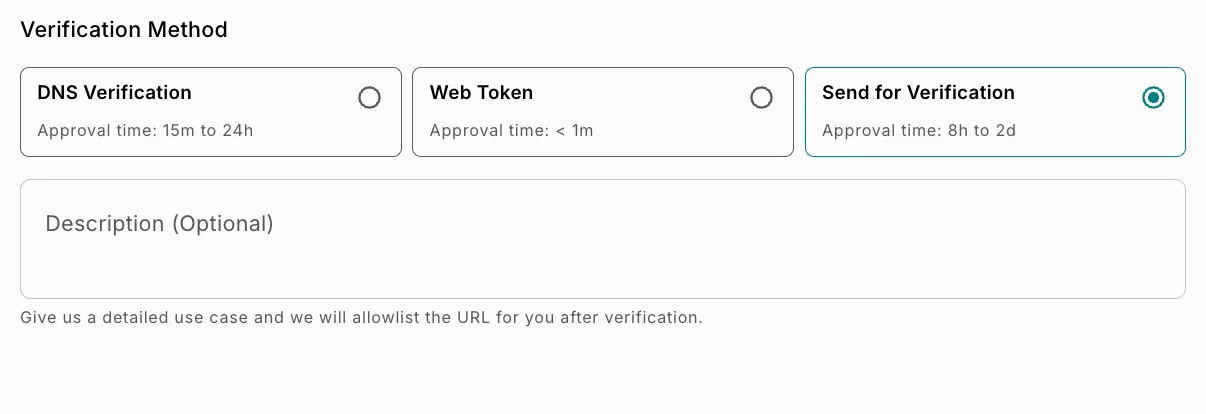
Use this option when DNS or Web Token verification cannot be configured.
How It Works

The provided URL is submitted for manual verification and approval by the Fyno team.

Steps

1Select Send for Verification.
2

Enter a detailed description explaining (optional):

  • Why the URL needs to be allowlisted.
  • The intended use case.
  • Any relevant integration details.
3Click Next to configure the endpoint and submit the request for verification.