

Fyno Templates Overview
Think of a Fyno Template as a master blueprint for your messages. Instead of writing text directly into your code, you design your messages inside Fyno. This means you can change your wording, fix typos, or update branding anytime you want without needing a developer to change code or redeploy the app.
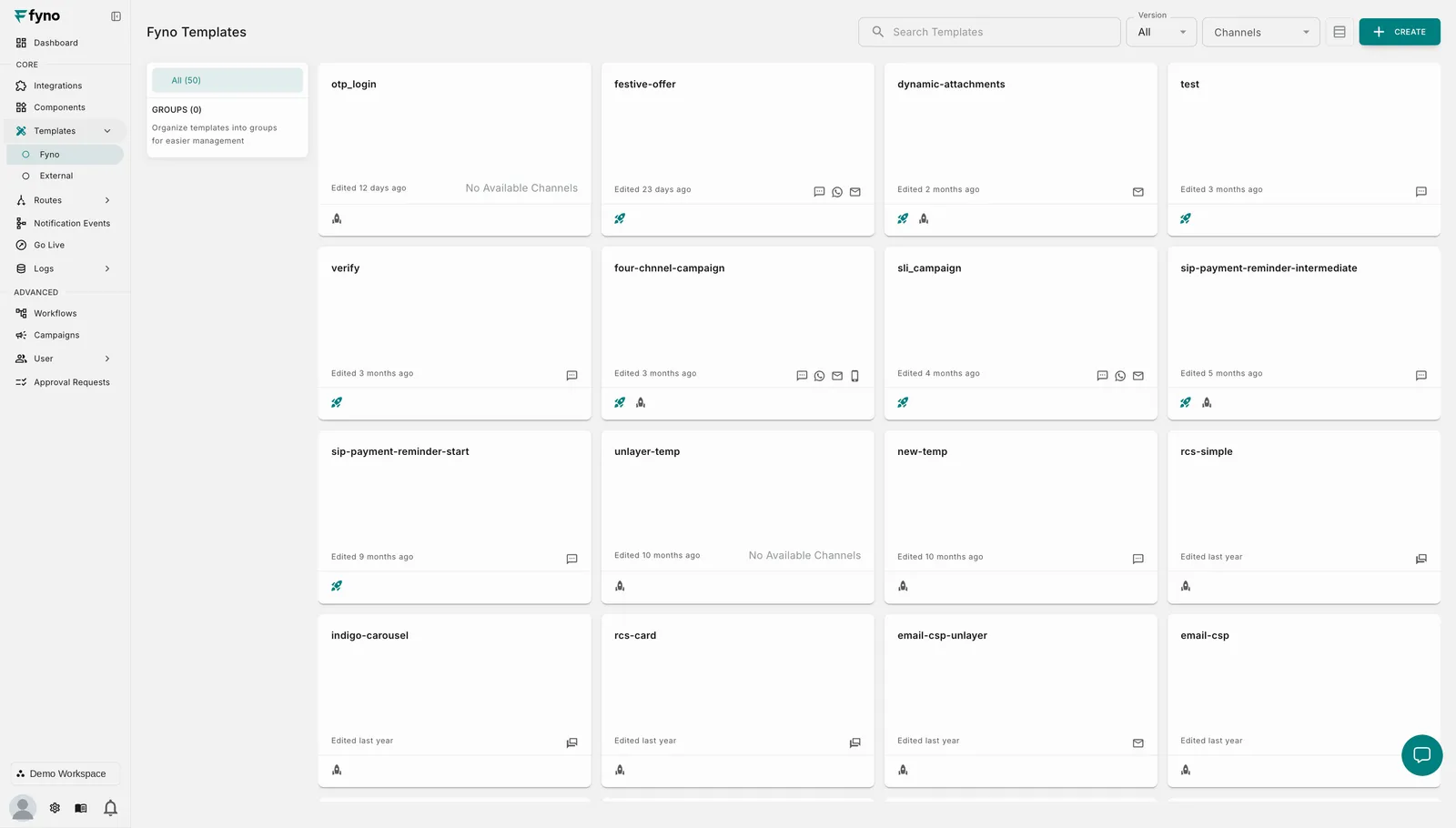
Where it fits in your workflow
It sits right in the middle of your core notification setup:
- Connect your provider: Link your communication channels (e.g., Twilio, SendGrid, Gupshup).
- Design your Template: Create and personalize your messaging layouts (This Step!).
- Trigger it: Launch and orchestrate the delivery using a workflow event.
Tip: By decoupling message content from application logic, you can safely experiment, update multi-channel copy, and test variations in real-time without affecting active production features.
Copying Templates
You can copy Fyno Templates from one workspace to another, making it easy to reuse notification templates across multiple workspaces. The copy process is available only in workspaces where you have the Owner role.
Important: Only Fyno Templates can be copied using this process. External Templates are not supported.
Before you begin
Before copying templates, make sure the destination workspace is ready.
- Create any required integrations in the destination workspace.
- If the template uses reusable components, copy those components to the destination workspace before copying the template.
Note: Only the template and its associated template data are copied. Dependencies such as integrations and reusable components must exist in the destination workspace.
Steps to copy templates
- Switch to the workspace that contains the template you want to copy.
- Navigate to Templates → Fyno.
- Locate the template you want to copy.
- Click the Three Dots (⋮) menu on the template.
- Select Copy to another workspace.
- A checkbox appears beside every template in the list. Select one or more templates to copy.
- Click Copy Selected Templates.
- If copying a single template that has a Live version, choose whether to copy the latest Live or Test version. If the template only has a Test version, that version is copied.
- When copying multiple templates, the latest available Live version is copied where available; otherwise, the latest Test version is copied.
- In the Destination Workspace(s) dropdown, select up to five workspaces where you have the Owner role.
- Click Confirm to begin the copy process.
Once the process completes, the selected templates are available in each destination workspace.
How template versioning works
Let’s say we are copying a template from Workspace A to Workspace B. There are two versioning scenarios to keep in mind.
- If the template does not exist in Workspace B, then the version created by the copy process will always be v1 (Test).
- If the template already exists in Workspace B, then the copy process will create a new standalone version (neither test nor live).
Workspace B already has the template at v1 (Test). When you copy the template into it, Fyno creates a new standalone version, v2. To use it:
- Select v2 from the version dropdown next to the template name.
- Choose what to do with it:
- Click Save to make it v2 (Test).
- Click Go Live to promote it to v2 (Live).
This way, existing versions in the destination workspace are never overwritten, and you decide when to save or promote the copied template.