

Sinch WhatsApp Integration
Before getting started, ensure you have an active WhatsApp number and access to credentials from Sinch. You will also need approved WhatsApp templates under your Meta WhatsApp Business Account (WABA).
Note: All required credentials (Username, Password, API Token, WABA details) will be provided by the Sinch team upon request.
Find the Provider
Navigate to the Integrations page. Under the WhatsApp section, click on the Sinch (WhatsApp) provider.
Configure the Integration
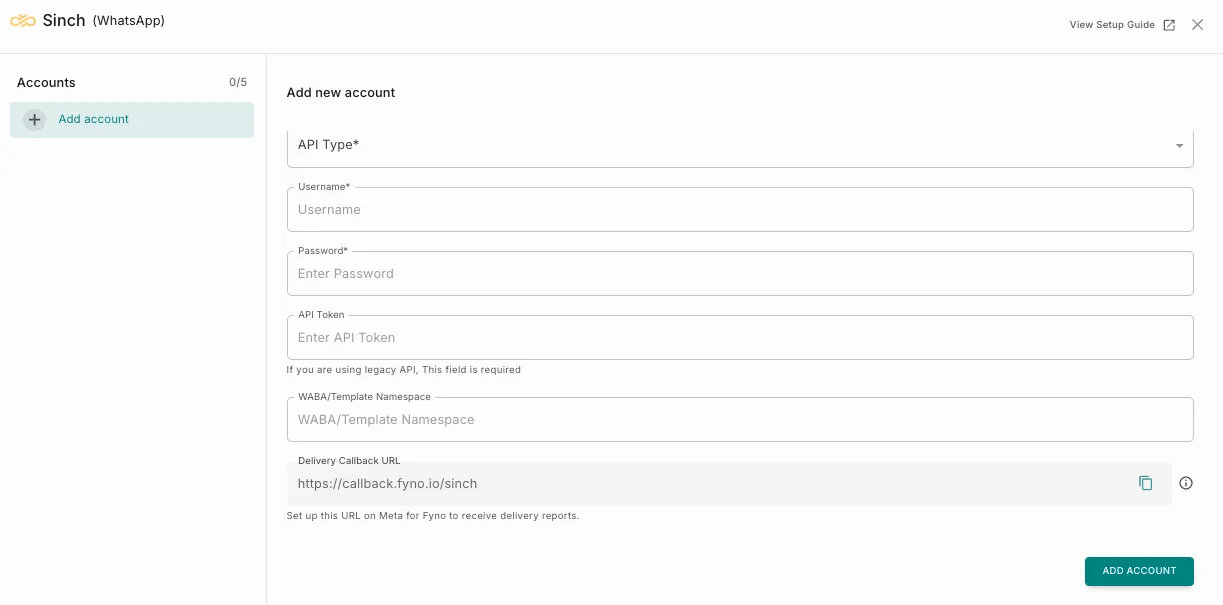
In the pop-up that appears, fill in the following details:
-
Custom Name Provide a name that helps you identify the configured account in Fyno. Example:
Sinch-WhatsApp-Prod -
API Type Select one of the following:
-
OAuth (recommended for production)
-
Legacy (not recommended for production; intended only for testing APIs)
-
Username & Password Required when API Type = OAuth. Provided by the Sinch team and used for secure authentication.
-
API Token Required when API Type = Legacy. Provided by the Sinch team and used for authentication in legacy integrations.
-
WABA / Template Namespace Required to fetch external templates. Provided by Sinch / Meta. Ensures templates are available for sending WhatsApp messages.
-
Delivery Callback URL Copy the following URL and configure it in your Sinch dashboard to receive delivery reports:
https://callback.fyno.io/sinch
Message Delivery Status
To enable delivery tracking:
- Configure the callback URL in your Sinch account.
- Ensure delivery/reporting webhooks are enabled.
Once set up:
- Message status updates (sent, delivered, failed, read) will be available in Fyno.
- You can view them under the Delivery tab in logs.
Important Notes
- OAuth is strongly recommended for production use.
- Legacy API is only for testing purposes.
- WABA details are mandatory for template syncing.
- Templates must be approved in Meta before use.
- All integration credentials must be requested from the Sinch team.