

WhatsApp Templates
What you can do with WhatsApp External Templates
- Create a new template and send it for approval.
- Sync templates that already exist in your WhatsApp account.
- Edit a template to reuse it.
- Save a template as a draft before submitting.
- Check the approval status of each template.
- Re-sync templates after changes are made.
All the WhatsApp providers are listed here:
















How WhatsApp External Templates work
WhatsApp Template Categories
When you submit a template, you must choose a category.
WhatsApp (Meta) reviews the content and decides whether the selected category is correct.
During review, Meta may change the category if the message intent matches a different one.
How Meta reviews the category
After you send a template for approval:
- The template goes to Meta for policy review.
- Meta checks the message content and intent.
- If the category does not match the message purpose, Meta automatically assigns the correct category.
- The final category appears after approval.
Examples:
- A discount offer marked as Utility → changed to Marketing
- A delivery update marked as Marketing → changed to Utility
For detailed rules and examples, refer to Meta Template categorization.
WhatsApp Template Statuses
For more detail, check the see message_template_status_update webhook reference.
Meta Quality Rating
During the sync process, the system also fetches the Meta Quality Rating for each template.
For more information, see Messaging Limits and Quality Rating.
Disclaimer
The image or video provided must be a sample for demonstration purposes only.
Do not include any real customer information or personally identifiable data.
Draft and Synced Versions
Every WhatsApp template in Fyno exists in relation to Meta approval. 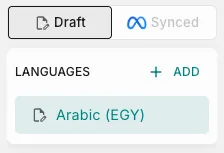
Synced version
- Shows the template status and content as per Meta.
- This is the live production message customers receive.
- Content cannot be edited.
- To make updates, navigate to the Draft tab.
Change logs
The Change logs panel shows the history of updates made to a template.
It helps you track:
- What was modified.
- When it was modified.
- Why a template went for re-approval.
A new entry appears when:
- Message text is edited.
- Variables are added or removed.
- Buttons or links are updated.
- Media is changed (image, video, document, etc.)
- A new language is added.
- The template is resubmitted after rejection.
This is useful when multiple team members work on the same template.
Common Rejection Reasons
Incorrect variable formatting
- Variables missing or mismatched curly braces → use
{{1}} - Special characters inside variables (
#,$,%) - Non-sequential variables
{{1}}, {{2}}, {{4}}
{{1}}, {{2}}, {{3}}
Violation of WhatsApp Commerce Policy
If you offer goods or services for sale, all related content (descriptions, prices, taxes, legal disclosures) must comply with the policy.
Violation of WhatsApp Business Policy
Do not request sensitive identifiers such as:
- Full payment card numbers.
- Financial account numbers.
- National ID numbers.
- Sensitive documents.
Requesting partial identifiers (for example, last 4 digits) is allowed.
Abusive or threatening content
Content that includes:
- Legal threats
- Public shaming
- Abusive or intimidating language
will be rejected.
Duplicate template submission
Templates with the same body and footer as an existing template are rejected as duplicates.
Tip: Review your template carefully before submission to avoid approval delays.