For AI agents: a documentation index is available at the root level at /llms.txt and /llms-full.txt. Append /llms.txt to any URL for a page-level index, or .md for the markdown version of any page.
LoginTalk to us
DocumentationSDKsConnectAPI Reference
    • Home
    • Release Notes
  • Getting Started
    • Quickstart
    • Dashboard
    • Alarms
    • Versioning
  • Core Features
    • Integrations
      • SMS
      • RCS
      • WhatsApp
        • AiSensy
        • Connectly
        • Freshchat
        • Gallabox
        • Gupshup Enterprise
        • Gupshup
        • Infobip
        • Interakt
        • Kaleyra.io
        • Karix
        • Sinch
        • MessageBird
        • Meta CoX
        • Meta Direct
        • Meta Direct Plus
        • Meta
        • MSG91
        • Route Mobile
        • Twilio
        • ValueFirst
        • Verloop
        • WATI
        • Yellow.ai
      • Email
      • Chat
      • Push
      • Voice
      • In-App
      • Web Push
      • DLT
      • Verification
    • Templates
    • Routes
    • Notification Events
    • Requests/Go Live
    • Logs
  • Advanced Features
    • Workflows
    • Campaigns
    • User Profiles
    • Approval Request
  • Settings
    • Profile Settings
    • Workspaces
    • Workspace Settings
LogoLogo
LoginTalk to us
On this page
  • Message Delivery Status
Core FeaturesIntegrationsWhatsApp

Karix WhatsApp Integration

Was this page helpful?
Previous

Sinch WhatsApp Integration

Next
Built with

Before we get started, you will need an active WhatsApp number as well as templates pre-configured in your Karix account.

1

Find the Provider

Navigate to the Integrations page. Under “WhatsApp” section, click on the “Karix” button.

2

Configure the Integration

In the pop-up, fill in:

  • Custom name: Provide a name to help you identify the configured account in Fyno’s portal.

  • API/Account Key: Go to Power APIs page. Click on “Create keys” button. Enter the “key name” and “description” in the create keys modal and save. Copy the API key generated by clicking on the “eye” button and add it here.

  • From WhatsApp Number: Enter the registered WhatsApp number that you would like to use to initiate conversations.
    Login to Karix managebot account and follow the below steps:

    1. Go to “WhatsApp Campaign” -> “Profiles” page on the left navigation menu
    2. If you have already added a WhatsApp number, you’ll see Mobile number and Sender Name on the right side of the page or
    3. You can add a number by clicking on “Add WhatsApp Number” button
3

Complete the Integration

Click on “Add Account” once done, and you are all set!

Message Delivery Status

One of the platform advantage of using Fyno as a central communication system is that it shows notification analytics for all channels in your Fyno account together.

Login to Karix managebot account and follow the below steps to setup webhook URL:
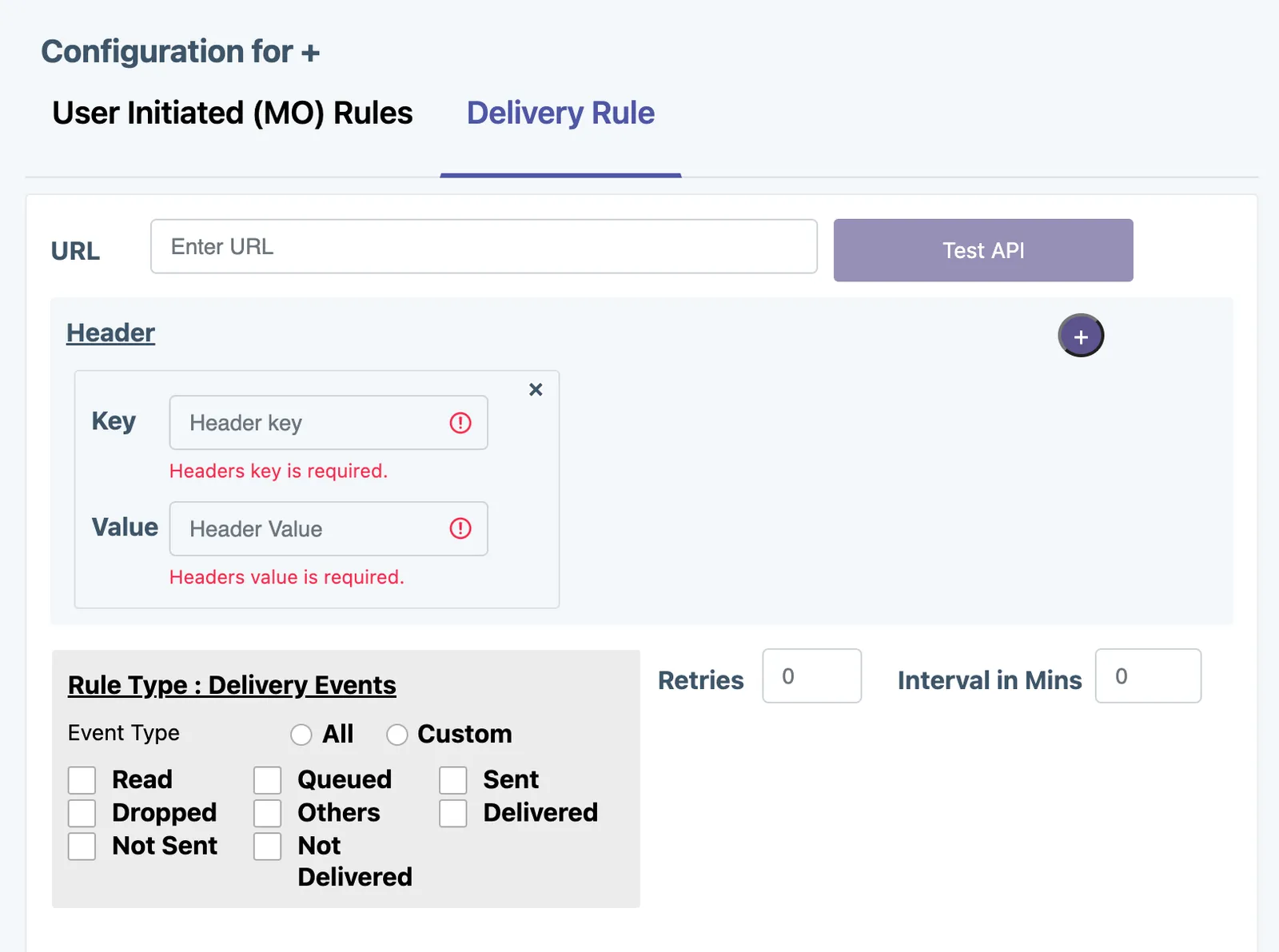
1Go to “Whatsapp Campaign” -> “Webhook_Config” page on the left navigation menu
2Under “Delivery rule” tab, click ‘Create New’. Add Callback URL given in the Karix Integration popup in the URL field.
3Header: Key - “Content-Type”, Value - “application/json”
4Select all required delivery events for tracking