

Typing Indicator Widget within a Workflow
The Typing Indicator widget displays a typing animation in the recipient’s chat window while the workflow prepares its next message.
 This widget is used in conversational workflows — WhatsApp journeys, chatbots, and support flows — where the next step needs a few seconds to complete. Showing a typing animation during that gap tells the user a reply is on the way instead of leaving the conversation silent.
The widget has no configurable fields. It is placed in the workflow ahead of the step that sends the reply.
The typing indicator will disappear once you respond or after 25 seconds, whichever comes first. To ensure a better user experience, display the typing indicator only when a response will be sent by you.
Prerequisites
- The workflow must be a conversational flow that has already received an inbound message from the user. The typing indicator is sent against the user’s most recent incoming message, so an incoming message step must precede it.
- Supported on WhatsApp.
Steps to configure Typing Indicator Widget
Connect it to the step that receives the user’s message — for example, a Wait for Reply widget or an incoming message trigger.
During workflow execution, the typing animation appears in the user’s chat as soon as the widget runs. The workflow does not pause — it continues immediately to the next step.
Behaviour during execution
| Scenario | Result |
|---|---|
| A message is sent within 25 seconds | The typing indicator is replaced by the message. |
| No message is sent within 25 seconds | The typing indicator is dismissed automatically and the workflow continues. |
| The branch ends without sending a message | The typing indicator is dismissed after 25 seconds, having signalled a reply that never came. 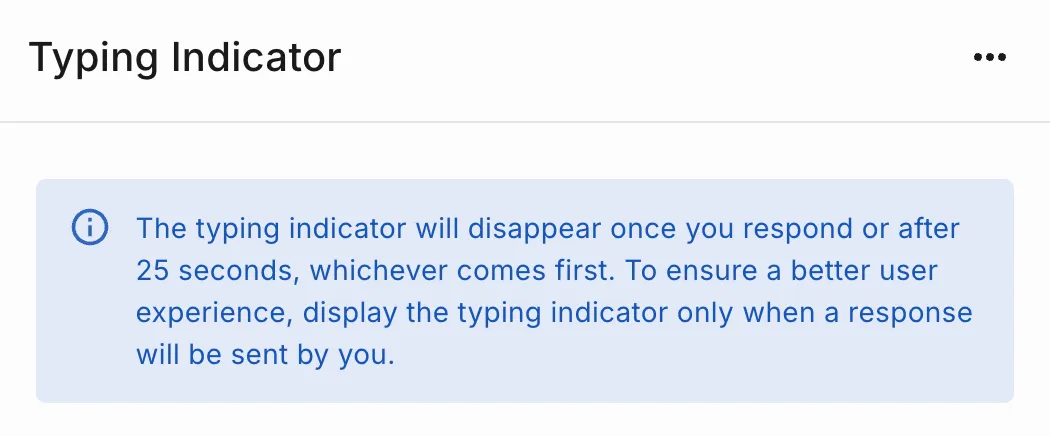 |
Example Use Cases
Best practices
- Place the widget immediately before the step that causes the delay, not at the start of the workflow.
- Use it only on branches that end in a message to the user.
- Do not place it before a Wait For widget configured for longer than 25 seconds — the animation will have disappeared well before the message is sent.
- Add the widget once per reply.