

Data Masking
Data Masking helps protect sensitive information from being exposed within the Fyno Logs and User Profile. When enabled, sensitive data is displayed in a masked format while remaining securely stored and processed by the platform.
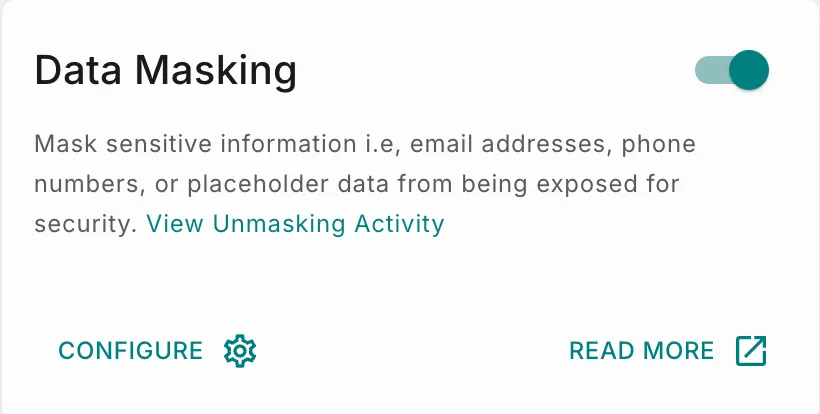 It can be used to prevent accidental exposure of personally identifiable information (PII), such as email addresses, phone numbers, identifiers, and other sensitive data contained in notification payloads.
Permissions
- Only users with the Owner or Super Admin role can configure Data Masking settings.
- Other users can view masked data based on their access permissions but cannot:
- Enable or disable Default Masking or Regex Masking.
- Change the masking type.
- To give other users access to unmasked data, assign them the Unmask Sensitive Data add-on policy.
How Data Masking Works?
When Data Masking is enabled, Fyno masks sensitive information across the platform wherever it is displayed or stored. This includes, but is not limited to:
- Destination details.
- Data payloads received through APIs.
- Generated logs.
- Execution and debugging information.
- Any other interfaces or records where sensitive data may be exposed.
The original values are stored and processed by Fyno as usual. However, whenever sensitive information is displayed within Logs and User Profile, including in logs, payload views, and other system-generated outputs, it is shown in a masked format.
For example, users viewing execution or delivery logs will see masked values instead of the original sensitive data, helping prevent unauthorized visibility while preserving operational insights..
Enable Data Masking
Configure Data Masking
When you enable Data Masking for the first time, the configuration dialog opens automatically, allowing you to select one of the available masking types. After Data Masking has been enabled, you can use Configure to modify the masking settings at any time.
View Unmasking Activity
Unmasking Activity shows when masked data was unmasked and who unmasked it, so you can keep track of who has viewed sensitive information.
Activities are listed with the most recent first. Each entry shows:
To learn who can unmask data in logs and how, see Data Masking in logs.
Default Masking
Default Masking masks Destination and Data Payload values when they appear in logs, preventing sensitive information from being exposed while preserving the overall log structure and usability.
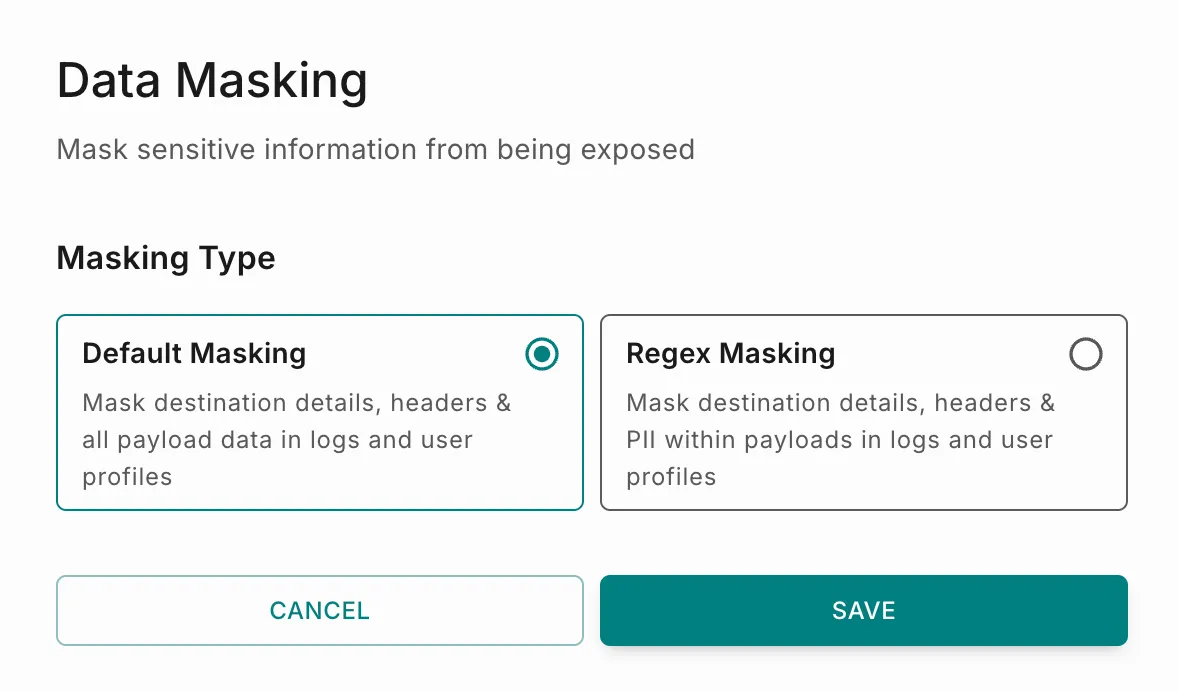 When enabled:
- Headers: All header values are masked by default.
- Destinations: All destinations are masked by default.
- Data Payloads: Only values matching supported masking patterns are masked.
Example: Default Masking
Original Request
Destination: john.doe@example.com
Data Payload
Displayed in Fyno Logs
Destination: xxxxx
Data Payload
In Default Masking mode, all Destination and Data Payload values are masked regardless of whether they contain sensitive information.
Regex Masking
Regex Masking allows sensitive values to be identified and masked using predefined patterns.
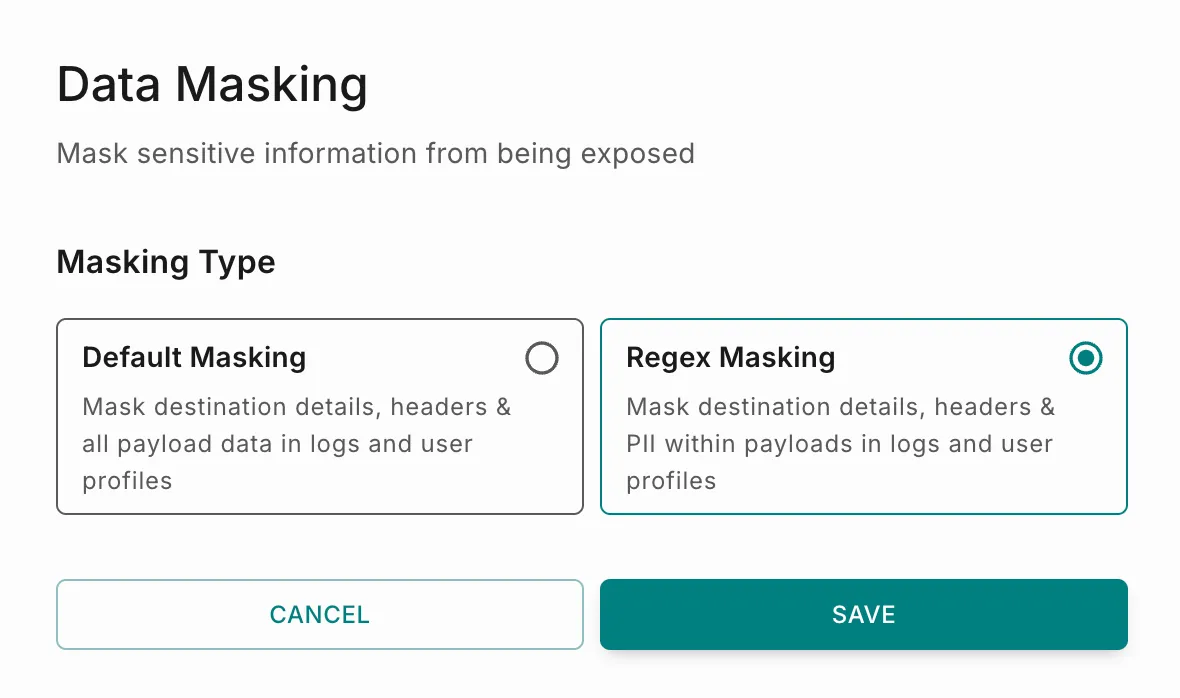 All destination and header values are masked by default.
For data payloads, Fyno scans the payload and masks only values that match supported patterns, including:
- Email addresses
- Phone numbers
- Government IDs
- Bank account details
- Financial identifiers
- Other sensitive information identified through predefined pattern-matching rules.
Example: Regex Masking
Original Request
Destination: john.doe@example.com
Data Payload
Displayed in Fyno Logs
Destination: xxxxx
Data Payload
Where Masking Is Applied
Masked values are displayed throughout Logs and User Profile, including:
- Sent Logs
- Notification Event Logs
- Workflow Logs
- Inbound Messaging Logs
- Delivery Callback Logs
- Verification Logs
- User Profile
Sensitive values appear as masked text (for example, xxxxx) wherever Data Masking is applied.
Disabling Data Masking
To disable Data Masking:
Once disabled, data will be displayed according to the current access permissions and visibility settings configured for the workspace.