

Create an Approval Request for WhatsApp
Approval requests let your team review a WhatsApp External Template internally before it’s sent to Meta. This page covers what’s specific to external templates. For how approvals work in general, see Approval Workflow.
How it works
- You create or update a template and submit one or more of its languages for approval.
- The request goes to the approvers you select.
- Each approver approves or rejects the request.
- When the minimum number of approvals is reached, the template is marked Approved and sent to Meta, either automatically or manually.
Before you start
Enable approval requests for external templates. When you set it up, you choose the reviewers and the minimum number of approvals a template needs.
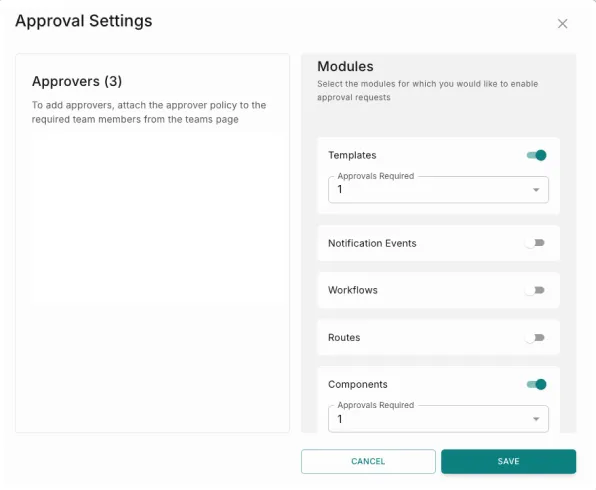
Create an approval request
Open the language to submit
Open the template and select the language you want approved, for example English (IND).

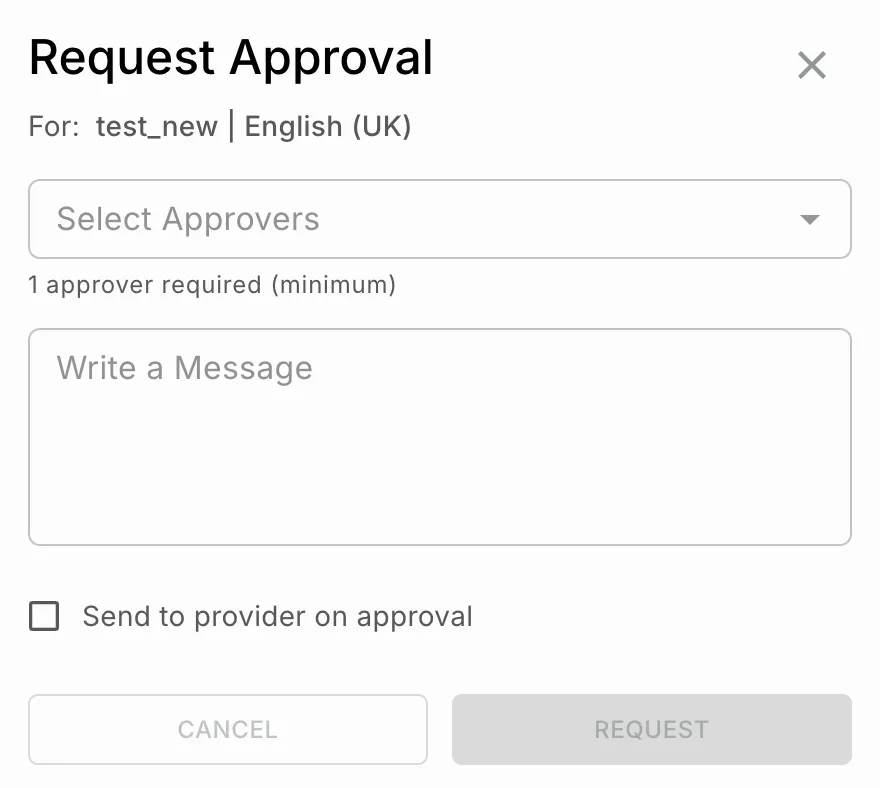
Select approvers
In Select Approvers, choose one or more approvers. How many you need depends on the minimum number of approvals set for your workspace.
Add a message (optional)
In Write a Message, add context for the approvers, such as Please review for compliance and messaging tone. Approvers see it while they review.
Sending the template to Meta
Send to provider on approval selected
Send to provider on approval cleared
The template is sent to Meta automatically as soon as it gets the minimum number of approvals.
Approval messages and rejections
You can add a message when you request, approve or reject a request. A message is required when you reject one. All approval messages are recorded in the audit log.
If any required approver rejects the request, the entire request is marked Rejected, however many approvers there are. Update the template before you submit it again.
Cancel an approval request
The requester can cancel an ongoing request at any time, for example to make more edits before creating a new request.