

Creating a workflow with MoEngage
Creating a workflow using MoEngage as the trigger source allows you to process WhatsApp delivery tracking events and customer communication workflows directly from MoEngage integrations.
By configuring the MoEngage trigger inside Fyno, you can connect your WhatsApp delivery tracking URL, associate a preferred WhatsApp integration, and automate downstream workflows based on customer engagement or delivery events.
This setup helps centralize communication orchestration while ensuring that WhatsApp delivery updates and interaction flows are handled seamlessly across systems.
MoEngage Trigger Setup
Navigate to the Workflow section from the left navigation panel.
If you have already created workflows, you will see all the existing workflows in a card view. Click Create+ to create a new workflow.
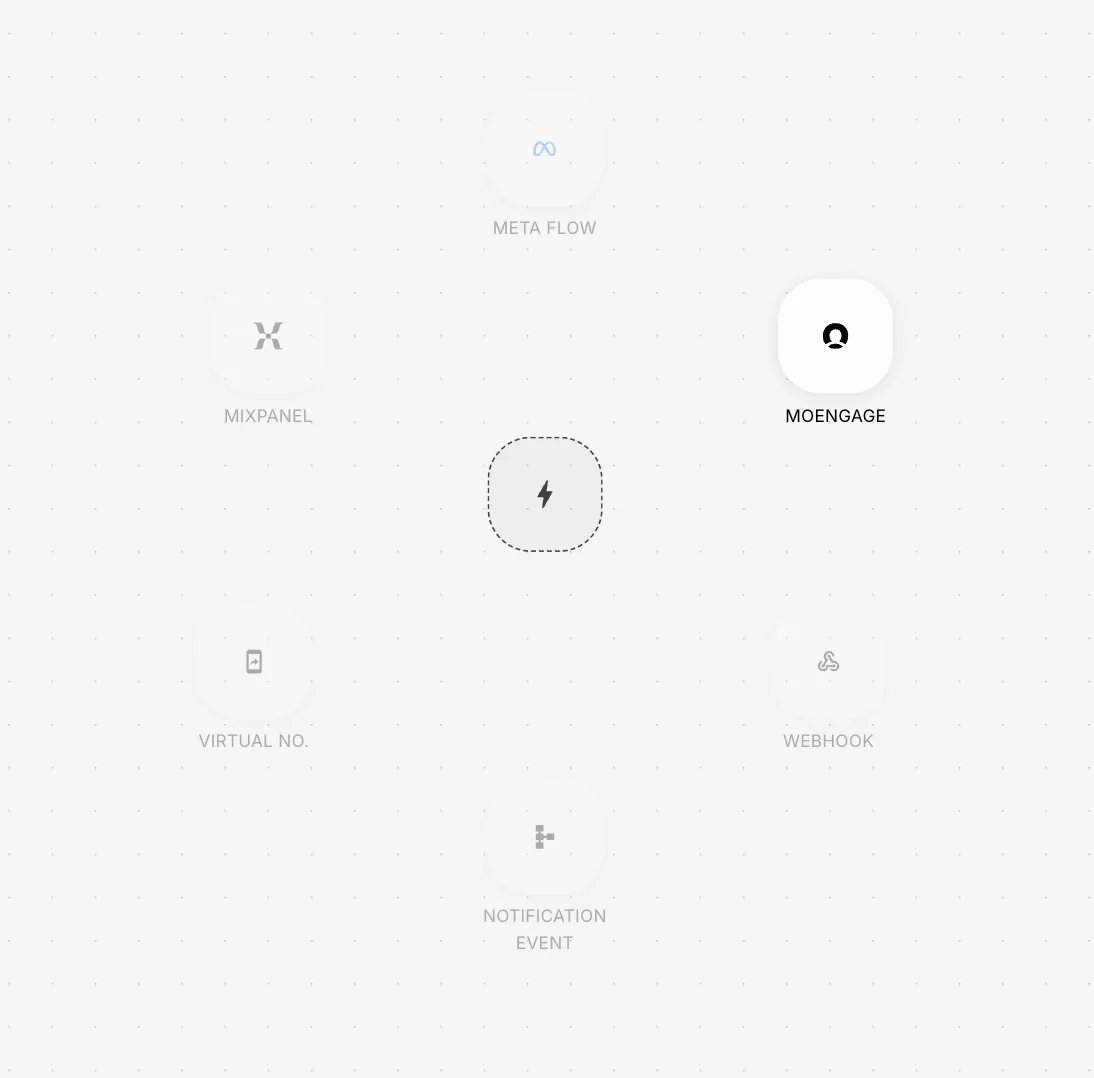
Once you click +Create, the Workflow canvas opens with the list of available triggers.
Prerequisites
Before configuring a MoEngage trigger, ensure the following prerequisites are completed:
- A valid MoEngage account is already configured externally.
- Your WhatsApp integration is configured inside Fyno.
- The delivery tracking URL is available from your MoEngage sender configuration.
- Required APIs and webhook endpoints are already allowlisted if downstream API actions are involved.
- You have clarity on the event payload structure MoEngage sends.
- Your WhatsApp Business account is active and properly connected.
What is MoEngage Trigger?
The MoEngage trigger allows workflows to start based on delivery tracking events and engagement activities configured through MoEngage.
 This trigger is commonly used for:
- WhatsApp delivery tracking
- Event-driven customer communication
- Delivery status monitoring
- Customer engagement workflows
- Notification orchestration
- Campaign response handling
A common use case would be:
- A WhatsApp notification is triggered from MoEngage.
- Delivery tracking updates are sent to Fyno.
- Fyno receives the delivery event.
- The workflow processes the event.
- Additional APIs, conditions, subflows, or user profile updates are executed based on delivery status or engagement data.
This helps businesses build centralized automation workflows around customer communication events.
How to Configure a MoEngage Trigger
To configure a MoEngage trigger in Fyno, follow the below steps.
Navigate to the Workflow section from the left navigation panel.
If you have already created workflows, you will see all the existing workflows in a card view. Click Create+ to create a new workflow.
Once you click +Create, the Workflow canvas opens with the list of available triggers.
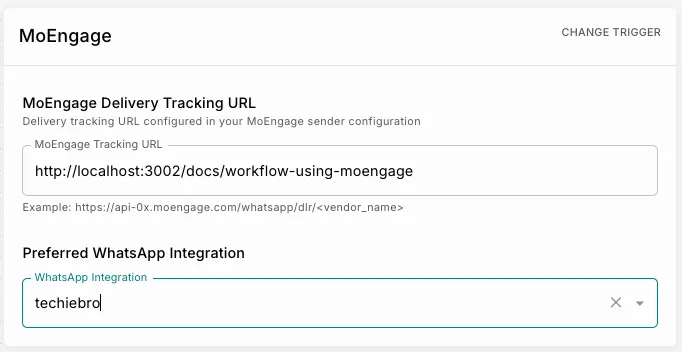
Once the MoEngage trigger is added, the configuration screen opens.
Under MoEngage Delivery Tracking URL, configure the delivery tracking URL from your MoEngage sender configuration.
Example format:
This URL allows MoEngage delivery tracking events to be routed correctly through the workflow.
MoEngage Delivery Tracking URL
The Delivery Tracking URL is one of the most important parts of the MoEngage trigger configuration.
This URL acts as the endpoint through which delivery events are received and processed inside Fyno workflows.
Typical delivery events include:
- Sent
- Delivered
- Read
- Failed
- Replied
These events can then be used to trigger additional workflow logic dynamically.
Why Delivery Tracking is Important
Delivery tracking helps businesses:
- Monitor message delivery performance
- Detect failures automatically
- Trigger fallback communication channels
- Update customer engagement statuses
- Create operational alerts
- Build analytics and reporting workflows
For example:
- If a WhatsApp message fails → trigger SMS fallback
- If a message is delivered → update customer profile
- If a customer replies → invoke a support workflow
Preferred WhatsApp Integration
The Preferred WhatsApp Integration determines which WhatsApp Business Account should be associated with the workflow execution.
Only configured WhatsApp integrations available inside the workspace will appear in the dropdown.
This integration is used for:
- Message delivery tracking
- WhatsApp event association
- Workflow routing
- Communication orchestration
Using the correct integration ensures that delivery tracking and engagement events are mapped to the correct WhatsApp sender configuration.
How MoEngage Workflows Execute
Once the trigger is configured, the workflow behaves like a standard Fyno workflow.
After the trigger node, you can add:
- API blocks
- User Profile updates
- Subflows
- Conditions
- Notification actions
The MoEngage trigger acts as the workflow entry point, while the downstream nodes determine how the event should be processed.
Actions Supported in MoEngage Workflows
API
API actions can be used to process delivery tracking events dynamically.
Common examples include:
- Updating CRM systems
- Fetching customer details
- Logging delivery statuses
- Triggering support workflows
- Syncing analytics systems
- Updating campaign statuses
API Configuration
To configure an API block inside the workflow, follow the below steps.
Drag and drop the API action onto the workflow canvas and connect it to the MoEngage trigger.
Once added, the API configuration panel opens.
Under Allowlist URL, select the verified allowlisted endpoint that should be called.
Only URLs added in the Allowlist section will appear here.
Select the HTTP Method.
Supported methods include:
- GET
- POST
The selected method should align with your backend implementation.
Conditions in MoEngage Workflows
Condition blocks can be used to branch workflow execution based on delivery or engagement events.
Examples:
- If delivery status is delivered → update profile
- If delivery status is failed → trigger retry flow
- If customer replied → invoke support workflow
- If read receipt received → mark engagement success
Supported operators include:
- Equals
- Not Equals
- Contains
- Starts With
- Ends With
- Greater Than
- Less Than
- Greater than or Equal
- Less than or Equal
- Is
- Is Empty
- In
- nin
- is boolean
Conditions help orchestrate dynamic communication workflows efficiently.
Subflows
Subflows help modularize reusable communication logic across workflows.
Common use cases include:
- Retry workflows
- Fallback channel handling
- Delivery failure management
- Customer support escalation
- Analytics synchronization
This improves maintainability and workflow scalability.
User Profile Updates
The User Profiles action allows you to store or update customer engagement attributes during workflow execution.
Examples include:
- Last delivery status
- Last engagement timestamp
- Preferred communication channel
- Campaign interaction status
- Support escalation flags
This helps maintain continuity across future campaigns and engagement journeys.
Notification Event Integration
MoEngage workflows can also work alongside notification event triggers for centralized communication orchestration.
This enables workflows such as:
- Multi-channel engagement flows
- Unified delivery tracking
- Customer engagement analytics
- Event-driven campaign automation
Example Workflow Scenarios
Delivery Failure Retry Workflow
A common delivery retry workflow may behave as follows.
Customer Engagement Tracking Workflow
Another common workflow may behave as follows.
Best Practices
- Always validate delivery event payloads before workflow processing.
- Use Conditions to handle retry and fallback logic properly.
- Keep API calls optimized for high-frequency delivery events.
- Use Subflows to modularize reusable communication logic.
- Maintain meaningful variable naming conventions.
- Test workflows thoroughly before enabling them in production.
- Monitor workflow executions regularly to identify delivery anomalies.
- Ensure the WhatsApp integration selected matches the MoEngage sender configuration.
Important Things to Know
- Ensure the delivery tracking URL is configured correctly inside MoEngage sender settings.
- Incoming payload structures may vary depending on MoEngage event configuration.
- Incorrect WhatsApp integration mapping can result in delivery tracking inconsistencies.
- High-frequency delivery events may generate large workflow volumes.
- Use Restricted workflows for production-grade implementations wherever possible.
- API rate limiting should be considered when processing large-scale engagement events.
- Retry and fallback logic should always be implemented for failed deliveries.
How to raise Approval requests
If your workspace has maker-checker workflow enabled for template management, the ‘Go Live’ action requires an additional approval step. You’ll need to choose from your designated approvers who will review and authorize the template changes.
You can read more about it here