

Integrations Overview
Integrations connect Fyno to the providers you already use, so you can send notifications over any channel (SMS, Email, Push, WhatsApp, and more) from one place.
This page explains the core concepts behind integrations and walks you through sharing an integration setup with someone who holds the credentials.
Key concepts
Channels
Channels are where every integration starts. A channel is the method of communication you use to reach your end users. Since relying on a single channel is rarely enough, Fyno supports multiple channels side by side.
Each channel has its own provider-specific setup guides, covered in the following sections.
Providers
Providers are the companies or services that deliver your SMS, Email, Push, and other messages. Depending on your business needs, you can connect one or more providers under each channel.
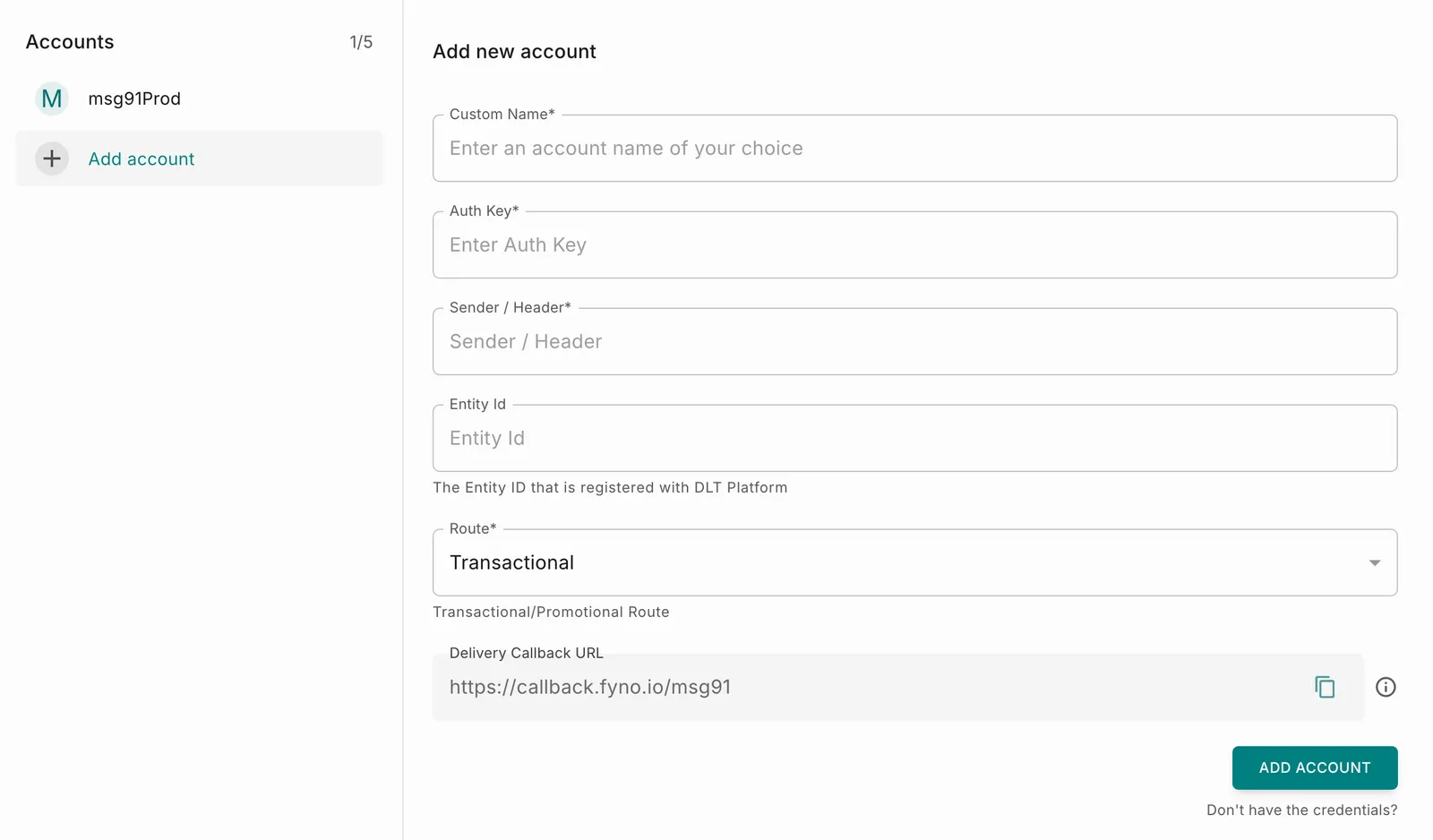
Providers are grouped under the channel they serve. Select a provider to add one or more accounts for it.
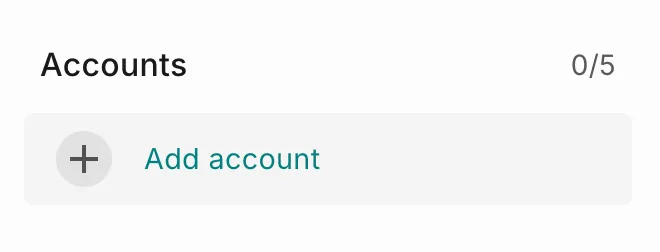
You can add up to 5 accounts per provider. For example, under the SMS channel, you can add up to 5 Twilio accounts.
Don’t see your provider listed? Reach out to us at support@fyno.io and we’ll do our best to help.
Integration ID
Every account you add receives an Integration ID. To find it, open the provider from the Providers listing page and select the account you added.
Integration IDs are assigned automatically by Fyno and cannot be edited.
Public Integration Link
Don’t have the credentials to set up an integration yourself? Generate a public integration link and share it with someone who does.
The person you share it with can complete the setup without needing access to your Fyno account. Once they finish, the integration appears in your workspace automatically.
Generate a public integration link
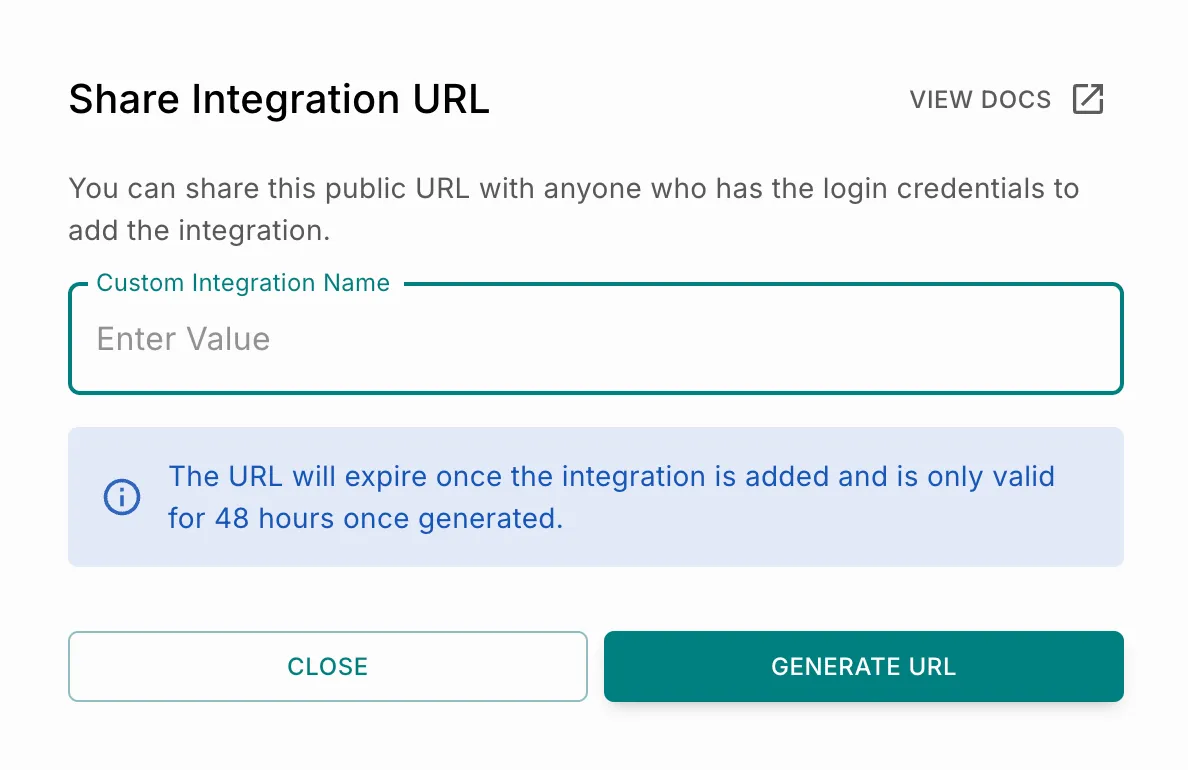

A public link is valid for up to 48 hours from when it is generated, and expires as soon as the integration is added.
Manage a public integration link
After you generate a link, the account appears in your Accounts list and updates once the setup is complete.