

Create an Authentication WhatsApp Template
Use an Authentication template to send one-time passcodes (OTPs) that verify a user’s identity during login or sensitive actions. The message format is predefined ({{1}} is your verification code.) and can’t include promotional content. Creating one takes five steps:
- Create the template
- Choose the code delivery type
- Complete the details
- Add more languages (optional)
- Save or send for approval
Step 1: Create the template
Navigate to Templates → External → WhatsApp Templates, then click Create. Fill in the dialog and click Create Template.
Step 2: Choose the code delivery type
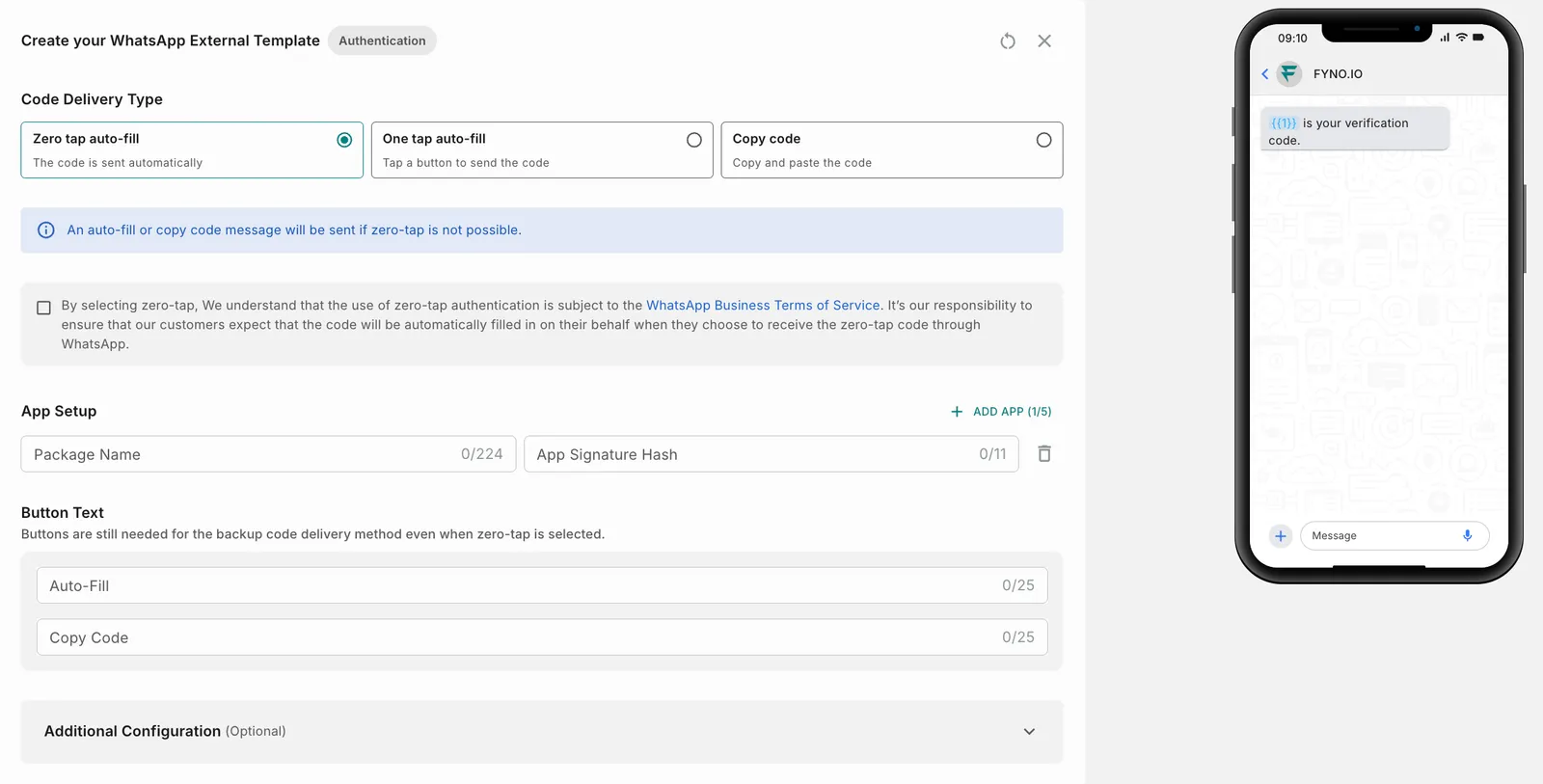
Under Code Delivery Type, choose how users receive the code.
Zero tap auto-fill
One tap auto-fill
Copy code
If zero-tap isn’t possible, an auto-fill or copy code message is sent instead.
To use zero-tap, select the checkbox to confirm that you accept the WhatsApp Business Terms of Service for zero-tap authentication, and that your customers expect the code to be filled in automatically.
Step 3: Complete the details
Set up your app (zero-tap and one-tap only)
Under App Setup, enter the details of the mobile app where the code should be filled in automatically.

Click Add App to add more apps, up to 5.
Step 4: Add more languages (optional)
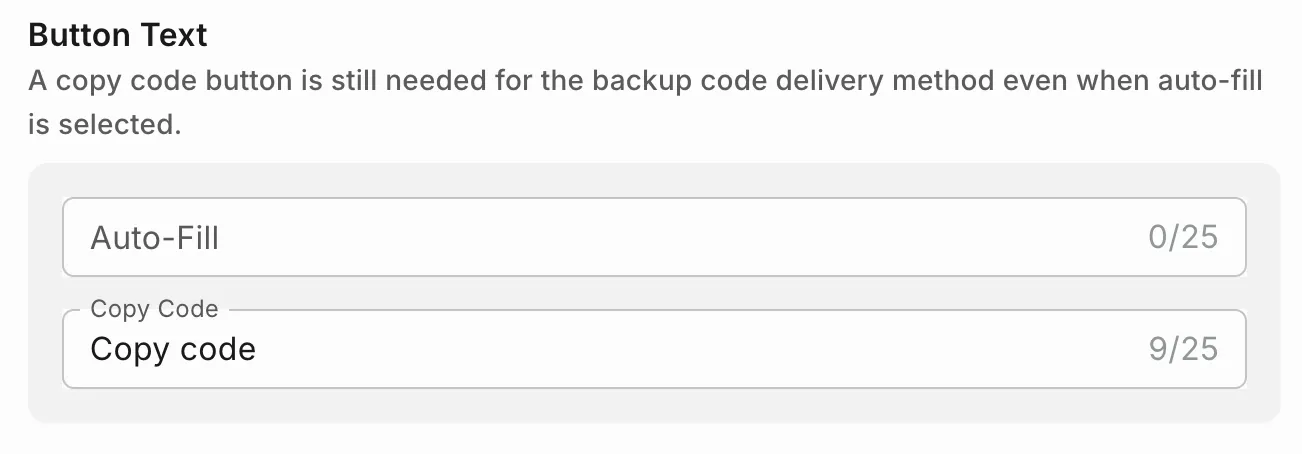
To reach users in different regions, click Add next to Languages and add a version of the template in each language. Translate the button text in each language.
Step 5: Save or send for approval
When your template is ready, save it as a draft or send it to Meta for approval. See Save as Draft vs Send for Approval.