

Create a Marketing WhatsApp Template
Use a Marketing template when you want to send promotions, announcements, or campaign notifications to users.
- To create one, navigate to Templates → External → WhatsApp Templates, then click Create.
- In the template setup screen, select Marketing as the category and then fill in the required details.
Step 1: Fill in the required details in the dialog:
Step 2: Configure template content
Marketing templates support flexible content components.
Template Content Fields
Select Template Type
Choose the type of message you want to send:
- Common — Standard WhatsApp message (text, media, buttons, flows, etc.)
- Carousel — Multi-card message format (covered in a separate guide)
Here’s what appears when you select Template Type: Common
Configure the Header (optional)
The header appears at the top of the WhatsApp message and helps users quickly understand the message context.
You can choose one header type:
- None
- Text
- Image
- Video
- Document
- Location
Text header
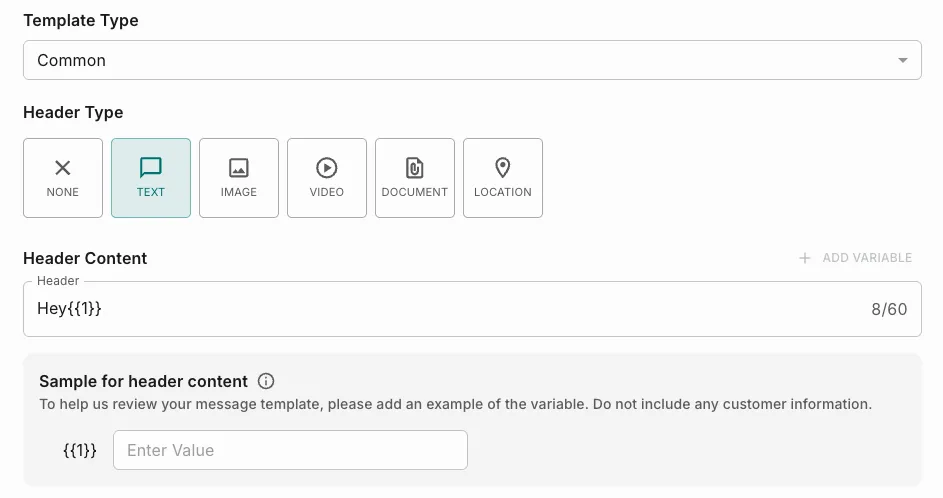
- Enter a short title (max 60 characters).
- You may include one variable.
Media header
Upload supported media:
Write the Body (required)
This is the main message users will receive.
You can:
- Write formatted text
- Add variables (dynamic values)
- Personalize content
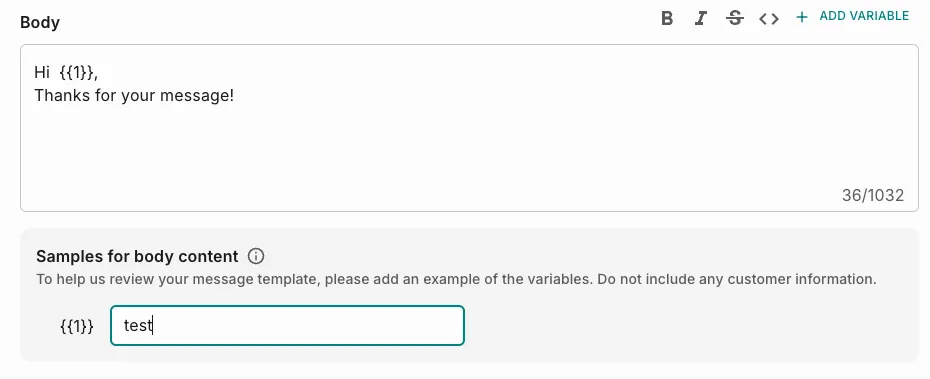
You must provide sample values for every variable so WhatsApp can review the message.
Add a Footer (optional)
A short line shown at the bottom of the message.

Typical uses:
- disclaimers
- support info
- opt-out instructions
Limit: 60 characters
Footer does not support variables.
Set Message Validity Period
This defines how long Meta will attempt to deliver the message.
If a message isn’t delivered within this time frame, Meta will stop retrying. You won’t be charged and the recipient won’t receive it.
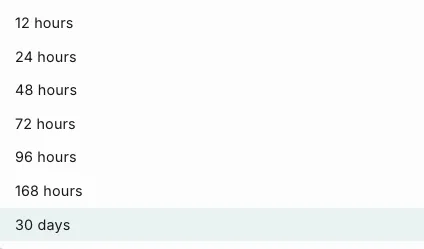
Example: 30 days
Add Buttons (optional)
Buttons let users respond or take action directly from WhatsApp. You can add different button types depending on your use case.
Flow button
Triggers a WhatsApp Flow experience.
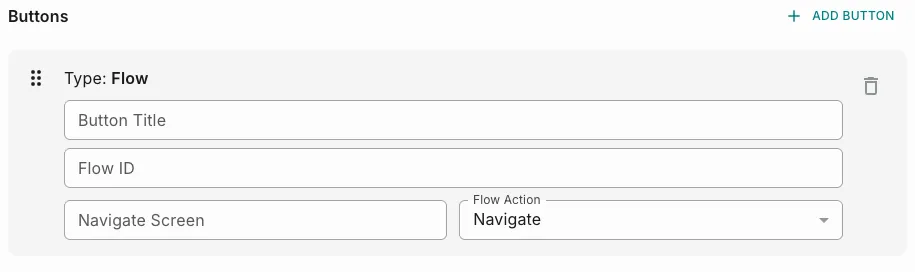
You must provide:
- Button Title — Button text visible
- Flow ID — generated in Meta
- Flow Action
- Navigate > opens a specific screen
- Data Exchange > sends/receives data
Navigate Screen — First screen name of the flow
Quick Reply button
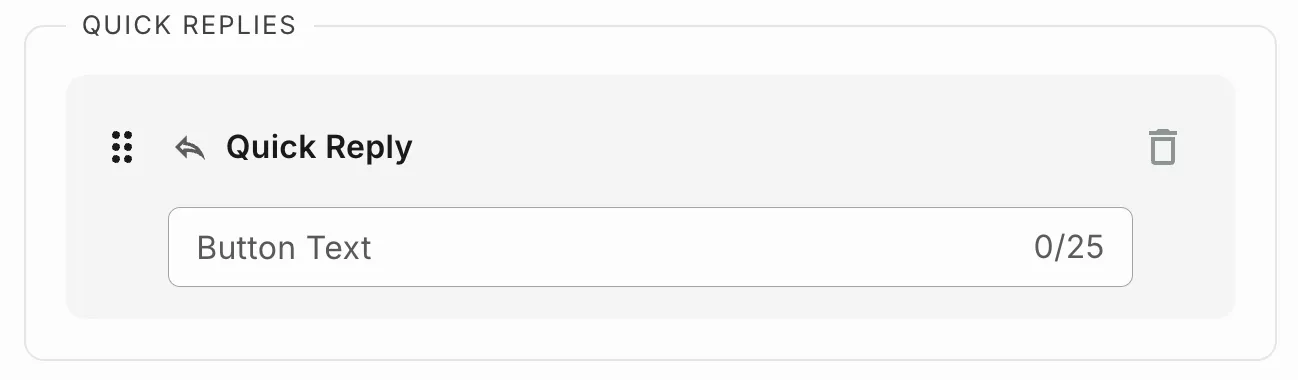
User sends a predefined reply.
For example: confirmations like Yes / No.
Call-to-Action buttons
Allows users to perform an action.
You can add:
Visit Website (Static URL or Dynamic URL)
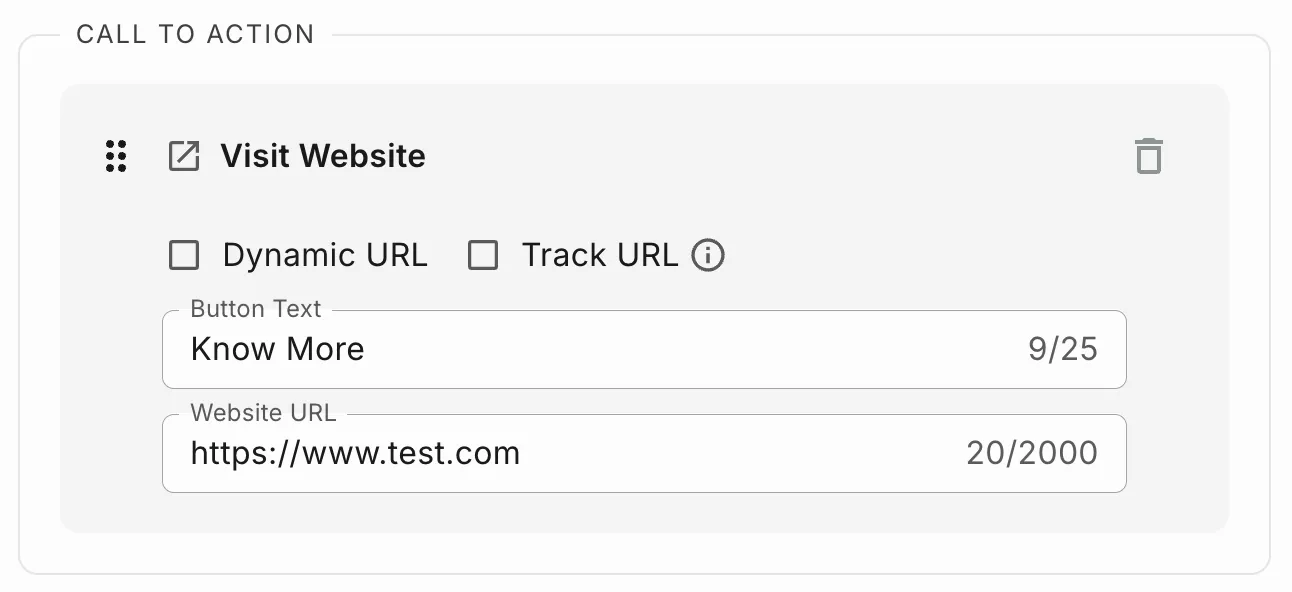
Static URL
- Use when you send the same URL to all users
- Add button text (CTA in WhatsApp message)
- Provide a valid website URL
- Optionally enable URL tracking (refer to Fyno Shorty for insights)
Dynamic URL
- Use when sending different URLs to different users (for example, payment links)
- Enable Dynamic URL toggle
- Add button text
- Provide a valid website URL
- Enable Track URL checkbox
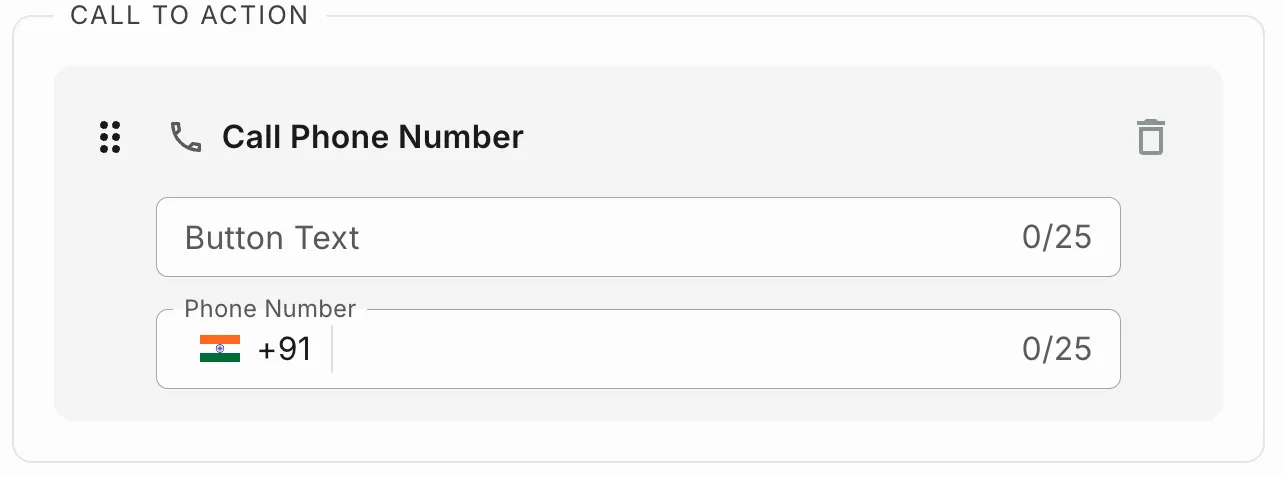
Call Phone Number
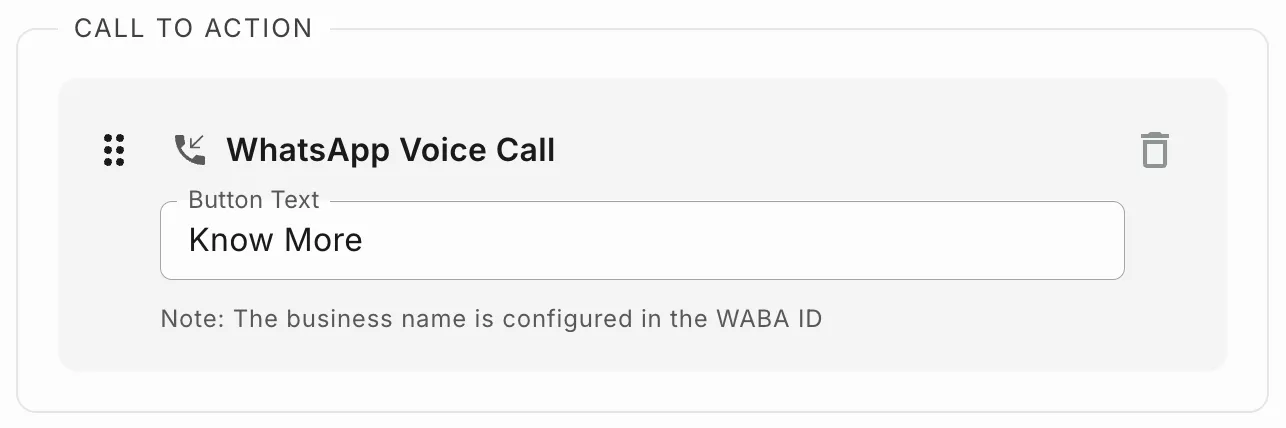
WhatsApp Voice Call
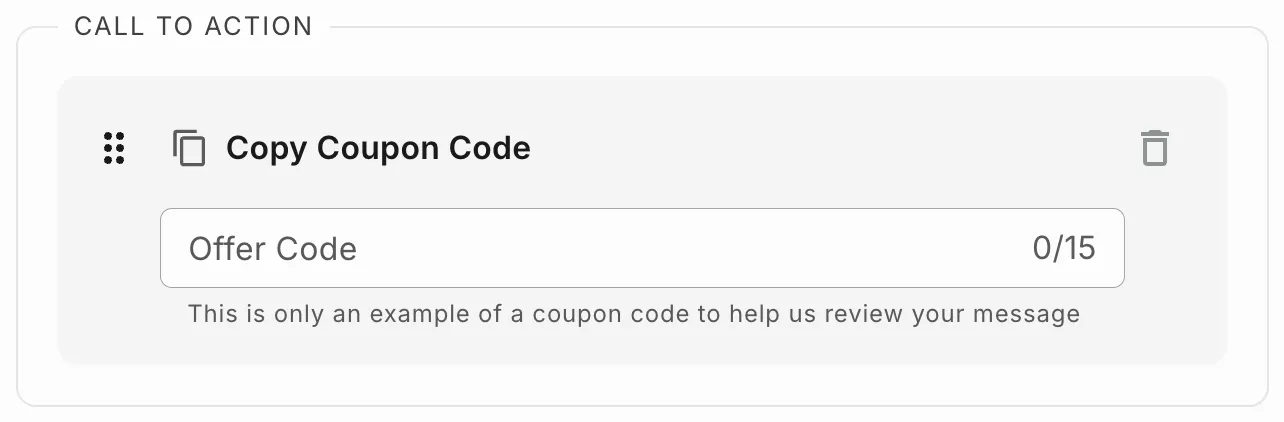
Copy Coupon Code
Limits
- Maximum 4 CTA buttons
- Up to 2 website buttons
- 1 phone button
- 1 coupon button
For more information, please refer to the Meta Call-to-action.
Send for Approval
After completing the template:
- Save the template
- Send for approval
Meta reviews the template content and the selected category when you submit a WhatsApp template. Once Meta approves the template, it becomes usable for sending messages and, in Fyno, appears under the Synced tab so you can associate it with a Fyno WhatsApp template and use it to create Notification Events.
Here’s what appears when you select Template Type: Carousel
When you want to send a swipeable message containing multiple cards, each card acts like a mini message with its own content, media, and buttons.
You typically use carousel templates for:
- Product catalogs
- Multiple offers
- Event listings
- Travel or booking options
Fill the Carousel templates as follow:
Cards section
Instead of a single message block, you create multiple cards.
- You can add up to 10 cards
- Users swipe horizontally to view them
Card Content
The maximum length is 160 characters.
Each variable increases the limit by 4 characters (for example, 2 variables → 168 characters).
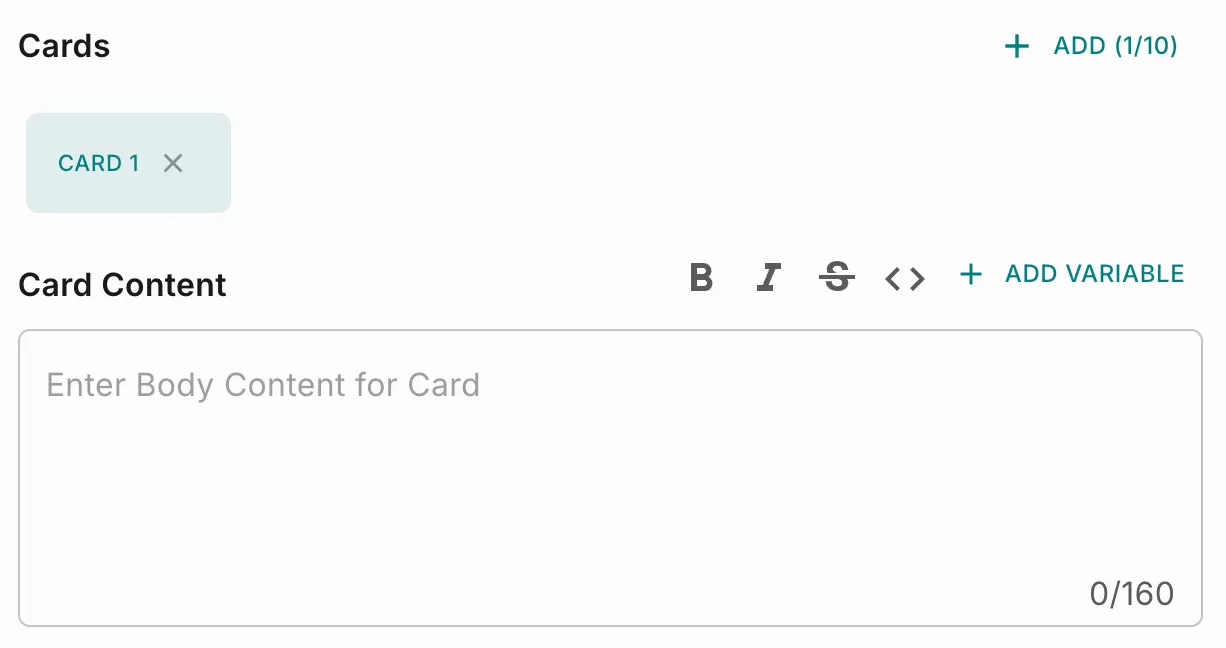
- Variables are supported
- Provide sample values for the variables
- Each card has its own message (caption for that specific card)
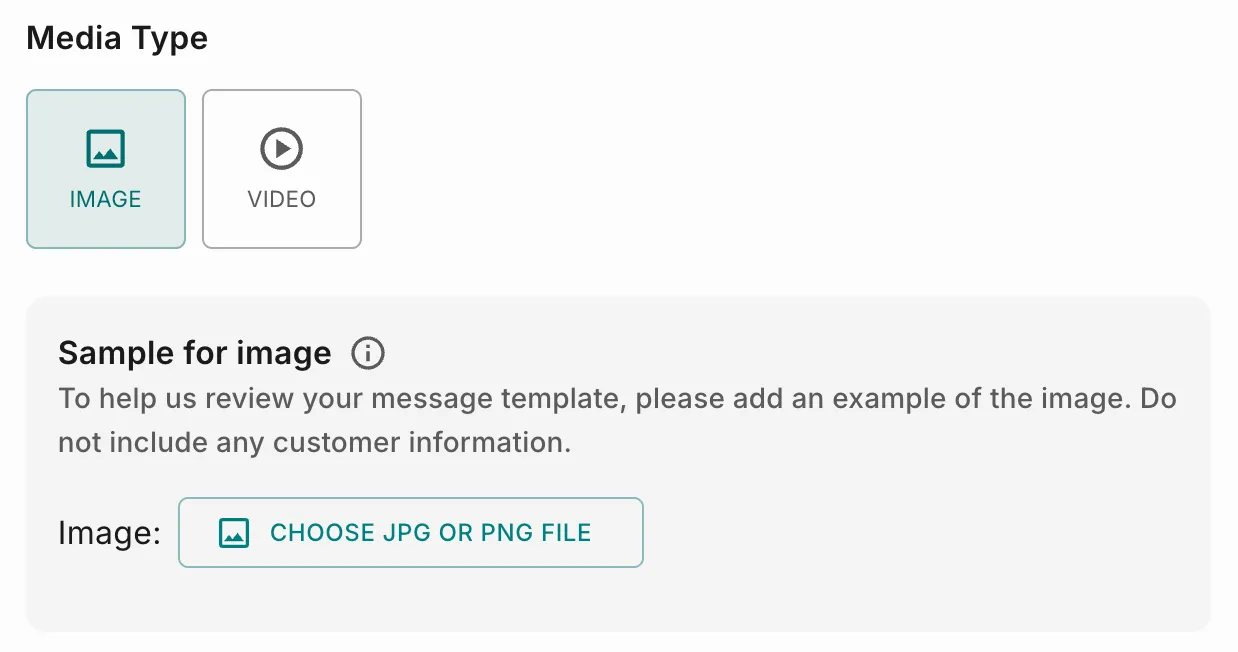
Card Media
Every card must include media. This media becomes the main visual for the card.
You can choose:
- Image (JPG/PNG)
- Video (MP4)
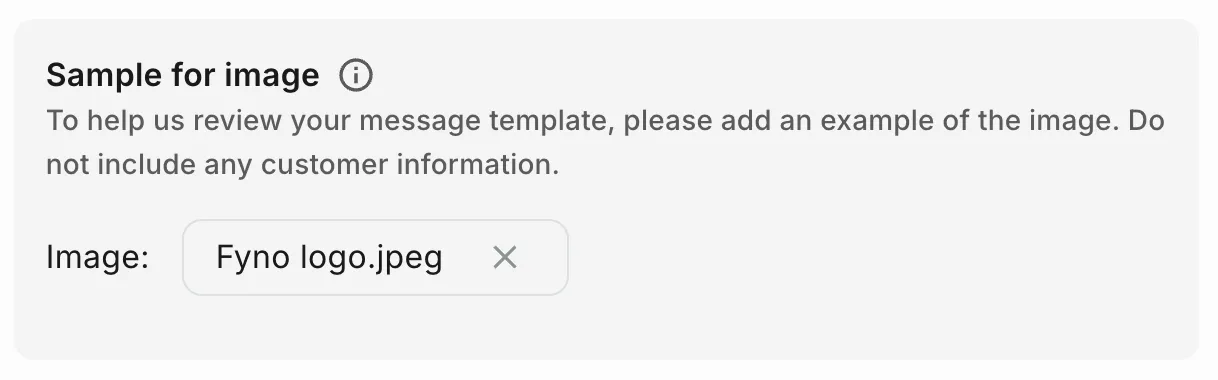
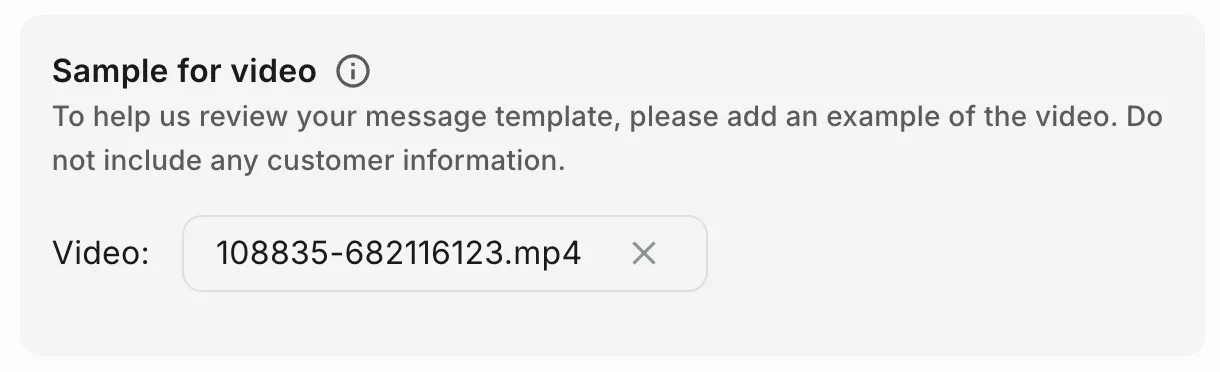
Sample for Image / Video
Upload an example image or video used only for review purposes.
Card Buttons
Buttons are configured per card, not per template.
You can add up to 2 buttons per card:
Quick Reply
Call to Action
Allows users to perform an action.
You can add:
Visit Websites (static or dynamic)
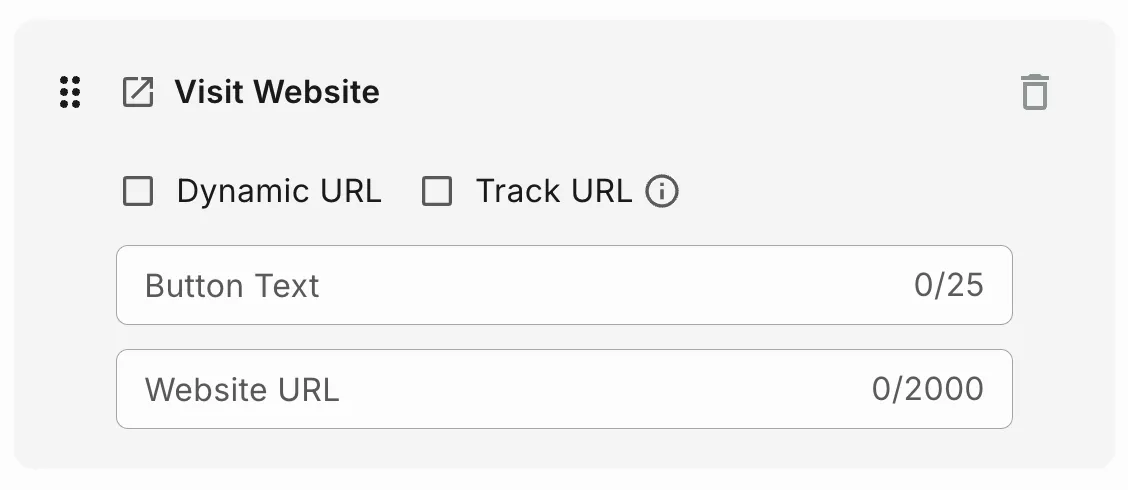
Static URL
- Use when sending the same URL to all users
- Add button text
- Provide a valid website URL
- Enable Track URL checkbox
Dynamic URL
- Enable Dynamic URL toggle
- Add button text
- Provide a valid website URL
- Enable Track URL checkbox
Adding Multiple Languages
You can create your template in multiple languages to reach users in different regions.
How it works:
- Create the template in your primary language
- Add additional language versions within the same template
- Translate the message content and button text for each language
- Ensure all variables and dynamic fields remain consistent across languages
This allows you to send the same template structure while displaying the content in the user’s preferred language.