

Create a Utility WhatsApp Template
Utility templates are sent after a user performs an action and contain transactional information such as confirmations, updates, or reminders.
Examples include order confirmations, delivery updates, payment alerts, and account notifications.
Navigate to Templates → External → WhatsApp Templates, then click Create.
Step 1: Fill in the required details in the dialog:
Step 2: Configure Template Content
Use this only for messages related to an existing user action (orders, payments, renewals, alerts, confirmations).
Add the Header (optional)
Choose how the message should appear at the top.
Options:
- None
- Text
- Image
- Video
- Document
- Location
For Utility messages, keep the header informational.
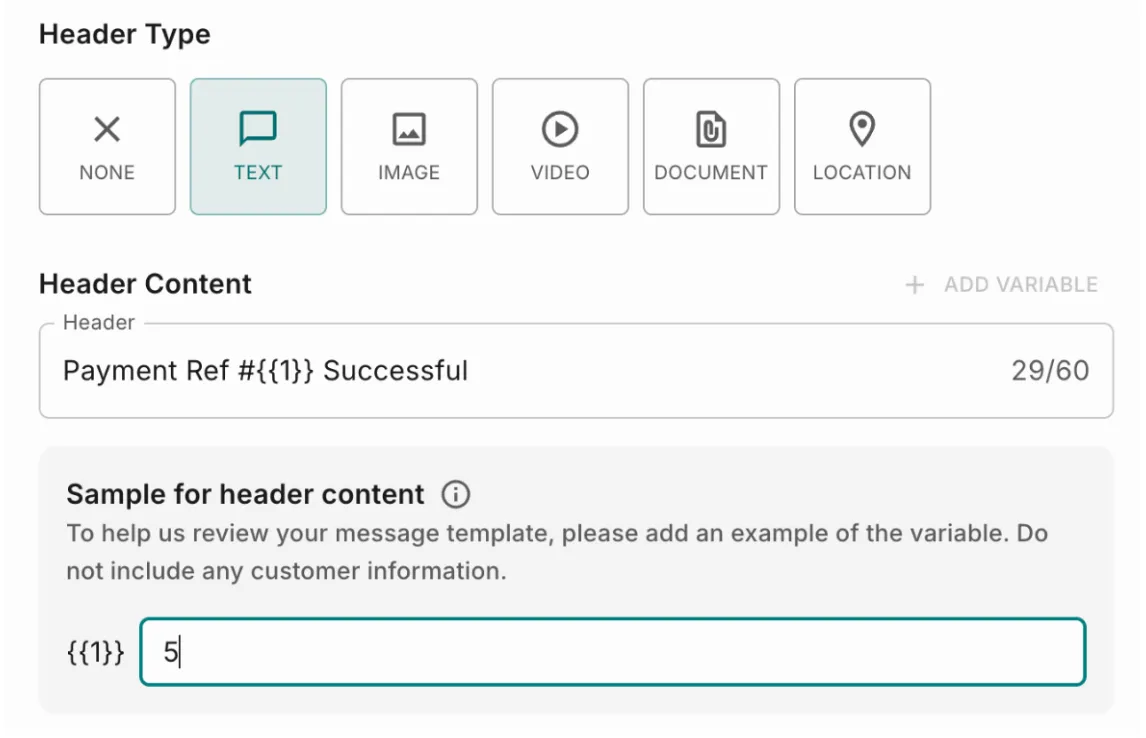
Examples:
- Payment Successful
- Payment due
- Order update
You may add one variable and must provide a sample value.
Media header
Upload supported media:
You must provide sample values for every variable so Meta can review the message.
Write the message Body (required)
Describe the notification clearly and reference the user’s existing activity.
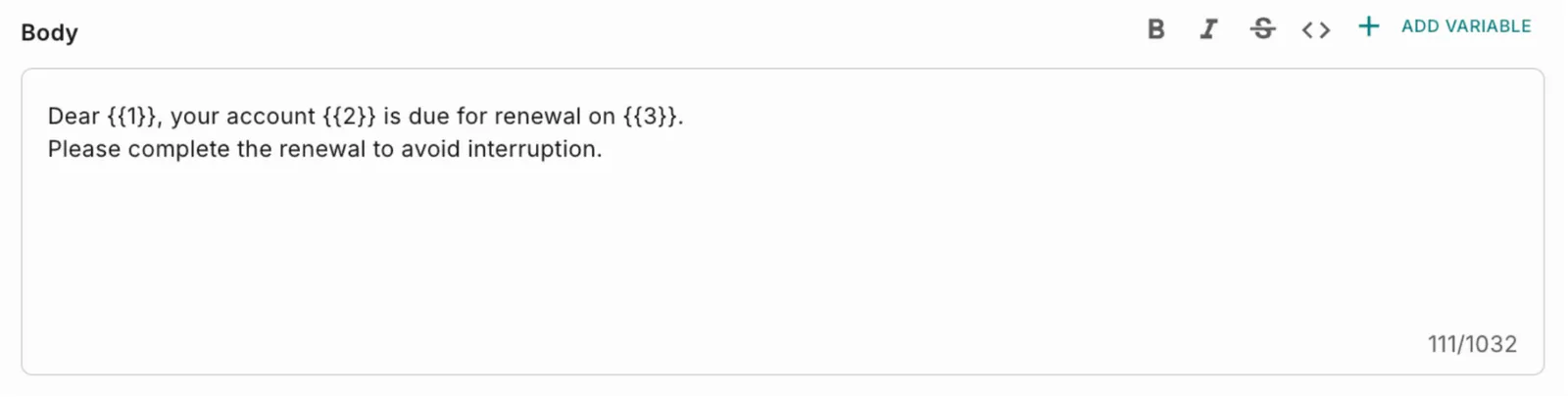
You must provide sample values for every variable so WhatsApp can review the message.
Add Footer (optional)
A short line shown at the bottom of the message.

Typical uses:
- disclaimers
- support info
- opt-out instructions
Limit: 60 characters
Footer does not support variables.
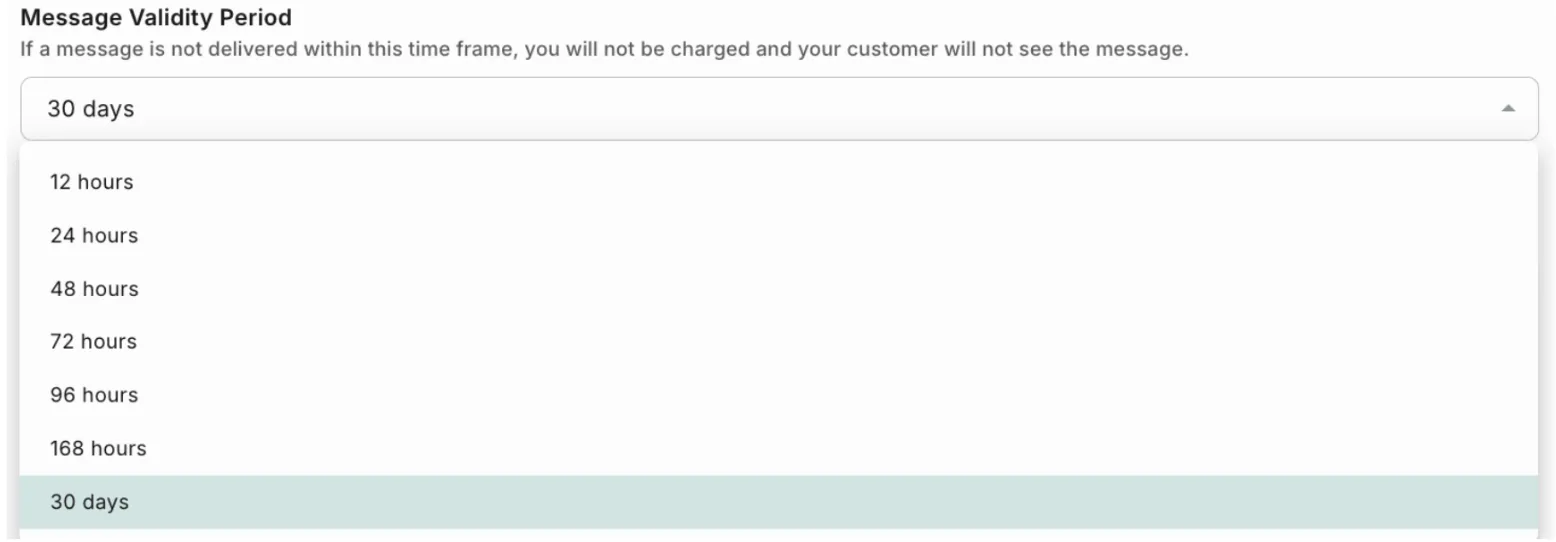
Set Message Validity Period
This defines how long Meta will attempt to deliver the message.
If a message isn’t delivered within this time frame, Meta will stop retrying. You won’t be charged and the recipient won’t receive it.
Example: 30 days
Add Buttons (optional)
Buttons should help complete the user’s existing action.
Click Add Button and choose the type.
Flow button (commonly used)
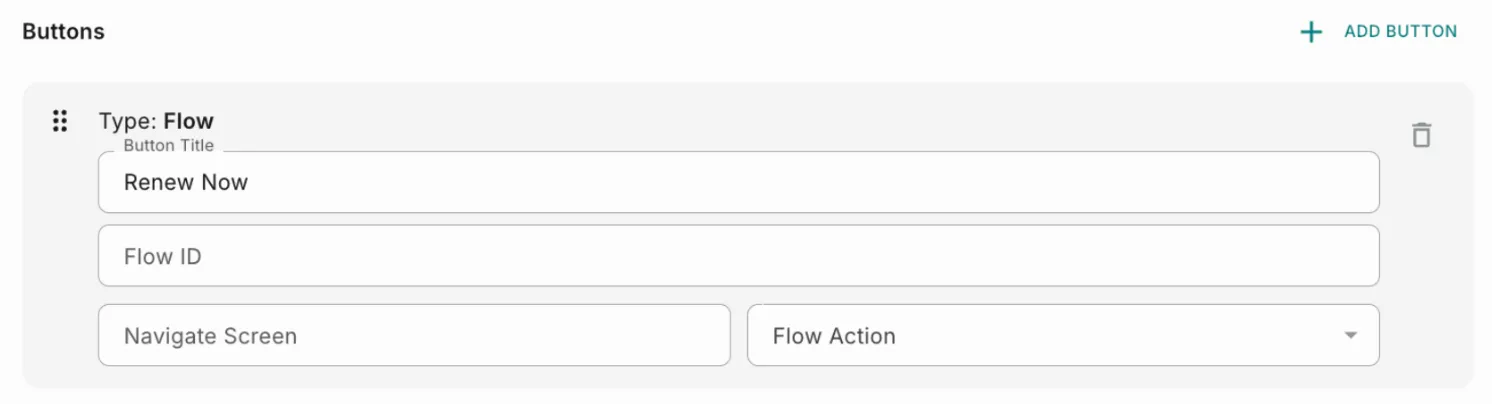
You must provide:
- Button Title — Button text visible
- Flow ID — generated in Meta
- Flow Action
- Navigate > opens a specific screen
- Data Exchange > sends/receives data
Navigate Screen — First screen name of the flow.
Quick Reply button
User sends a predefined reply.
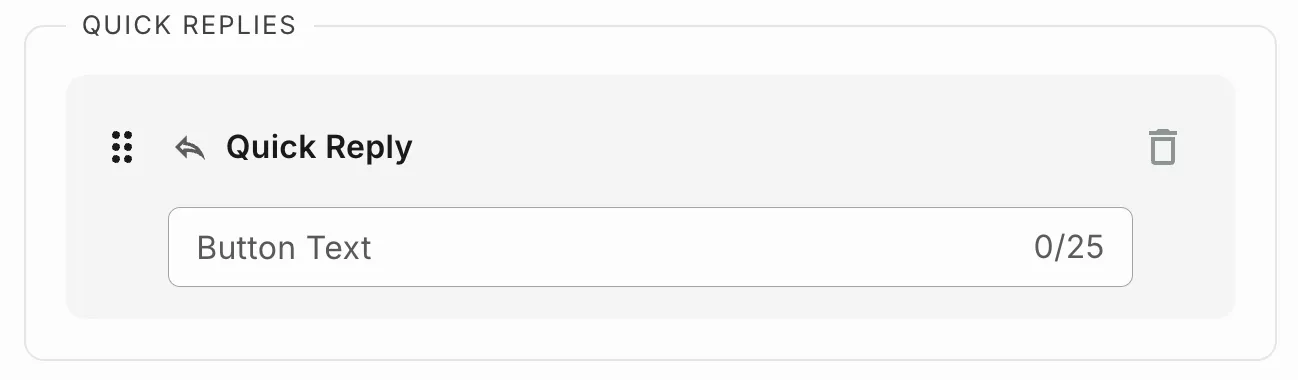 For example: confirmations like Yes / No.
Marketing Opt-Out
Allows users to opt out of receiving marketing or promotional messages.
Call-to-Action buttons
Allows users to perform an action.
You can add:
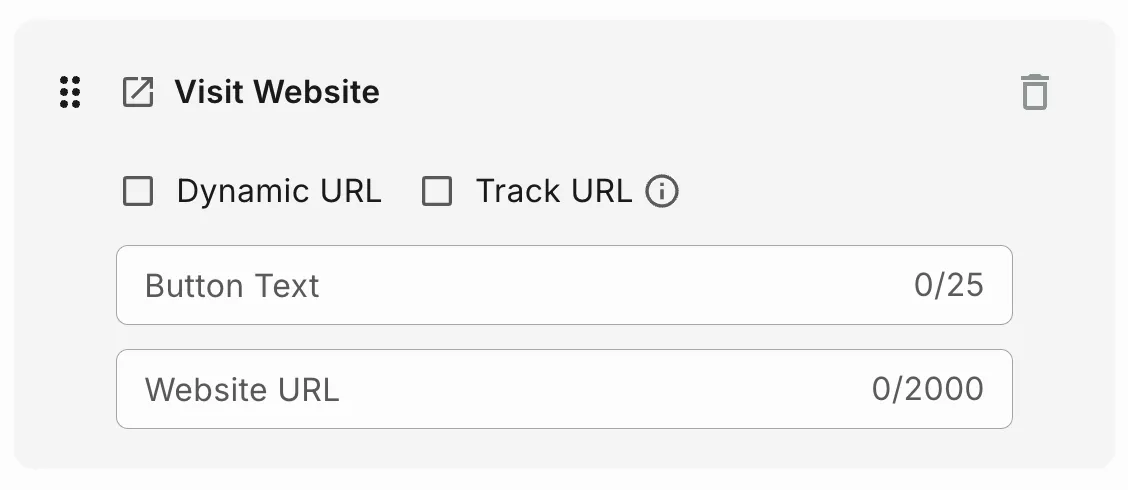
Visit Websites (static or dynamic)
Static URL
- Use when you send the same URL to all users
- Add button text (CTA in WhatsApp message)
- Provide a valid website URL
- Enable Track URL checkbox
Dynamic URL
- Use when sending different URLs to different users (for example, payment links)
- Enable Dynamic URL toggle
- Add button text
- Provide a valid website URL
- Enable Track URL checkbox
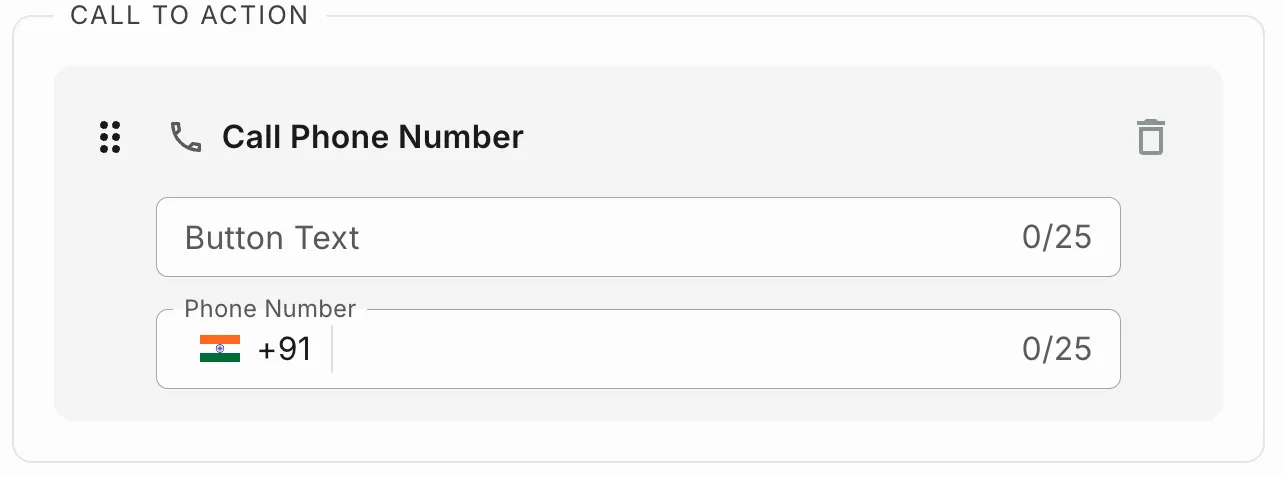
Call Phone Number
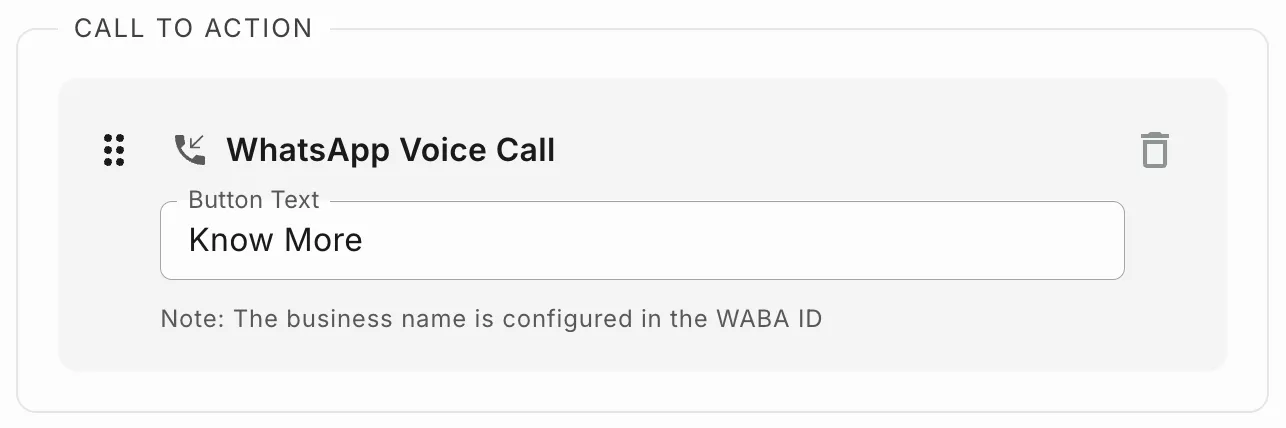
WhatsApp Voice Call
Adding Multiple Languages
You can create your template in multiple languages to reach users in different regions.
How it works:
- Create the template in your primary language
- Add additional language versions within the same template
- Translate the message content and button text for each language
- Ensure all variables and dynamic fields remain consistent across languages
This allows you to send the same template structure while displaying the content in the user’s preferred language.
Send for Approval
After completing the template:
- Save the template
- Send for approval
Meta reviews the template content and the selected category when you submit a WhatsApp template. Once Meta approves the template, it becomes usable for sending messages and, in Fyno, appears under the Synced tab so you can associate it with a Fyno WhatsApp template and use it to create Notification Events.