

Create an Approval Request for SMS
Approval requests let your team review an SMS External Template internally before it’s submitted to DLT. This page covers what’s specific to SMS external templates. For how approvals work in general, see Approval Workflow.
How it works
- You create or edit a template and submit it for approval. Its status changes to Pending Approval.
- The request goes to the approvers you select.
- Each approver approves or rejects the request.
- When the minimum number of approvals is reached, the template is marked Approved and submitted to DLT, either automatically or manually.
Before you start
Enable approval requests for SMS external templates. When you set it up, you choose the reviewers and the minimum number of approvals a template needs.
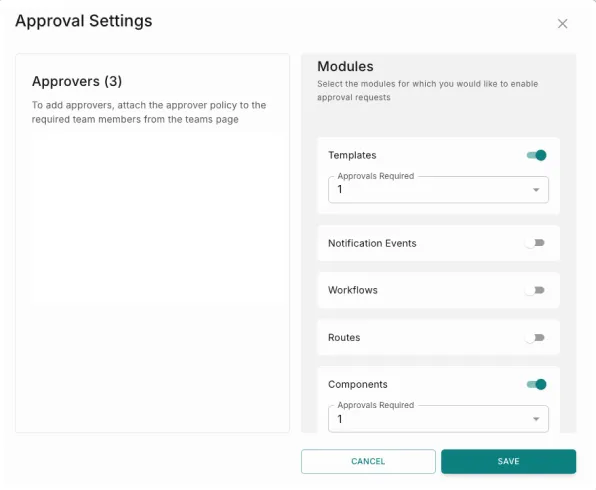
Create an approval request
Click Send to Provider
Open the template and click Send to Provider. The request creation pop-up opens.
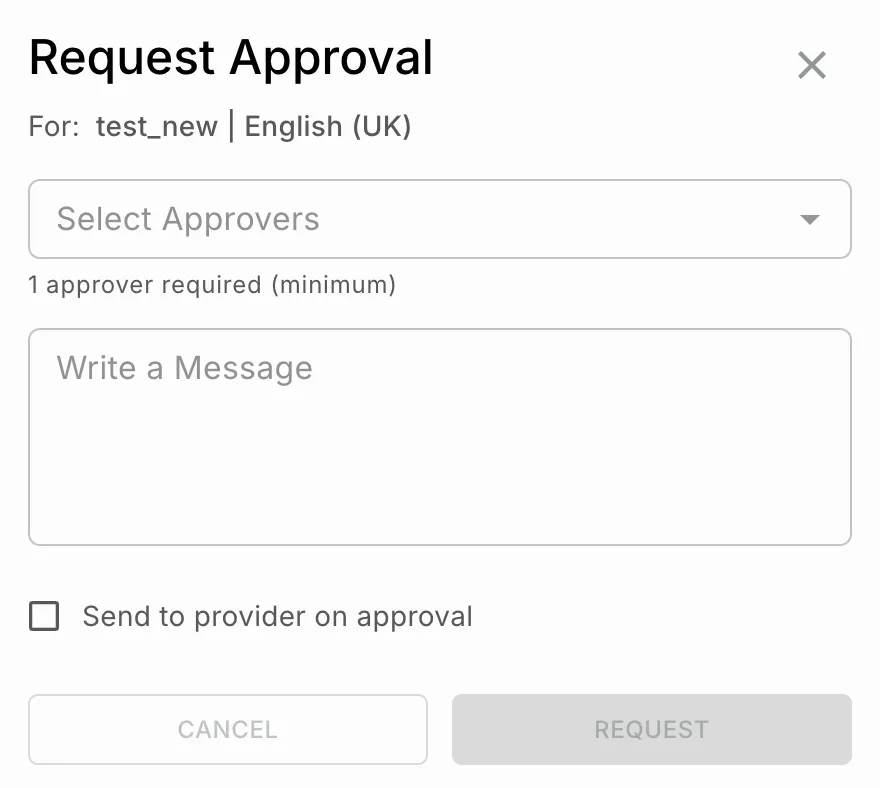
Select approvers
In Select Approvers, choose one or more approvers. You need at least the minimum number of approvals set for your workspace.
Add a message (optional)
Add context for the approvers. Approvers see it while they review, and it’s kept as a record of the decision.

Sending the template to DLT
Send to Provider on Approval selected
Send to Provider on Approval cleared
The template is submitted to DLT automatically as soon as it gets the minimum number of approvals. This suits teams that handle a high volume of templates.
Review a request
Approvers review requests independently. A request is approved only once it has the minimum number of approvals.
Approve
Reject
Cancel
- Open the template with the pending request.
- Click Approve.
- Add a message (optional).
- To send the template to DLT now, select Send to Provider on Approval.
- Click Approve or Approve and Send.
Your approval is recorded. If the request now has enough approvals, it’s complete, and the template is sent to DLT based on its submission setting.
All approval messages and decisions are recorded, so you have a full audit trail of who approved or rejected each template, and why.