

Template
A Template message can be used to initiate a conversation with your users. That’s why it requires approval from Meta.
Template and Carousel message support
To use any user property in your templates, add it in this format: {{$user.$<user_property>}}. For example, to add Name as a placeholder from the User profile, add it as {{$user.$name}}. To use a custom property, add it as {{$user.<user_property>}}.
Template fields
Select Template as the Message Type. Then, in External Template Name / ID, either select a template that is synced on Fyno or enter the name or ID of a template that is not synced.
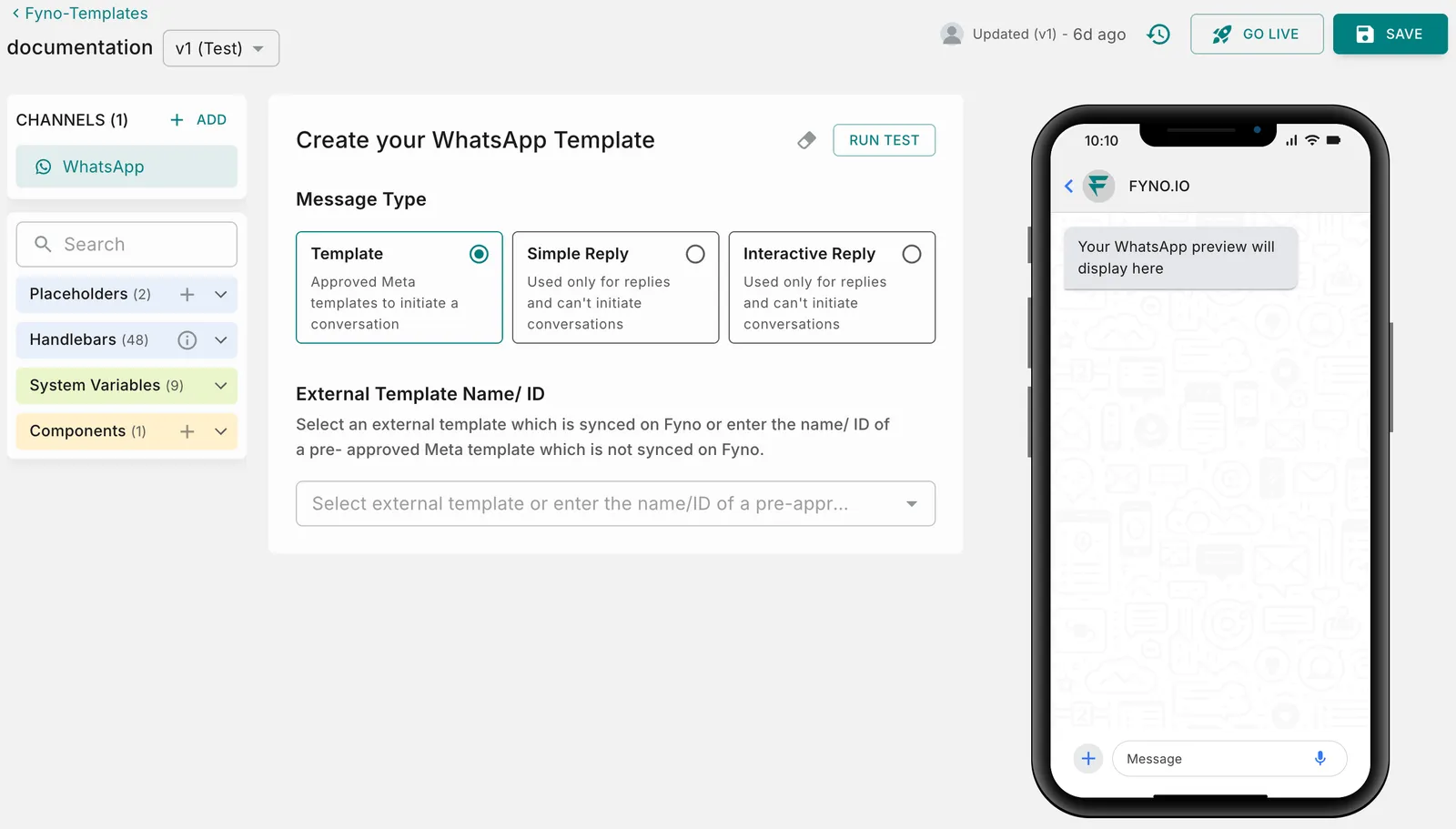
Synced template
Not synced template
Use this when the template is synced on Fyno from Meta or your provider. Learn how to sync your WhatsApp templates.
External Template Name / ID
Select the template from the dropdown. All the fields are auto-populated once you select the template name. To fetch the latest version of the template, click Re-sync next to the template name.
Template details
Fyno shows the template’s Integrations, WABA/Namespace, Language and Category.
WhatsApp Marketing notifications have lower delivery rates, as Meta prioritizes user experience by automatically filtering certain messages sent by businesses to users.
Placeholders
- Header Placeholder: Used if the header contains a placeholder, such as “Name”. This is populated automatically, and only one placeholder can be added to the header.
- Body Placeholders: Specify the placeholders mentioned in the body of your template here.
Buttons
The buttons defined in the Meta template are listed here. For a URL button, Fyno shows whether the URL is configured with dynamic content. If it is, add the placeholder for the dynamic part. See Button configuration for each button type.
Button configuration
Buttons can be Quick Reply (custom), Call to Action (Visit Website, Call Phone Number, Copy Offer Code), or a combination of these.
Quick Reply
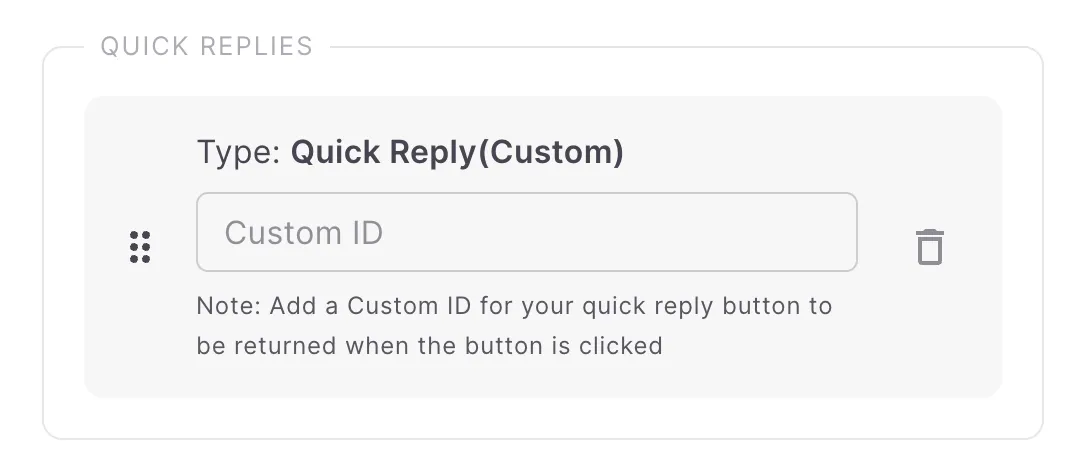
Every Quick Reply has a unique ID, and you can override it by entering a custom ID. For example, if the unique ID is ‘Good Product’, you can override it with a custom ID like ‘Good’. You receive the custom ID on Fyno’s Inbound logs page when someone clicks the Quick Reply.
For a template that is not synced, add the Custom ID configured in Meta for each quick reply button. You can add as many quick reply buttons as needed.
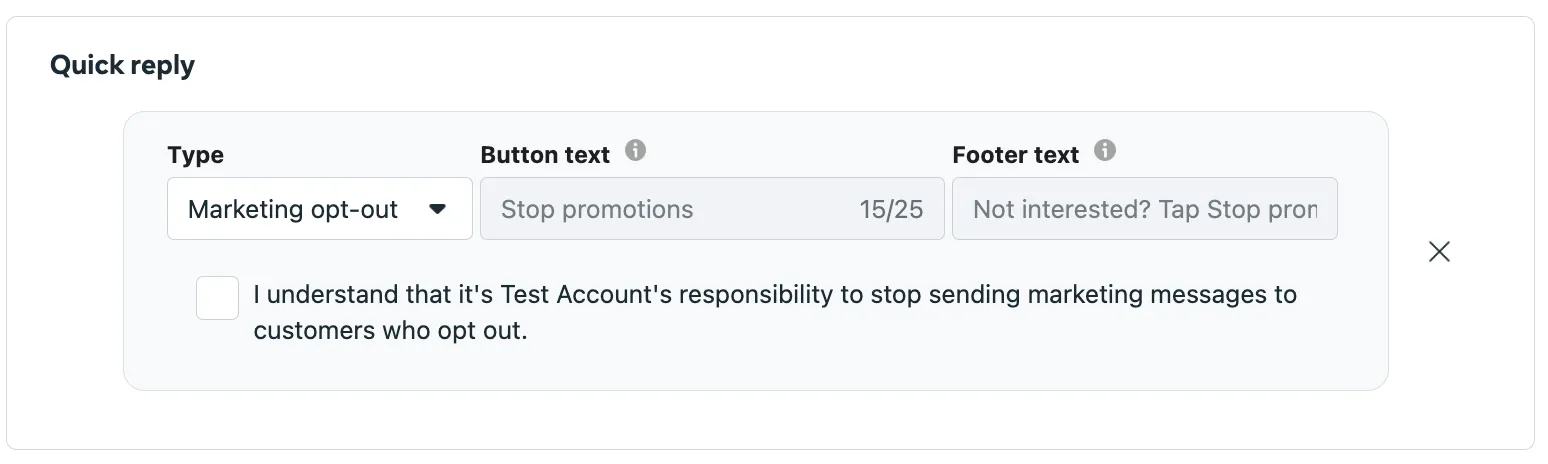
Marketing opt-out
Recommended if the category is Marketing. The button text and footer text are pre-configured in Meta and can’t be edited. In Fyno, configure it as shown below. For a template that is not synced, add Marketing opt-out as a Quick Reply button. When a user clicks Stop Promotion in the WhatsApp message, Fyno automatically adds the user to the opt-out list (WhatsApp channel) for the subscription topic linked to the notification event.

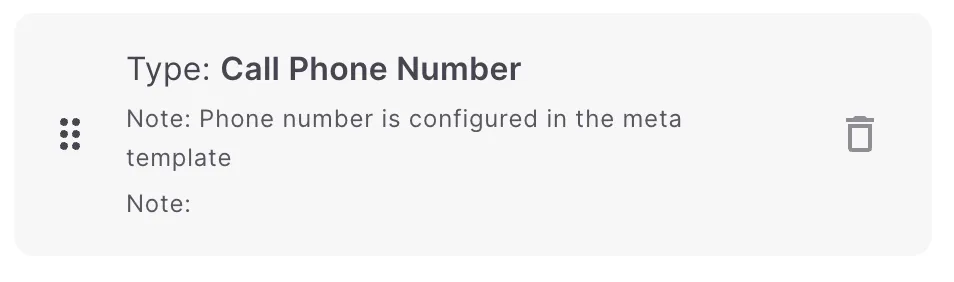
Call Phone Number
The phone number configured in Meta or the BSP is not shown here, and you don’t have to enter anything.
Call to Action (Visit Website)
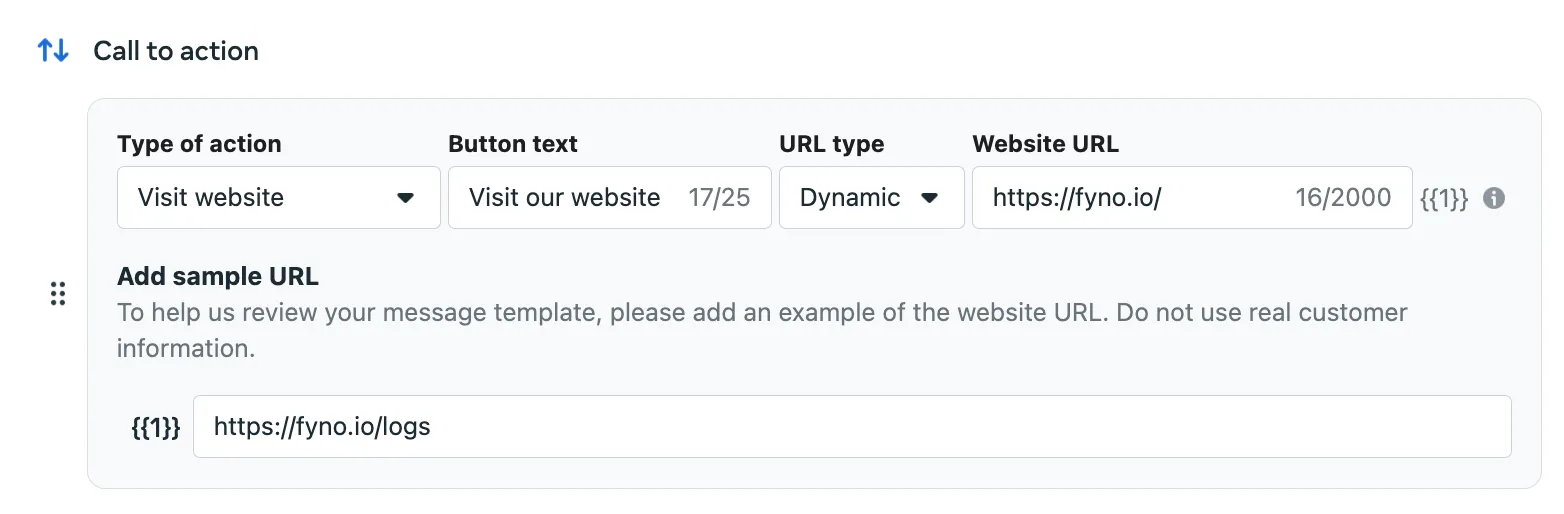
For example, you can add a CTA for a website link in Meta as shown below. The Website URL is a root URL such as https://fyno.io/ or https://www.myntra.com/. If you choose the URL type as Dynamic, you need to provide a sample URL as shown below. If the URL type is Static, you don’t have to add a sample URL.
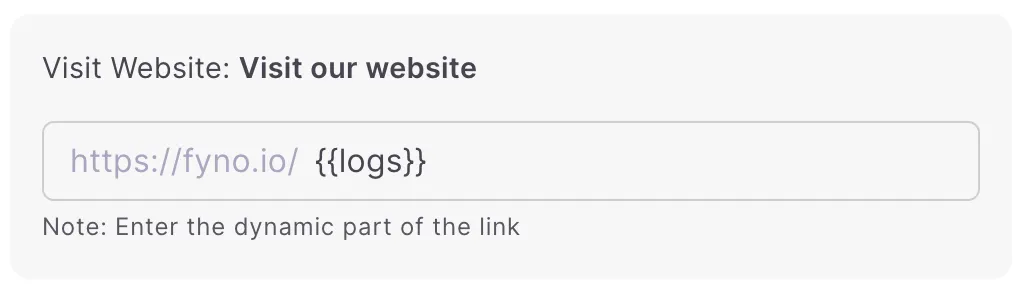
In Fyno, add the dynamic placeholder as shown below. For a template that is not synced, add the placeholder only if the CTA uses a dynamic URL in the Meta template.
Shortened URLs
In Meta, configure the URL shortened using Fyno Shorty as shown below. Use Fyno Shorty if you want to shorten your URL, track URL clicks, or both.
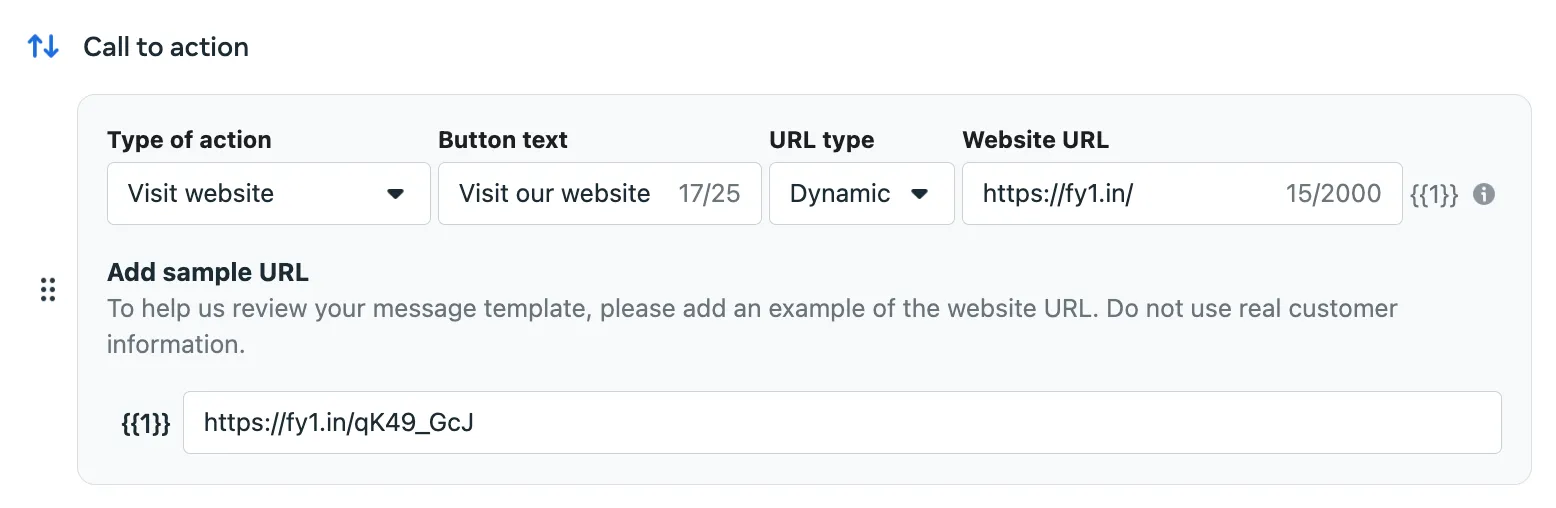
Ensure that the Website URL is always set to https://fy1.in/ when you use Fyno Shorty to shorten the URL.
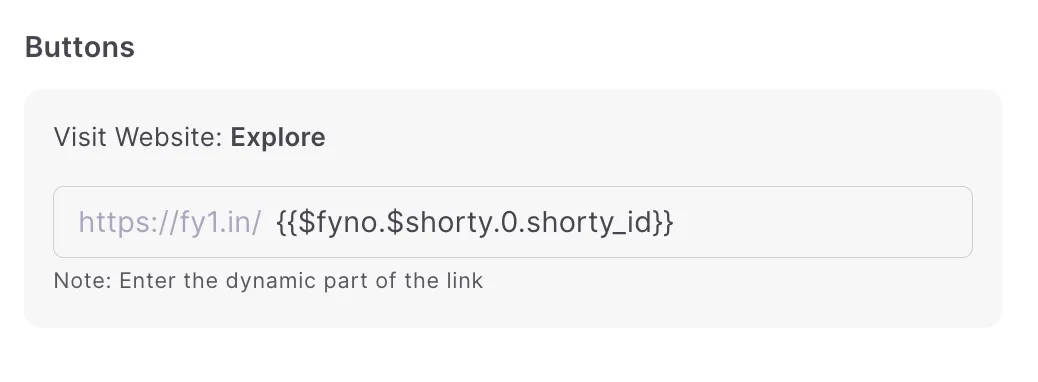
In Fyno, configure it as shown below. If you have more than one URL, add {{$fyno.$shorty.0.shorty_id}} for the first URL, {{$fyno.$shorty.1.shorty_id}} for the second URL, and so on.
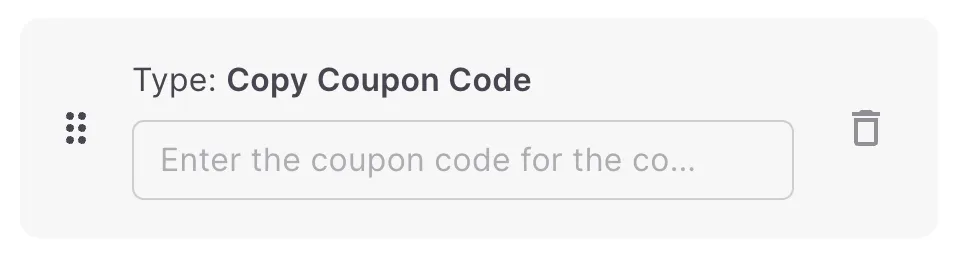
Copy Offer Code
Enter the coupon code you want to send with the WhatsApp message.
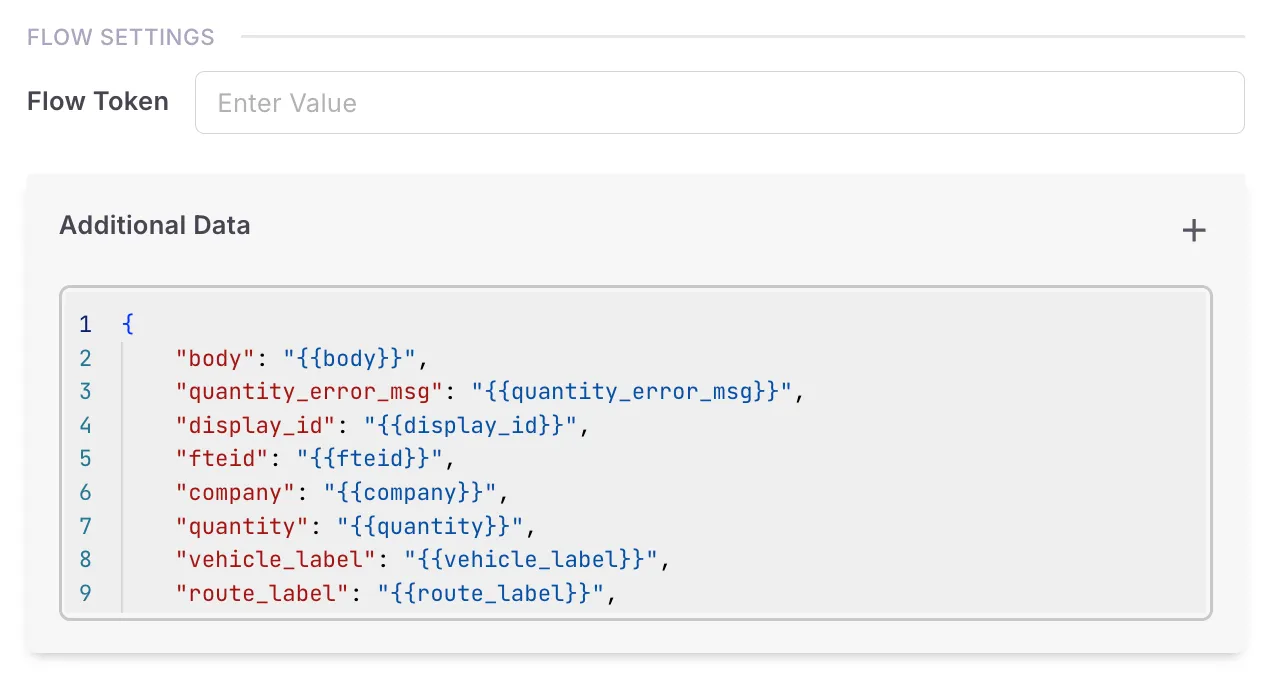
Flow Settings
For templates that use a Meta Flow:
- Flow Token (optional): Add a unique ID for your flow, or use ‘unused’.
- Additional Data (optional): If your flow needs a data payload, add it here as a JSON payload.
Placeholders
Below the Channels section on the left, you can find placeholders. Placeholders are denoted by {{ }} or Handlebars. Click a placeholder to open a pop-up window where you can define its parameters. See the comprehensive guide on Handlebars.
You can use a period (.), underscore (_) or hyphen (-) within the handlebars. Try it now!
You cannot use only numeric values as placeholder keys.
When providing URLs for files in WhatsApp templates, redirected links (with multiple hops) will not work, as per Facebook policies.
How to add an unsubscribe link
Test and go live
Once your content is ready, test the template, then save it and go live.