

Interactive Reply
An Interactive Reply message is an interactive message with clickable buttons that can only be sent as a reply to an existing conversation. No Meta approval is required.
This message type can be used only for replies and can’t initiate conversations.
Sub types
Set Message Type to Interactive Reply, then choose a Sub Type. The available sub types are:
- Quick replies
- Menu
- Request Location
- Request Address
- Trigger Meta Flow
- Order Status
- Order Details
- Call to Action
Quick replies
With the Quick replies sub type, the message has an optional header, a body, an optional footer, and up to 3 quick reply buttons.
Header Type: Choose None, Text, Image, Video or File. The field below the selector changes based on the header type.
None
Text
Image
Video
File
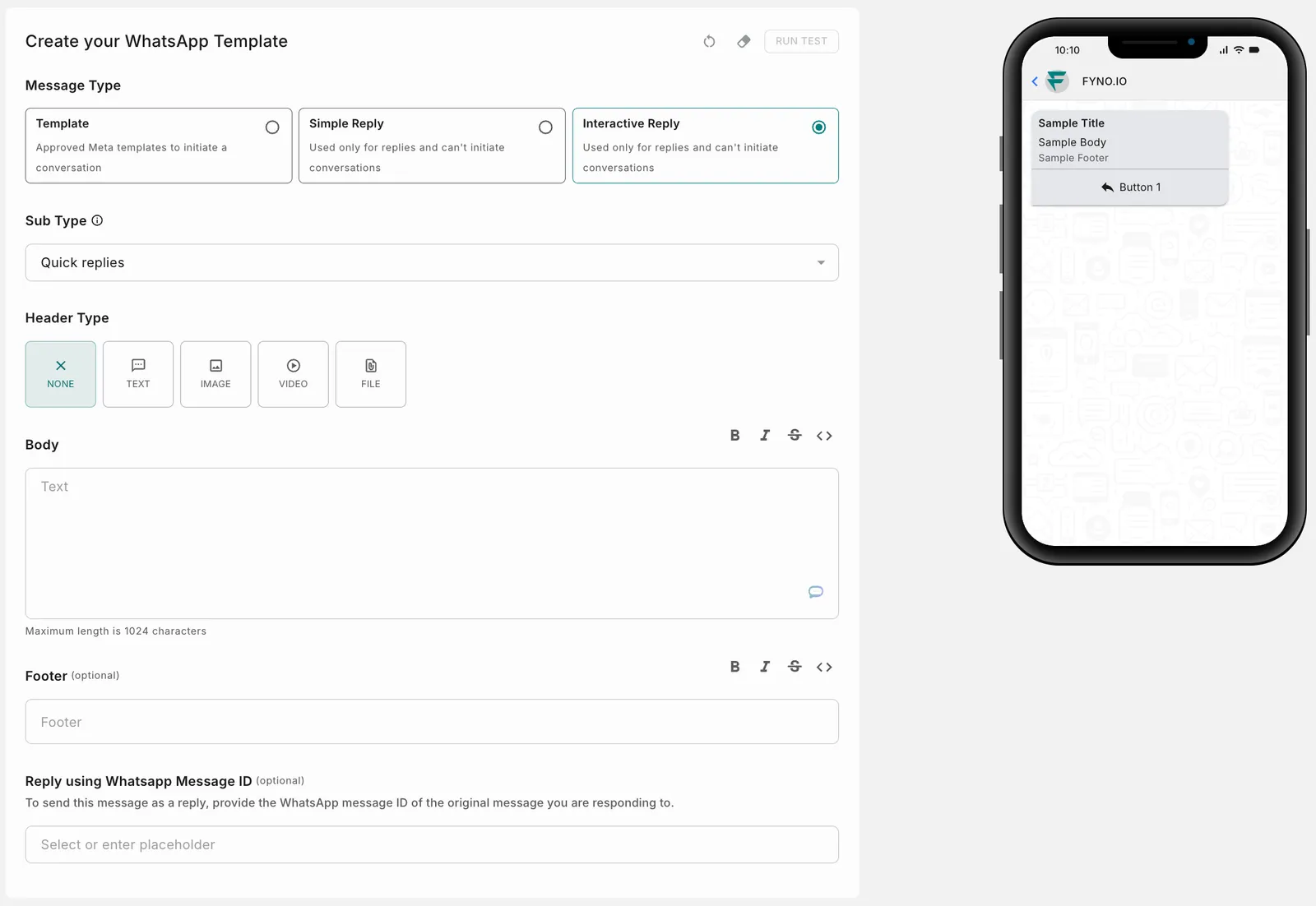
The message is sent without a header.
The remaining fields are the same for every header type:
- Body: Enter the message text. Use the toolbar above the field for bold, italic, strikethrough and code formatting. Maximum length is 1024 characters.
- Footer (optional): Enter the footer text. The formatting toolbar is available here as well.
- Reply using WhatsApp Message ID (optional): To send this message as a reply, provide the WhatsApp message ID of the original message you are responding to. You can select or enter a placeholder for it.
- Buttons: Click Add Button to add up to 3 quick reply buttons. Use the drag handle to reorder them. For each button, enter:
- Button Title: The text shown on the button.
- Button Payload (optional): Data that is captured on an incoming webhook when the button is clicked.
Menu
Provide options from a menu within your WhatsApp message for your customers to choose from.
- Message Type: Text, Image, Video or File.
- Image: The URL must be public. Supported file types are jpeg and png. Images with transparent backgrounds are not supported. You can also upload an image from your device. Maximum size is 5MB.
- Video: The URL must be public. Supported file types are mp4 and 3gpp. Maximum size is 16MB.
- File: The URL must be public. Any valid MIME type is supported. Maximum size is 100MB.
- Title: Mandatory. Give any title to the interactive message. Enable Preview URL to show a thumbnail of the URL added.
- Body: Mandatory. Add the body of the message here. You can add any number of placeholders.
- Footer: Optional. You can add placeholders here as well.
- Action: Add interactive buttons.
- Button: The CTA the user sees as part of the interactive message.
- Button Id: Optional. Use a unique ID to identify this button, or to send a payload as part of it.
- Menu: Provide options from a menu within your WhatsApp message for your customers to choose from.
Request Location
This sub type has a default CTA, Send Location.
- Body: Mandatory. Add the body of the message here. You can add any number of placeholders.
Request Address
This sub type has a default CTA, Provide Address.
- Body: Mandatory. Add the body of the message here. You can add any number of placeholders.
Trigger Meta Flow
- Message Type: Text, Image, Video or File.
- Image: The URL must be public. Supported file types are jpeg and png. Images with transparent backgrounds are not supported. You can also upload an image from your device. Maximum size is 5MB.
- Video: The URL must be public. Supported file types are mp4 and 3gpp. Maximum size is 16MB.
- File: The URL must be public. Any valid MIME type is supported. Maximum size is 100MB.
- Title: Mandatory. Give any title to the interactive message.
- Body: Mandatory. Add the body of the message here. You can add any number of placeholders.
- Footer: Optional. You can add placeholders here as well.
- Flow Settings:
- Type: Navigate or Data Exchange.
- Flow Id: A unique ID generated by Meta for every flow created.
- Flow Token (optional): Add a unique ID for your flow, or use ‘unused’.
- Button: The button title the user sees on the interactive WhatsApp message.
- Initial Screen: The initial screen of the flow.
- Additional Data (optional): If your flow needs a data payload, add it here as a JSON payload.
Order Status
- Body: Mandatory. Add the body of the message here. You can add any number of placeholders.
- Footer: Optional. You can add placeholders here as well.
- Order details:
- Order Id: The order ID for which you are sending this message.
- Status: Processing, Partially Shipped, Shipped, Completed or Cancelled.
Order Details
- Message Type: Text or Image. For images, the URL must be public, supported file types are jpeg and png, transparent backgrounds are not supported, and the maximum size is 5MB.
- Title: Mandatory. Give any title to the interactive message.
- Body: Mandatory. Add the body of the message here. You can add any number of placeholders.
- Footer: Optional. You can add placeholders here as well.
- List Settings:
- List Type: Static if you know the number of items in the order, Dynamic if you don’t.
- Item Type: Physical or Digital.
- Billing Details (optional): Name, Address Line 1, Address Line 2, Country, State, City, Postal Code.
- Item Details: Name, Image (optional), Price, Quantity, Sale Price (optional), ID. For a static list, click + to add any number of items. For a dynamic list, provide the details of the first item in your array.
- Retailer Details
- Payment Settings:
- Gateway: UPI, Razorpay or PayU.
- Configuration Name
- Shipping Cost
- Tax
- Discount
Call to Action
- Header Type: Text.
- Title: Mandatory if you selected Text as the header type. Give any title to the interactive message.
- Body: Mandatory. Add the body of the message here. You can add any number of placeholders.
- Footer: Optional. You can add placeholders here as well.
- WhatsApp Message ID: To send this message as a reply, provide the WhatsApp message ID of the corresponding message. You can provide a static value or enter a placeholder.
- Buttons: Mandatory. Add call to action buttons with:
- Button Title: The CTA users see as part of the interactive message.
- URL: Where users are redirected when they click the button.
Service provider support for interactive message types
Placeholders
Below the Channels section on the left, you can find placeholders. Placeholders are denoted by {{ }} or Handlebars. Click a placeholder to open a pop-up window where you can define its parameters. See the comprehensive guide on Handlebars.
You can use a period (.), underscore (_) or hyphen (-) within the handlebars. Try it now!
You cannot use only numeric values as placeholder keys.
When providing URLs for files in WhatsApp templates, redirected links (with multiple hops) will not work, as per Facebook policies.
How to add an unsubscribe link
Test and go live
Once your content is ready, test the template, then save it and go live.