

Dynamic Content
Dynamic content lets you personalize your notifications with data that changes for each recipient. The left panel of the template editor has four sources of dynamic content.
Placeholders
Placeholders are replaced with the dynamic data sent in the data payload. Placeholders are denoted by {{ }}.
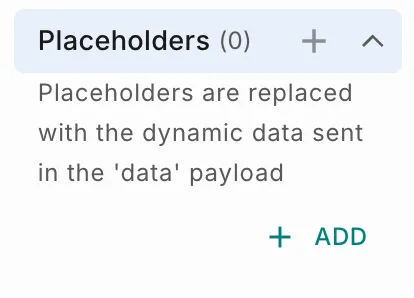
Open the placeholder editor
Click + or Add next to Placeholders in the left panel. The Template Placeholders pop-up opens.
Add keys and sample values
In the Form tab, enter a Key and a Sample value for each placeholder. Click Add Key for more rows, or use the delete icon to remove one. Use Search Key to find a placeholder.
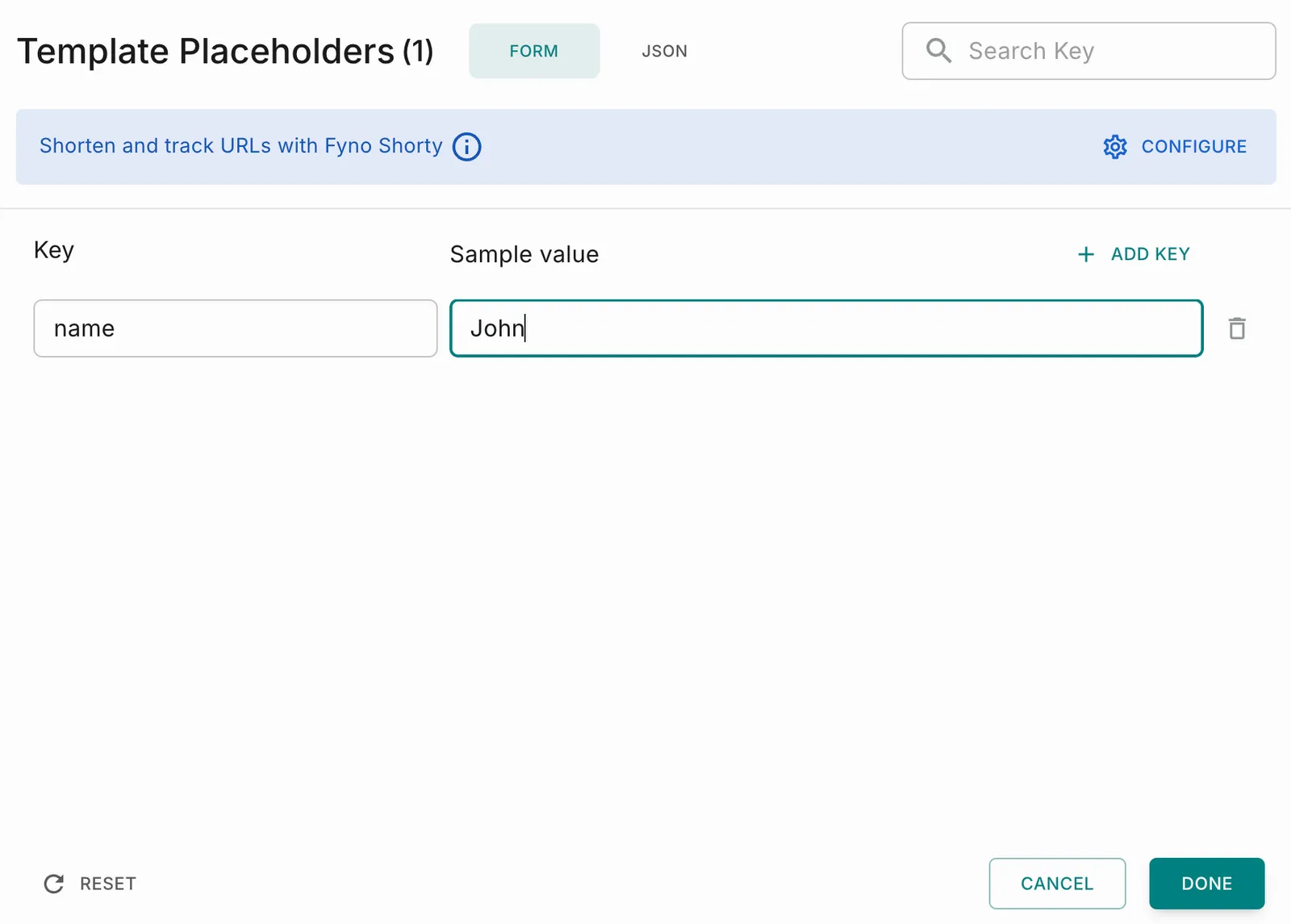
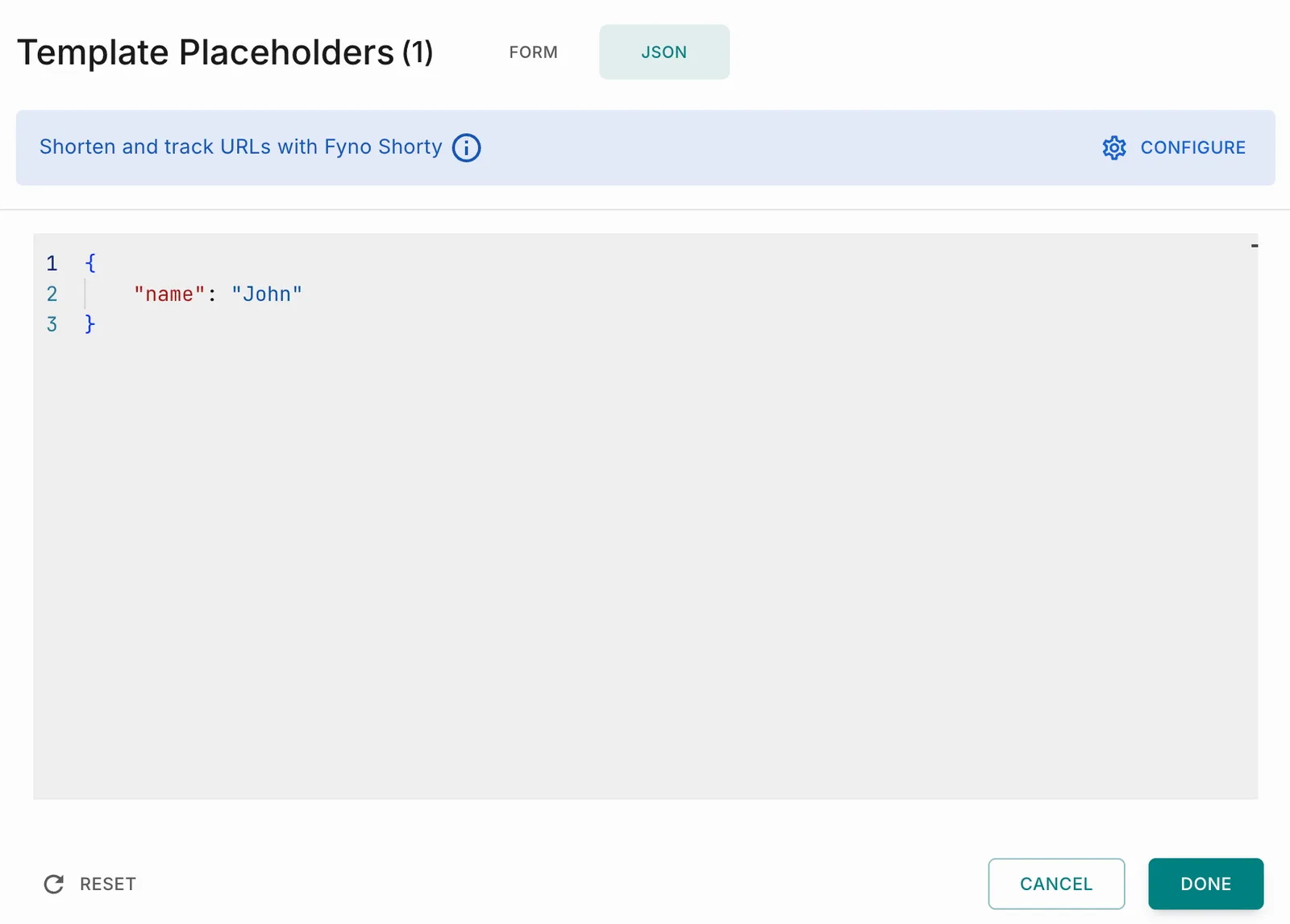
You can also switch to the JSON tab and enter all the keys and sample values as JSON.
When you add a placeholder in your content using {{ }} and open the placeholder editor, Fyno shows New placeholders detected. Add them here? Click Yes to add them automatically.
To shorten and track URLs in your placeholders, click Configure on the Shorten and track URLs with Fyno Shorty banner. See Fyno Shorty.
Handlebars
Handlebars is a JavaScript library for creating dynamic templates. Handlebars in Fyno support conditional operations, loops, date and time formatting, partial searches and custom helpers.
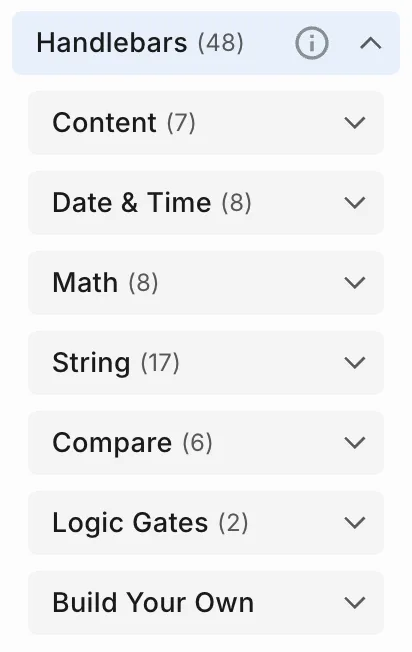
See Handlebars for the helpers, with examples.
Build Your Own
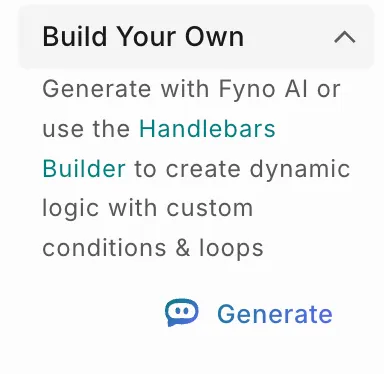
Under Build Your Own, you can create dynamic logic with custom conditions and loops in two ways:
- Generate with Fyno AI: Click Generate and describe what you need. See Generate Handlebars with Fyno AI.
- Handlebars Builder: Click Handlebars Builder to build the logic visually with blocks. See Handlebars Builder.
System Variables
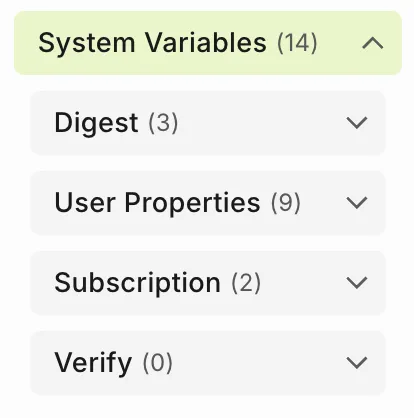
System Variables are pre-defined values in Fyno, so you don’t need to send them in your payload. There are four groups.
Digest
If you use the Digest action in your workflow, three variables are available:
Learn more in Creating a workflow with Digest.
User Properties
If you use Fyno’s user profiles, all the user properties linked to a user profile are listed here. Learn how to create user properties in Adding a new user property.
To use a user property, add it in this format:
Subscription
Use these variables to let users opt in, opt out or unsubscribe from your notifications.
Verify
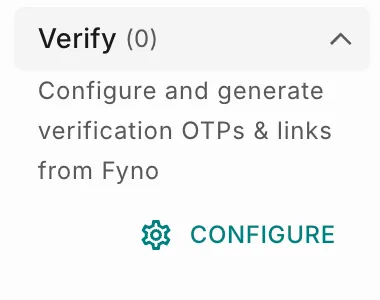
Fyno Verify is a fully managed API for multichannel user verification by OTP or link. To set it up, click Configure under Verify.
Components
Components are modular, reusable elements, such as headers, footers and PDF attachments. Create them once, then add them to any template. Click + next to Components to create one, or select an existing one to insert it.
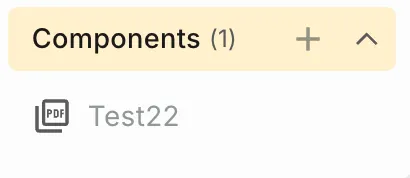
Components are currently available only for email templates.
Learn more in Components.