

Save as Draft vs Send for Approval
When your template is ready, use the buttons at the top right of the template page. Save as Draft keeps it in Fyno, and Send to Provider submits it to Meta for review.

Save as Draft
Click Save as Draft to save the template in your workspace without sending it to Meta. You can keep editing it and add languages later. Drafts don’t appear when you create a Fyno WhatsApp template, and can’t be used in notifications until they’re approved.
Send for approval
Select the languages
Select the languages to submit. Each language is reviewed by Meta separately.
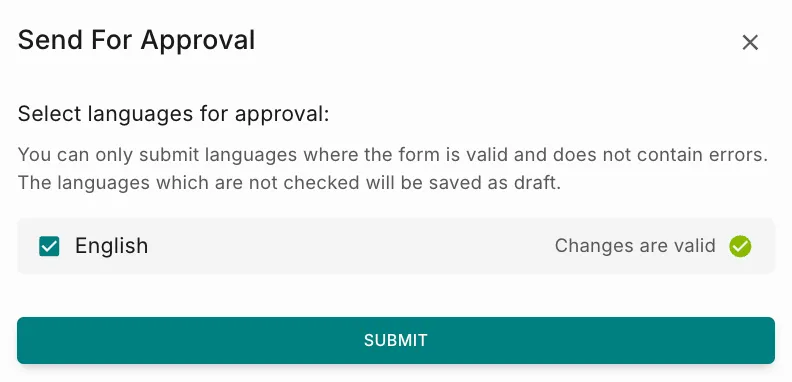
- You can only submit languages whose content is valid. Valid languages show Changes are valid.
- Languages you don’t select are saved as drafts, so you can keep editing them and submit them later.
Submit
Click Submit. Meta reviews the template, which can take up to 24 hours. When the review is complete, the status is updated in Fyno under the Synced tab.
- Approved: The template is ready to use. Associate it with a Fyno WhatsApp template to use it in Notification Events.
- Rejected: Review the reason, edit the template and submit it again.
If template approvals are enabled in your workspace, Send to Provider needs an additional approval step. Choose from your designated approvers, who review the template before it’s sent to Meta. See Create an Approval Request for the steps.
Template statuses
For more detail, see Meta’s message_template_status_update webhook reference.
Draft and Synced tabs
Every template has two tabs on the left of the template page:
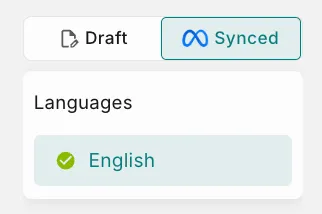
- Draft: The working copy you edit in Fyno. It isn’t live until it’s submitted and approved.
- Synced: The version and status from Meta. This is the live message customers receive, and it can’t be edited here.
Update an approved template
Meta treats an update as a new review request, and updates take longer to approve. Notifications that use the template may fail if there’s live traffic during the review. We recommend creating a new template instead.
When you open an approved template that has no draft, Fyno asks how you want to make changes.
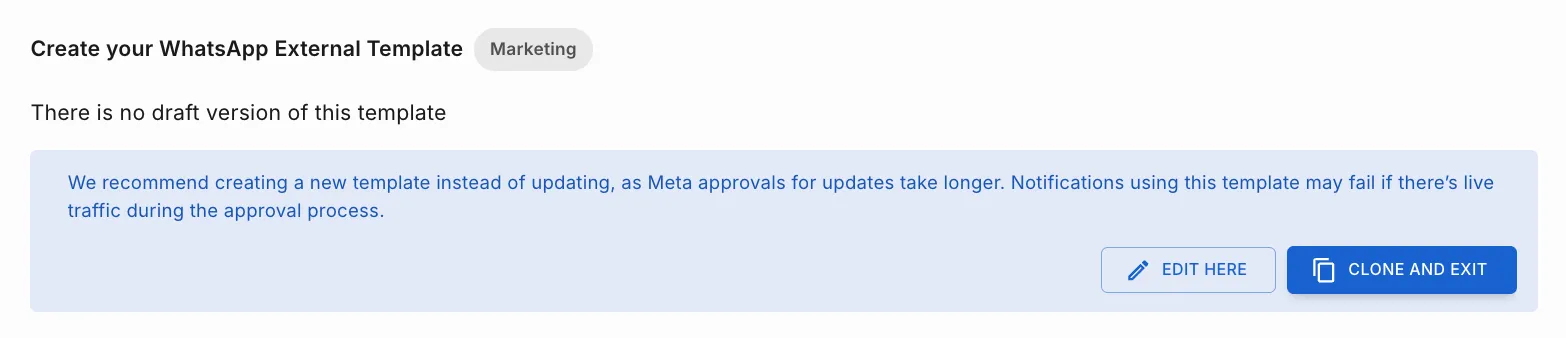
Clone and exit (recommended)
Edit here
Creates a copy of the template so the original keeps working without interruption.
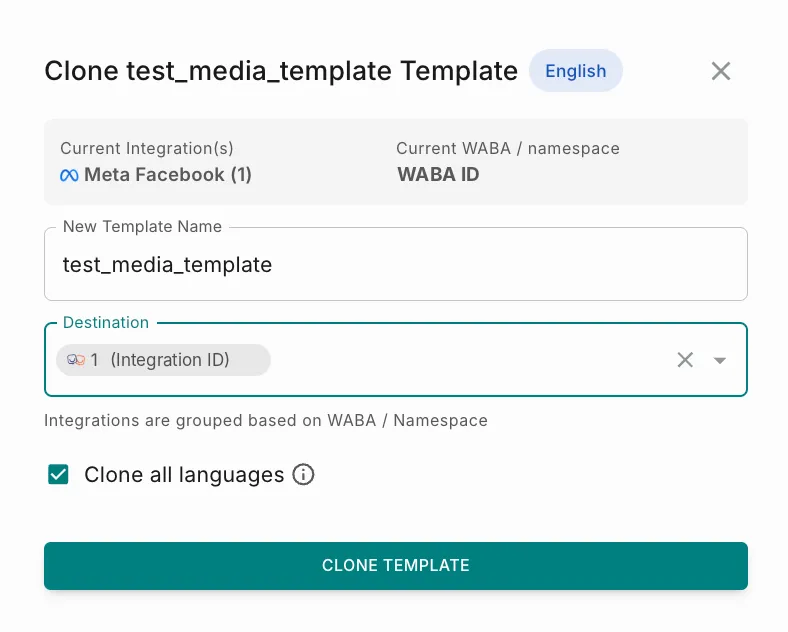
- Click Clone and exit. The Clone Template pop-up opens, showing the current integration and WABA / namespace.
- Enter a New Template Name, and in Destination, select the integration (WABA / namespace) to create the copy in.
- Select Clone all languages to copy every language of the template, or clear it to copy only the current language.
- Click Clone Template. The copy is saved as a draft. Edit it and send it for approval.
Use it when the template is used in active campaigns, you can’t afford any message disruption, or you’re making major changes to content, variables or buttons.
For example, to change “Get 10% off this weekend” to “Get 20% off this weekend + free shipping”, clone the template.
How draft versions work
A draft is an editable working copy that isn’t approved yet. Changes to a draft don’t affect live traffic. A draft is created when you:
- Create a new template.
- Click Edit here on an approved template.
- Add a new language to an existing template.
- Fix a rejected template.
- Clone a template.
When you save a draft of an approved template, a draft icon appears next to the template status, alongside the synced version.
After the update is approved
Refresh the template in the Fyno WhatsApp Template that uses it. Until you do, active flows may keep using the previously approved version, which can affect live traffic and message delivery.