

Secure Media Storage
The Secure Media Storage feature allows you to store media files generated or processed by Fyno in your own AWS S3 bucket.
This helps organizations maintain ownership of their files and comply with internal security and data retention requirements.
Supported media includes:
- PDFs generated using Fyno’s PDF component
- Incoming media files received through supported channels, such as:
- PDF documents
- Images (JPEG, PNG, etc.)
- Other supported file attachments
Incoming media storage is currently supported only for messages received through Meta Direct and Meta Direct Plus integrations.
Before You Begin
Before enabling Secure Media Storage, create an AWS S3 bucket and an IAM user with:
- Access Key ID
- Secret Access Key
- Permission to upload files to the target bucket
The S3 bucket must be created in the ap-south-1 region.
Enable Secure Media Storage
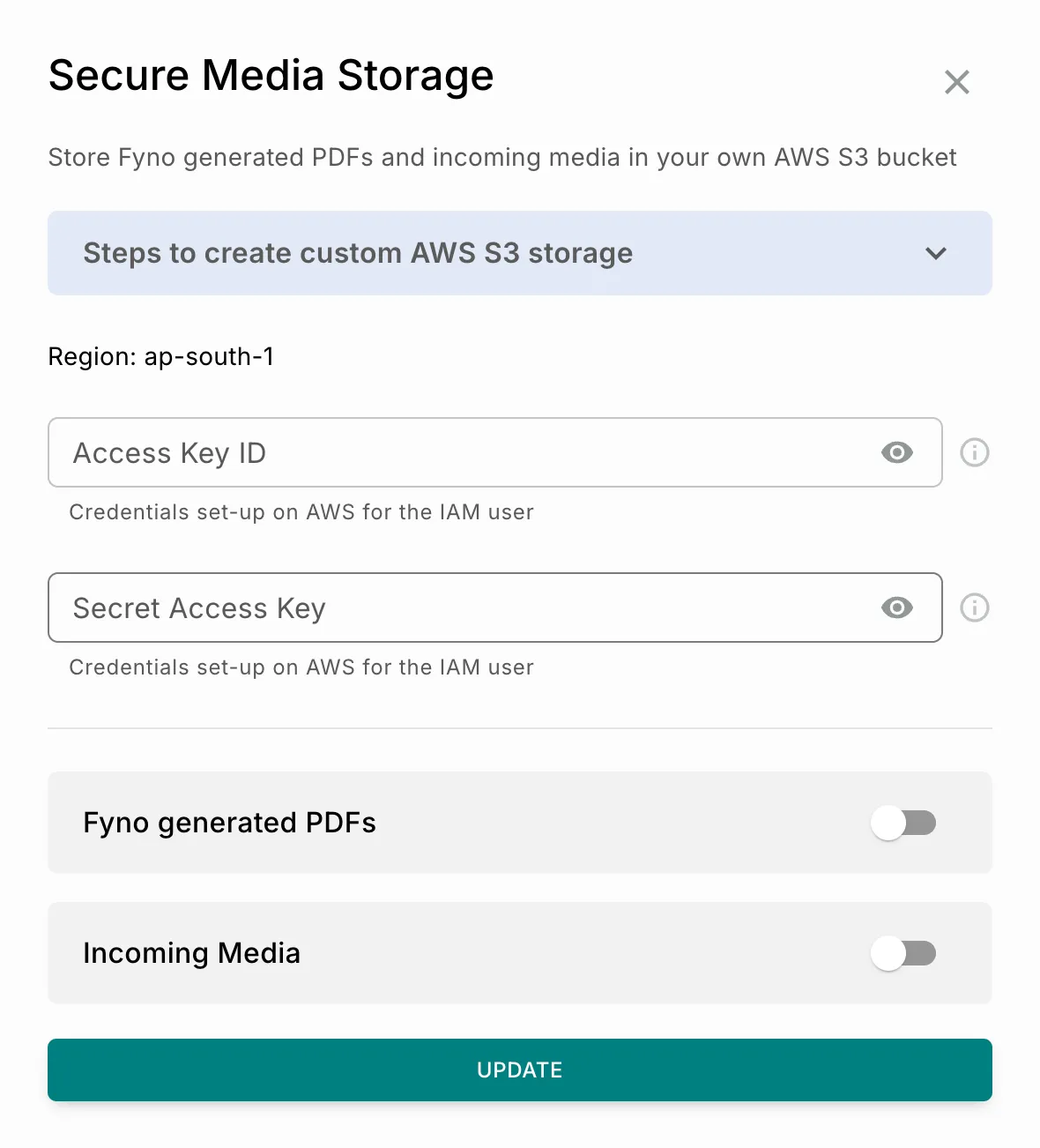
Configure Storage for Fyno Generated PDFs
You can optionally configure a dedicated location for storing PDFs generated by Fyno.
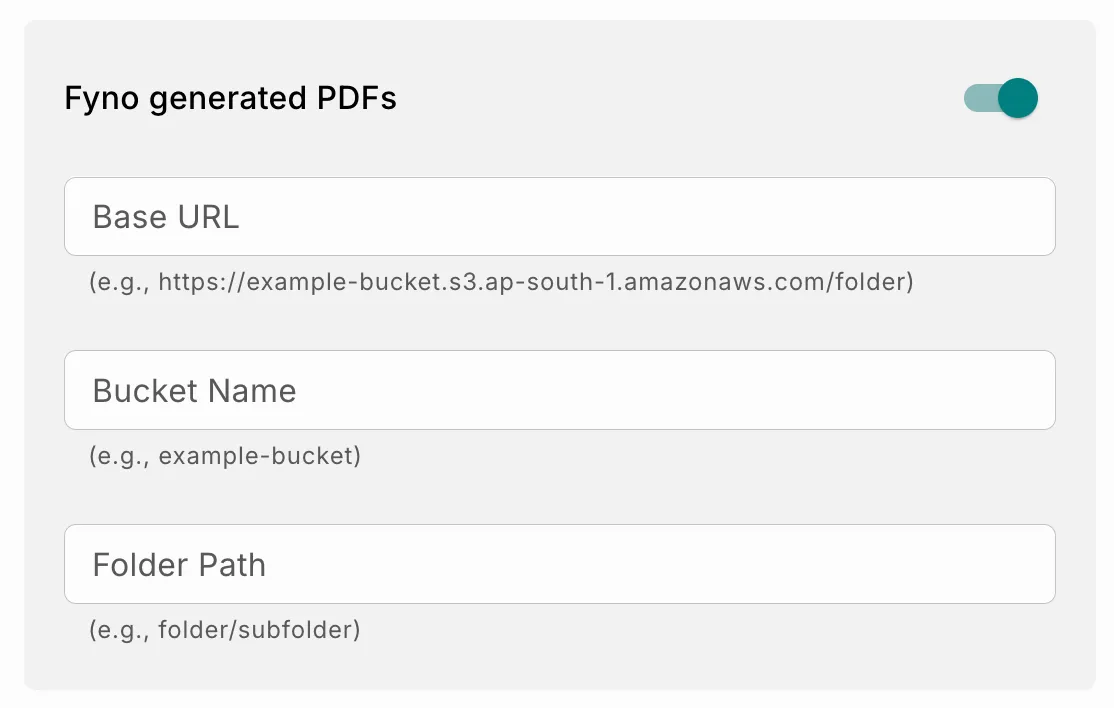
Configuration Fields
Example Using S3 URL
Example Using CloudFront URL
If your CloudFront distribution uses /pdf as the origin path, only the remaining folder path should be included in the Base URL.
Configure Storage for Incoming Media
Once Secure Media Storage is enabled, incoming media files received through supported integrations are automatically stored in your configured S3 bucket.
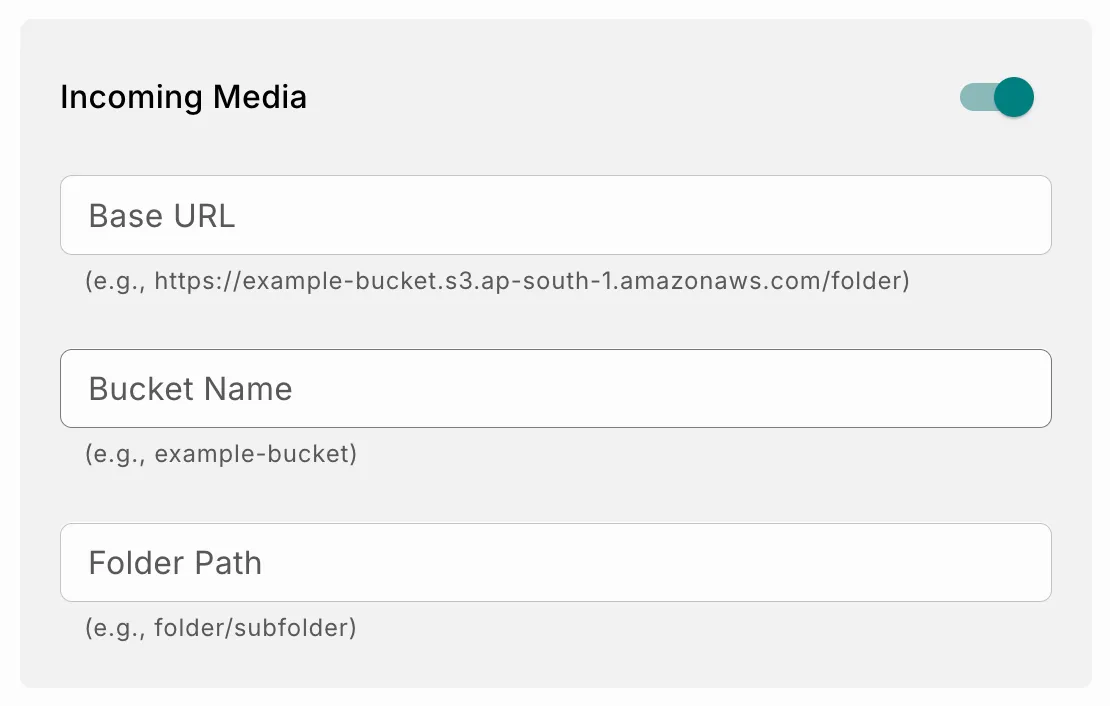
Configuration Fields
Example Using S3 URL
Example Using CloudFront URL
If the CloudFront origin path is configured as /incoming, only the remaining folder path should be included in the Base URL.