

Tracing Traffic with Notification Event Logs
Notification Event logs are where we help you track each and every activity through Fyno’s App for your notification event.
Logs are a detailed view of what has happened on each of your requests, with vital information for you to further analyse and derive conclusions about your end customers, and improve your communication strategies.
This section covers the Notification Event logs that you can see on the Fyno platform, how you can filter through the application to narrow down your search and a detailed understanding of the individual log details.
We can navigate to “Notification Event Logs” by clicking on “Logs” from the left navigation panel and then clicking on “Notification Event Logs”.
On the page that opens, you will see the following:
- Notification Event Logs
- Filters
- Test and Live version tabs.
Notification Event Logs
The logs that are seen on the “Notification Event Logs” page give you an overview of the latest event activity that has occurred on your Fyno account.
You will see:
- Timestamp: Tells you the details of when (date and time) the notification event was triggered.
- Notification Event: Give you the details of the Notification Event that was triggered including the method of execution under the “Via” section.
- Template: Shows the name of the template used in the Notification Event.
- Distinct ID: Will display the Distinct ID, if it was used during the triggering of the notification event. If the distinct ID was not used, this field would be blank.
- To Payload: This displays all the channels that are configured in that notification event and of those, the ones that are highlighted were the channels through which communication was attempted.
On clicking on any of the notification event logs, you will see some key information and components.
- Start Component: Tells you the Notification Event started or was triggered at that specific time. You will also be able to see the Request ID of that Notification Event next to the Start Component
- Channel Component: Gives you the details of the Channel that was triggered according to the notification event, and the integration name used along with the timestamp.
- Failover Component: This component shows the channels that were selected as failovers to the primary channel (the “Channel Component” preceding it ), along with the details of the failover attempted.
This component will only be displayed if:- The “Routing” in the Notification Event is an “Omnichannel Route”,
- All attempts made from the primary channel fail and,
- Another channel is configured as a failover to the primary one in Omnichannel Routing.
- Wait Component: When configuring an Omnichannel route, if a “Wait for” component was configured, the same will be displayed in the notification event logs.
Channel Component
On clicking on the Channel Component, we get a more in-depth analysis of what happened at each stage.
Let’s have a look at an example.
Clicking on a Notification Event Log for an SMS channel component shows us the below details:
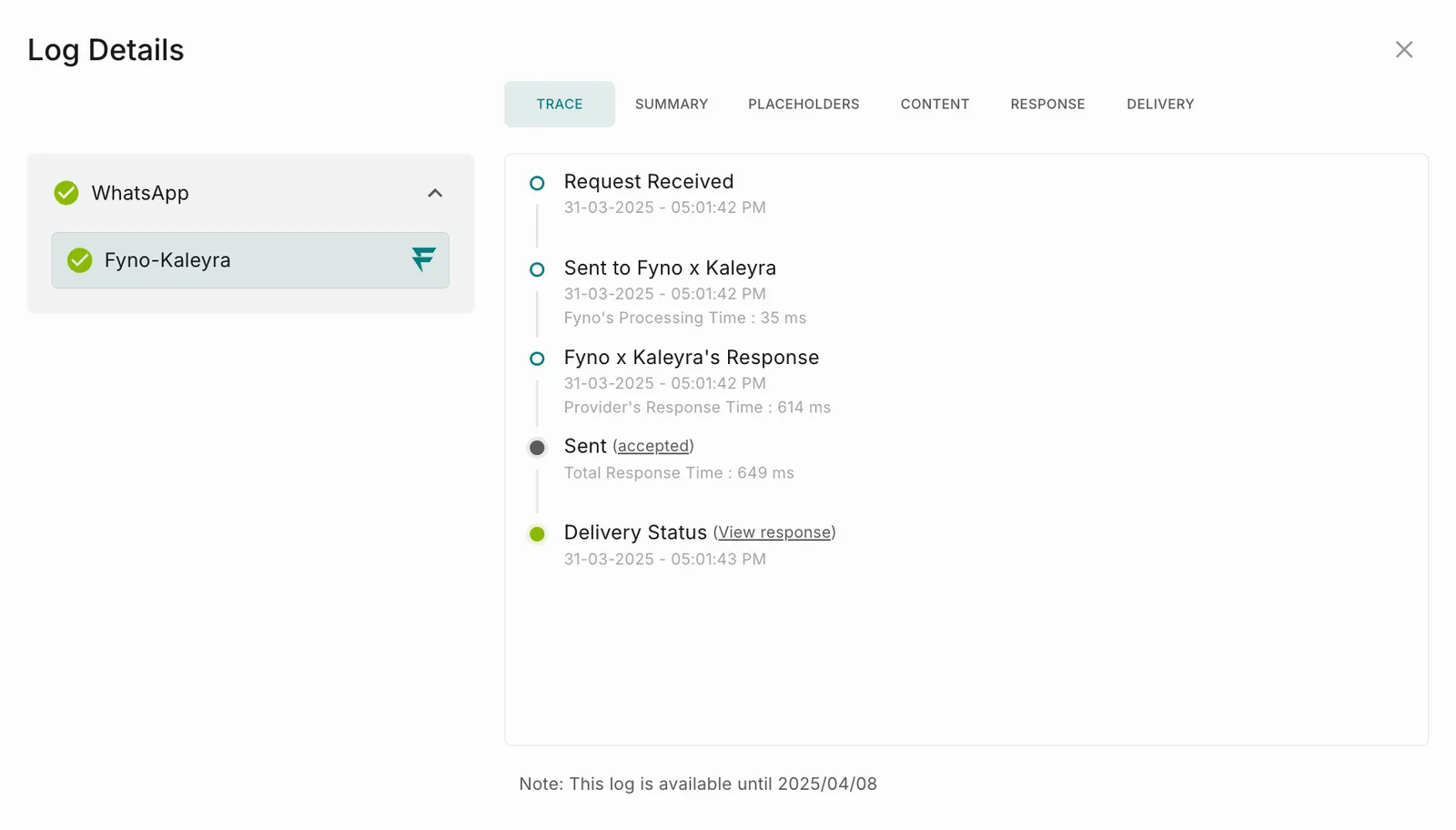
At first glance, it looks very similar to individual Sent Logs. However, let’s understand the differences here.
- Log Details: Gives you a summary of:
- The channel name attempted in this component
- The different providers (in case a single channel route was configured) that were attempted.
- The success or failure status of each provider attempted.
- Trace: Gives you a summary of each hop or path that the notification has taken along with the time that each hop has taken, including the total as well as the final status of the notification. Read more here.
- Summary: Gives you a summary of the notification. Read more here.
- Placeholders: Tells you the details of the Placeholders used in the notification template.
- Content: Displays the details of the content triggered in the notification. Read more.
- Response: Shows all the details of the notification response that was received from the Provider. Understand more about Response.
- Delivery: Provides you a detailed account of the delivery response received from the provider. Read more.
Colour-Coded Components
Each component within a Notification Event is colour-coded to represent the overall status of that component. This helps you understand the status of that component at a glance.
To understand this better, let’s take another example here.
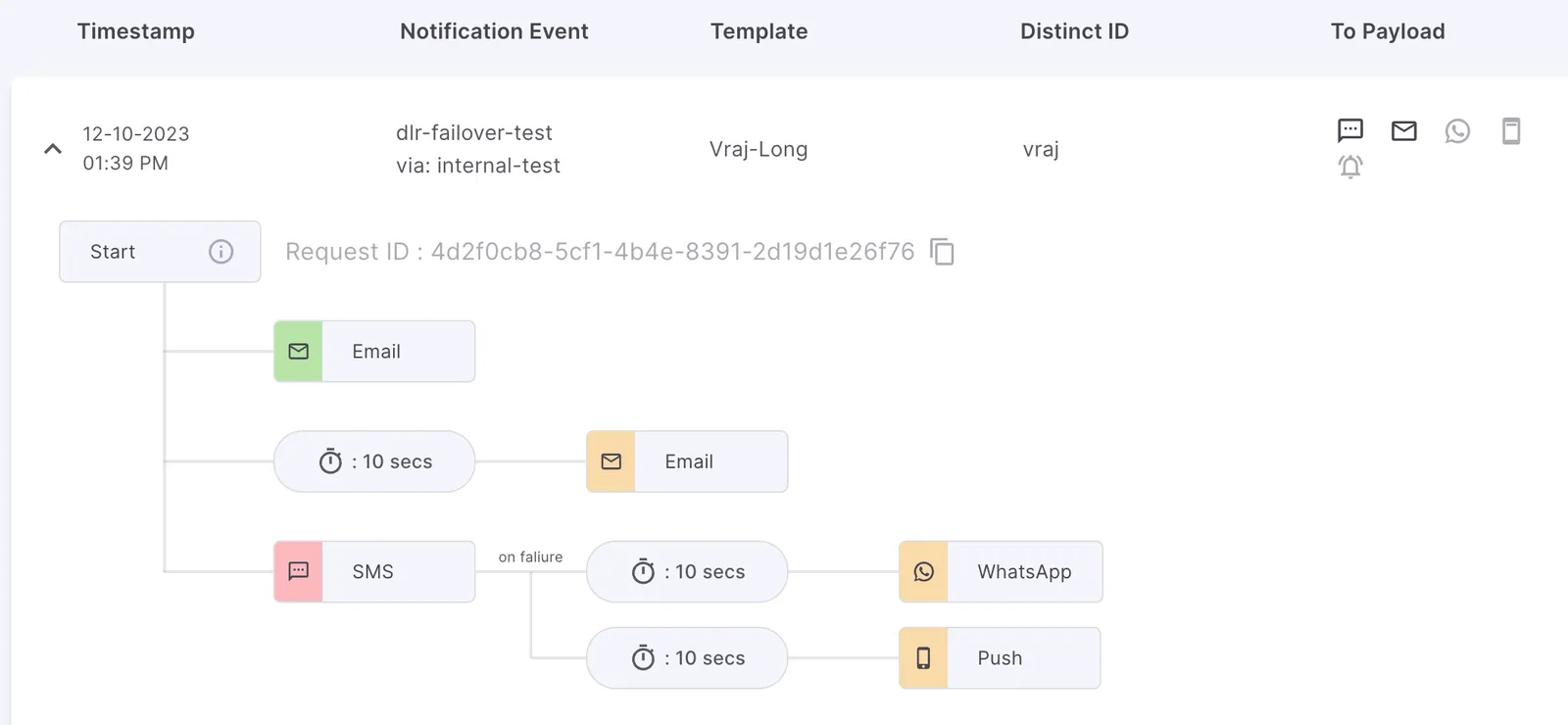
- The first Channel component - Email is green in colour, indicating that the attempt for the Email Channel has successfully gone through.
- The secondary channel component, which has a Wait For element showing 10 seconds, will cause the Email channel to be triggered with a 10-second delay, which is indicated in yellow.
- The third component, SMS, on failure (shown with a red component) will trigger the next set of steps, including Wait for and then the consequent channels, that is WhatsApp and Push.
Another error that can possibly appear in the Notification Event logs is the below:

This happens when you have triggered a notification via a notification event but the Destination provided in the request payload did not correspond to the channels in the notification event, so no notifications were triggered.
To understand this better, let’s take an example here.
If a Notification Event that requires your email address is triggered but the payload or the request doesn’t have this detail, then this error message will be displayed.
Filters
Filters help you seamlessly sift through all the Notification Event logs that have been generated for each notification event through the Fyno App.
To understand how to use the filters, let’s have a look at the categories within filters.
Timestamp
“Timestamp” allows you to specify the time frame for which you want to view the logs.
You can select one of the provided options, which are:
- Today
- Yesterday
- Last 7 days
- Last 28 days
- Custom - Select a start and end date of your choice.
Search
The “Search” option allows you to look for individual Request IDs, which you would have received for a notification. Read more about Request ID. This is crucial to do individual debugging and trace a notification.
Notification Event Name
Filtering by the “Notification Event Name” field allows you to see all the notifications sent across by a Notification Event that was created.
This means that regardless of the channel or provider that was used if any or all of the providers and channels were configured in the notification event, the details will be shown for all the notifications that were triggered.
Templates
The “Templates” search option allows you only to select from a drop-down, which displays all the templates that you have created in the “Templates” section.
Distinct ID
The Distinct ID search option allows you to search for a specific user via their assigned Distinct ID which has been created in the Users section of the Fyno Application.
Placeholders
The Placeholders search option allows you to search for logs with a placeholder you have used within the message body of your notification.
Test & Live Versions
In the logs section, the Test and Live versions are uniquely partitioned, to show you the details notifications sent in that particular version of the API that has been generated.