Reviewing Notification Trace and Summary Logs
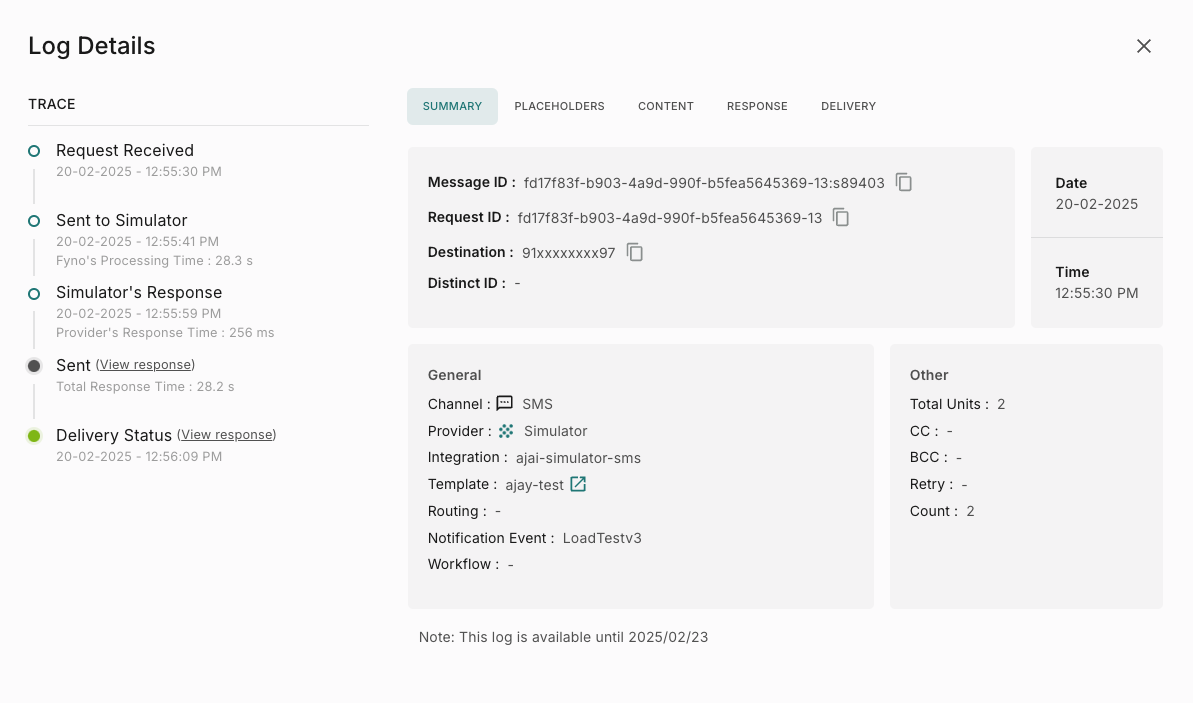
When you open the log details of a notification, the first thing you will see is the Trace and summary details on the “Summary” tab.
To understand and read this summary better, let’s have a look at some of the key details within the “Summary” Tab
Message ID
Message ID is the unique identifier for the message that has been sent.
This is highly unique, in a way that this is very specific to the transaction that has happened only with that provider. So, in case you have 2 operators configured, one as primary and the second one as failover, in this case, if the message fails with the primary operator, and is triggered via the failover provider, each interaction with every provider will have a log and a unique “Message-ID”
Request ID and Message ID are linked!
The first half of the Message ID is made up of the “Request ID” and the unique part is the last 4 characters of the “Message-ID” will be unique to each providerRequest ID
A “Request ID” is a unique ID that is assigned to a request that is being triggered through Fyno’s Application.
A request which has a notification event that triggers a notification to flow through multiple providers will still have the same “Request ID” since that action was triggered by one request.
So, in case you want to find out what has, for example, happened for one request that has multiple providers configured in the routing or the notification event, you can search by the “Request ID” in the “Filters” and you will get the details for all of the logs for that particular “Request ID”
Channel
“Channel” shows you the channel that was used for the notification that was triggered.
“Channel” can be Messaging (SMS), WhatsApp, Email, Chat or Push
Provider Name
“Provider Name” displays the provider that was used to trigger the notification you are currently viewing. This may vary depending on your routing and notification event configurations
Destination
“Destination” displays the final recipient’s details. This may be a phone number, email ID or a Chat channel ID
Date
“Date” shows the date the notification was triggered by you, via the Fyno App
Time
“Time” shows you the time that the notification was triggered by you, via the Fyno App
Integration Custom
“Integration Custom” is the name that you have given to the integration when you are creating a “Provider” under a “Channel”
Routing
“Routing” refers to the routing that you have created under the “Integrations” section.
Template
“Template” shows you the name of the template being used in the notification that you have created under the “Templates” section.
Notification Event
“Notification Event” shows you the name of the notification event that was triggered, which was created in the “Notification Events” section, because of which a notification was triggered, creating this log.
Retry
“Retry” shows you the attempt number which this notification was under. This is nothing but the attempt count of a notification event.
So for example, if a notification event has 2 Providers configured, and the notification fails to deliver from the first provider and delivers from the second provider, then there would be 2 notifications logs and the first retry (which failed) will show “Retry” as “0” and the second notification log which did get delivered would show “Retry” as 1.