Template Groups help you organize related templates together. For instance, if you have multiple templates for different order statuses (Confirmed, Cancelled, Shipped, InTransit, Delivered), you can create an ‘Order Management’ group and assign all these templates to it. This makes template filtering and management more efficient.
How to create a Template Group
1Navigate to Templates page from the left nav. Templates -> Fyno.
2You will find ‘Group’ option on the left side of the templates page.
3Click ’+’ to add a new group.
4Enter a group name and you can select the templates you want to be part of this group

6A new group ‘Order_Management’ will be created and all the selected templates will be added to the group.
7You can see the new group under ‘Groups’ section (5 denotes the no of templates under this group) and also the templates with ‘Group name’ in their card.
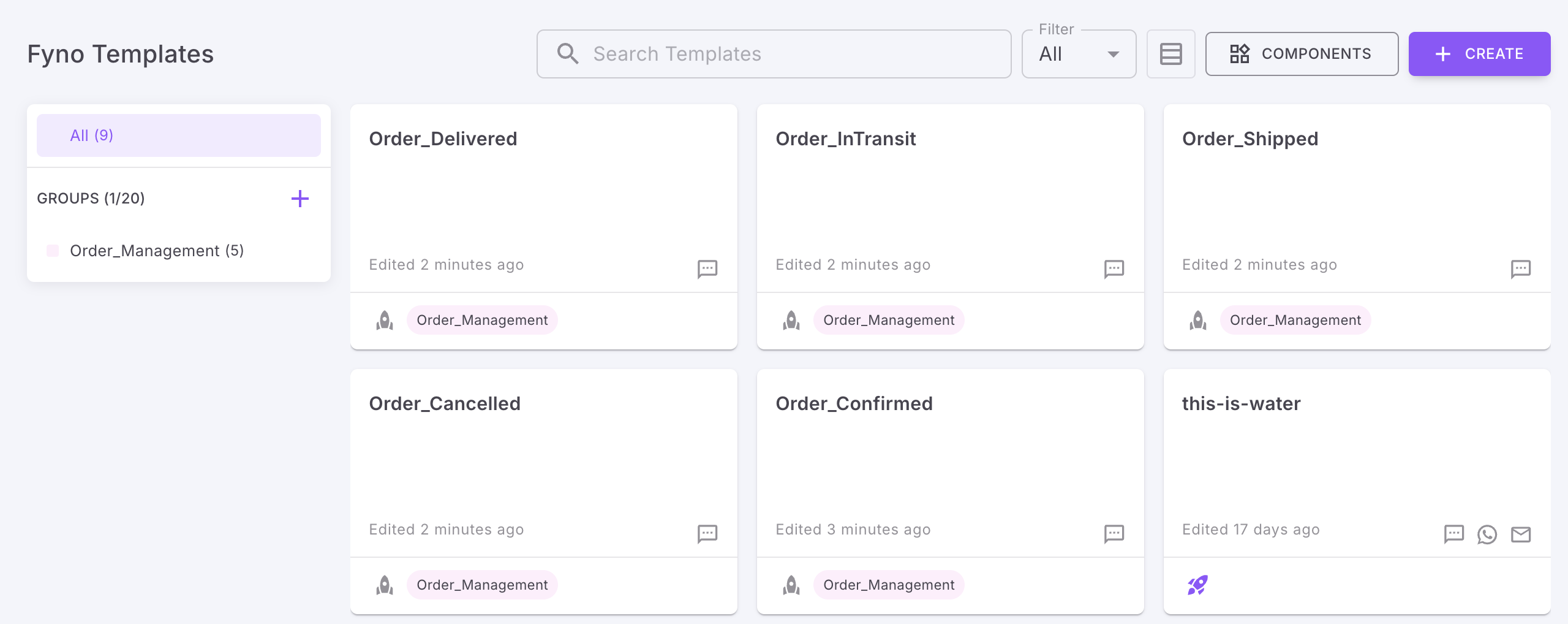
You can add upto 20 Groups in each workspace. How to edit a Template Group
1Navigate to Templates → Fyno from the left navigation.
2Under the Groups section, locate the group you want to modify.
3Click the ⋮ (three-dot menu) beside the group name.
5Update the group name or modify the templates assigned to the group.
The group will be updated immediately and the changes will reflect across all templates in that group.
How to delete a Template Group
1Navigate to Templates → Fyno from the left navigation.
2Under the Groups section, find the group you want to remove.
3Click the ⋮ (three-dot menu) beside the group name.
5Confirm the deletion in the confirmation popup.
Important: Deleting a group permanently removes the group and unassigns all templates from it.
The templates themselves are not deleted — they will remain available under All Templates.
This gives users full control to organize, update, and clean up template groups as needed.