

Introduction to Omnichannel Routes
“Omnichannel” means all channels, and that is exactly what an Omnichannel Route gives you: the freedom to mix and match multiple channels and providers in a single route, from simple fallbacks to flows with several branches and conditions.
What is an Omnichannel Route?
An Omnichannel Route lets you work with multiple notification channels, including SMS, WhatsApp, Email, Slack, Discord, Teams, Push, InApp, Voice and RCS. You can connect channels:
- In sequence, one after another, so they work in tandem.
- As a failover, so that a channel acts as a backup for the one before it.
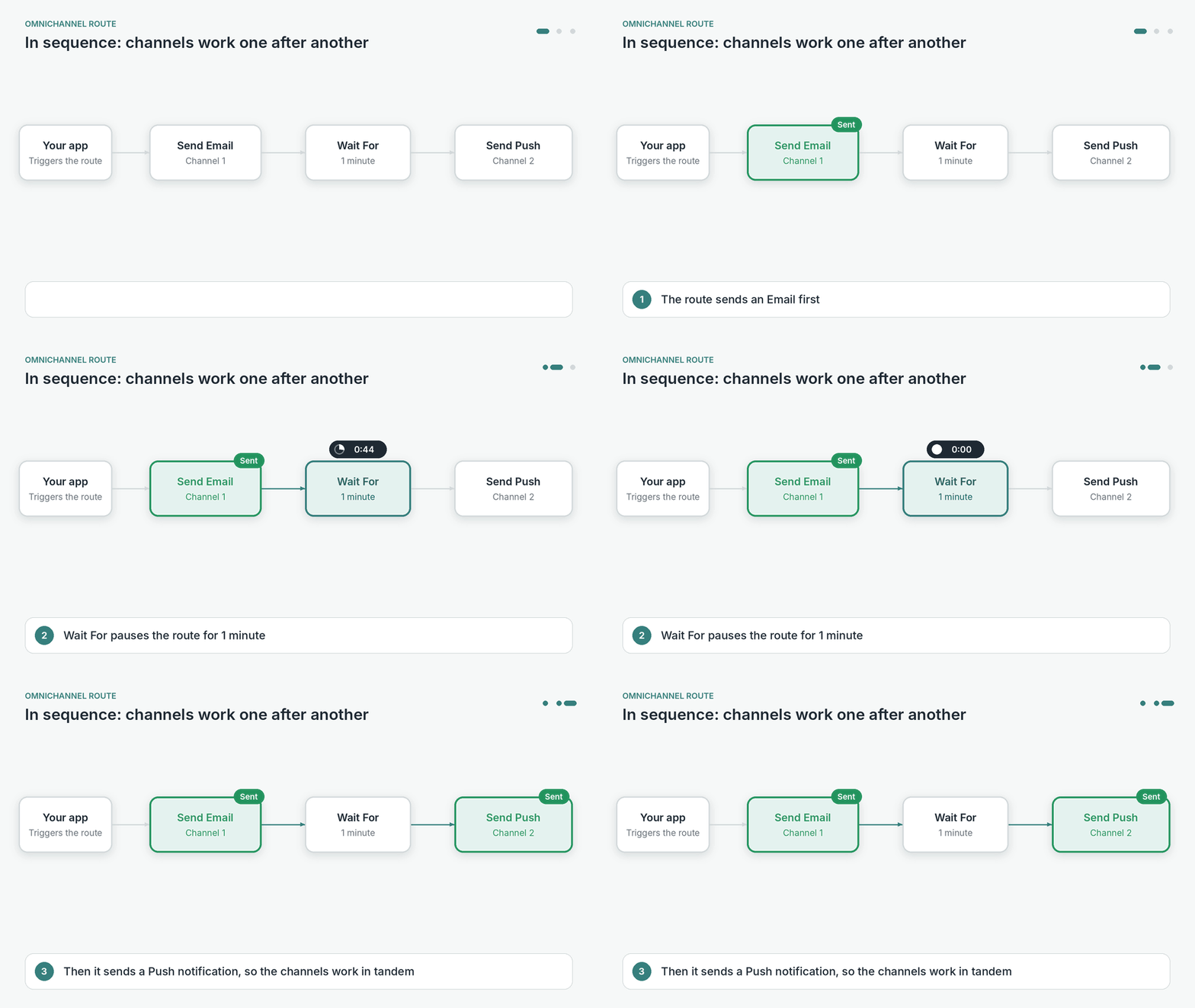
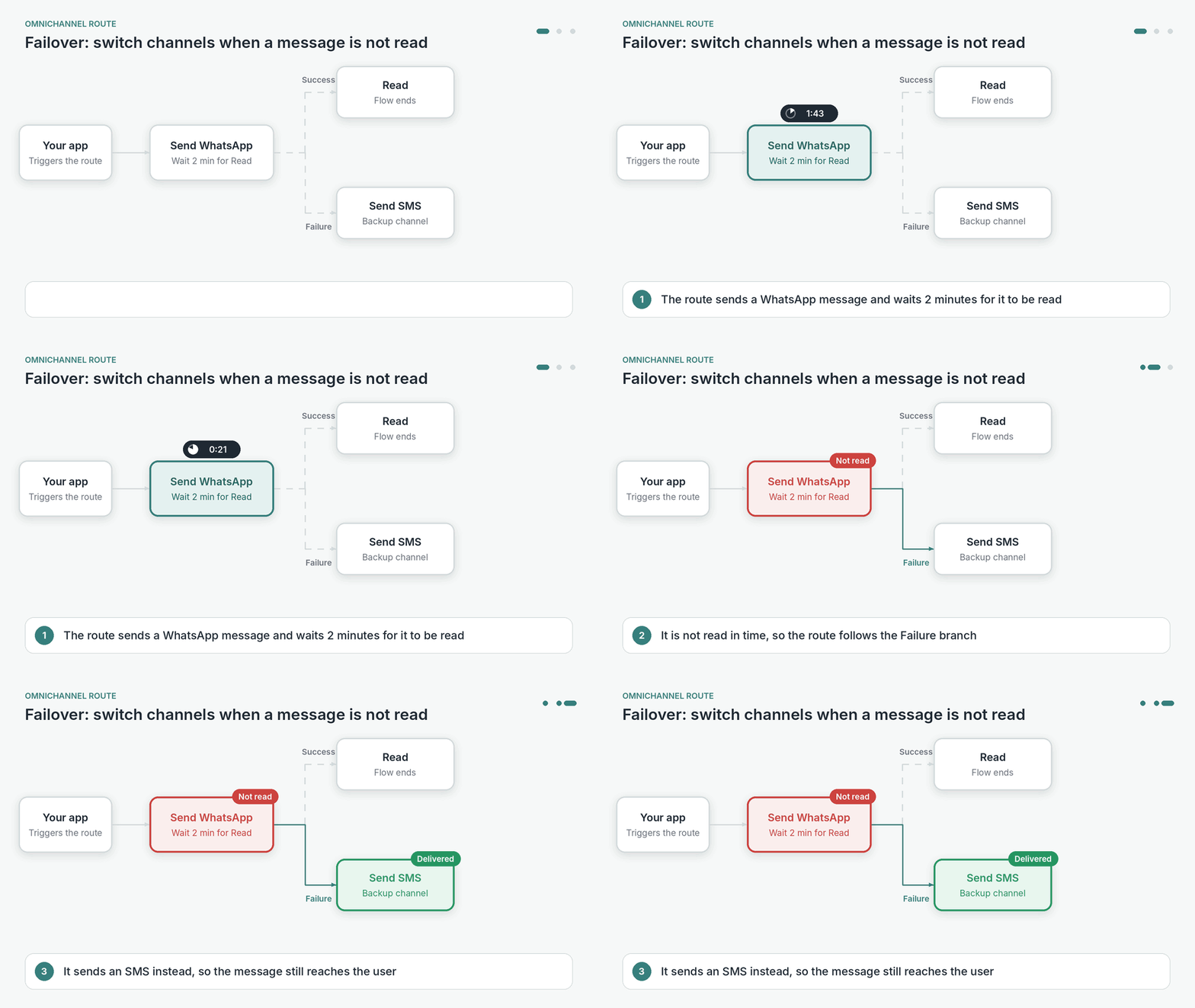
A Single Channel Route makes connections within a channel, between its providers. An Omnichannel Route makes connections between channels.
Why use an Omnichannel Route?
An Omnichannel Route lets you use any channel available to you, at any point in the flow, to make sure your communication actually reaches your customers.
- You are no longer limited to a single channel.
- You no longer have to wonder whether your communication reached your customers.
When to use an Omnichannel Route?
An Omnichannel Route solves use cases that would otherwise need coordination across multiple teams and many lines of code.
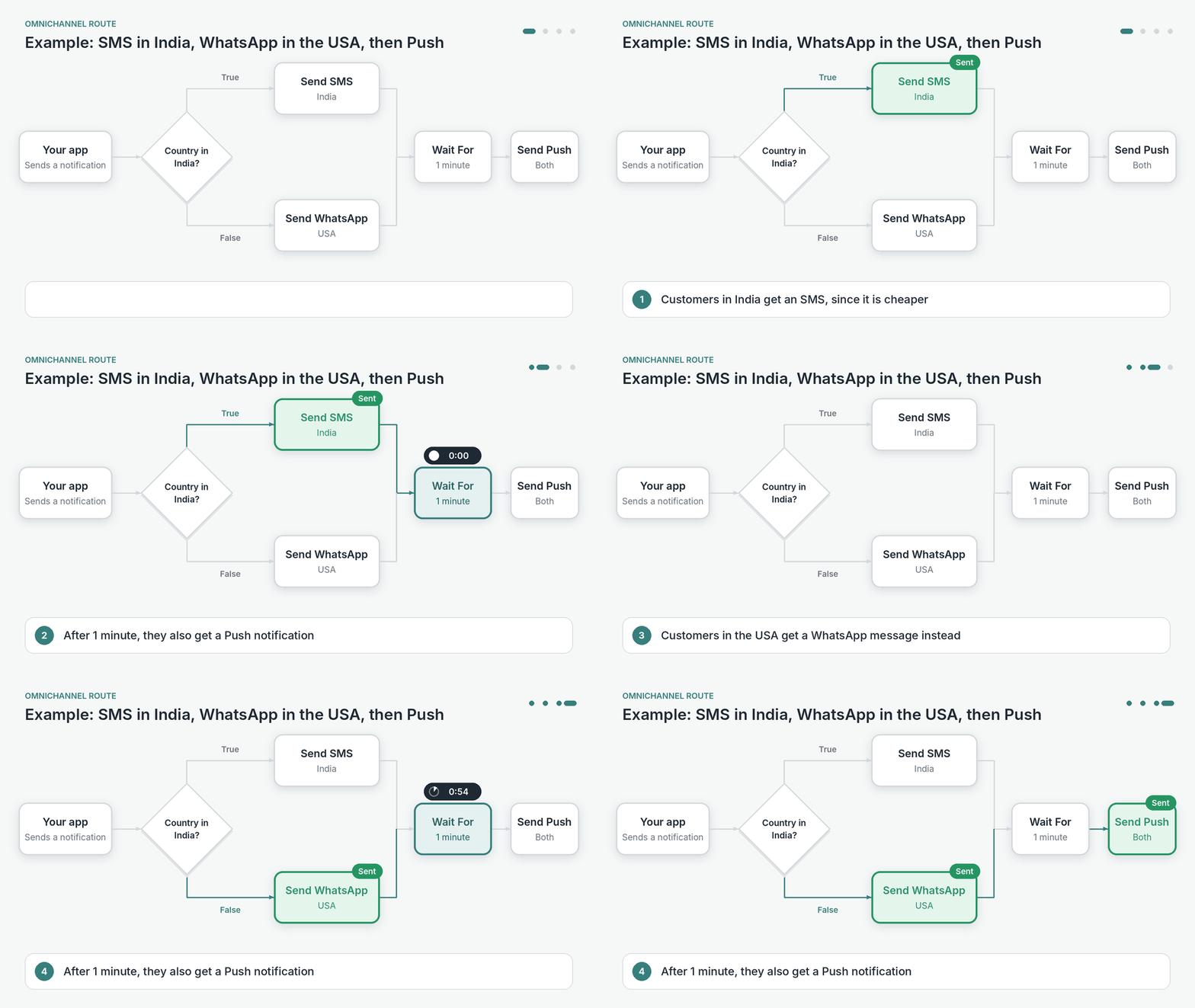
Take an example. Company ABC has customers in India and the USA, and wants to:
- Notify customers in India via SMS, since it is cheaper and they already have it set up.
- Notify customers in the USA via WhatsApp, since it is their preferred channel.
- In both countries, wait for a minute after the first notification goes out, and then send a Push notification.
Without Fyno’s Omnichannel Routes, this would be time-consuming and need channel-wise coordination across teams. With an Omnichannel Route, you can build it in minutes.
View route details
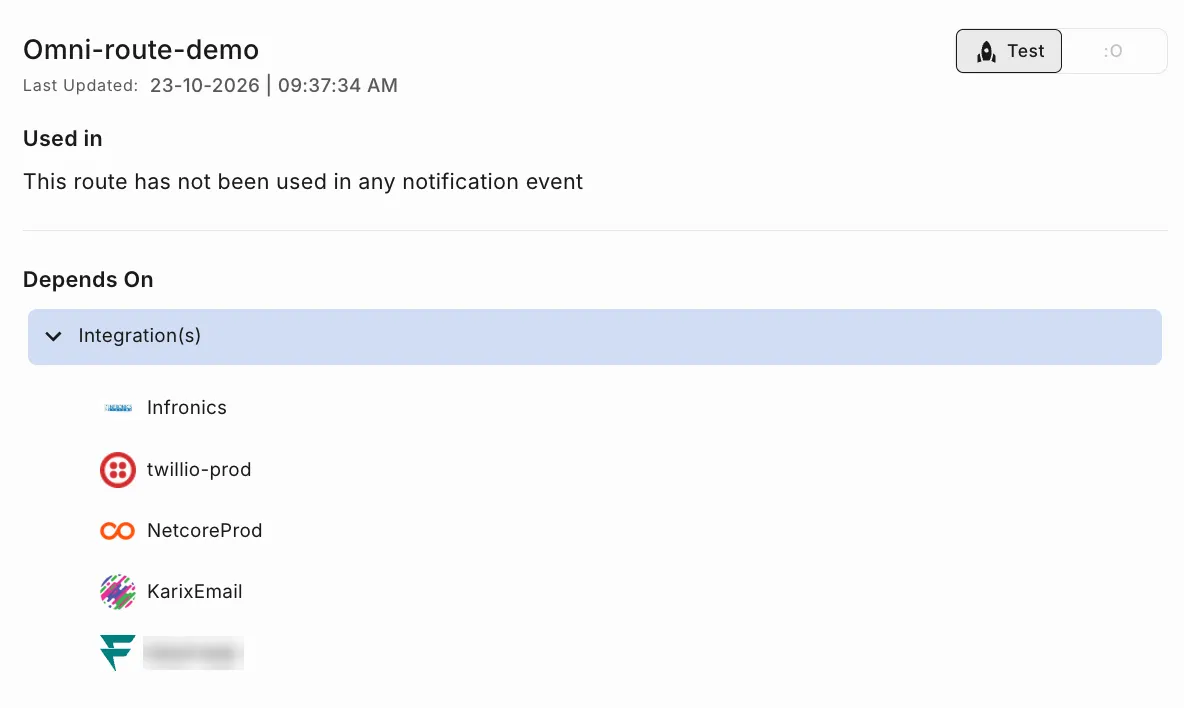
To see where a route is used, click the three dots icon on the route and select View Details. It shows when the route was last updated, along with:
- Used in: The notification events that use the route.
- Depends On: The integrations the route uses.
Use the Test and Live toggle at the top to see the details for each version.
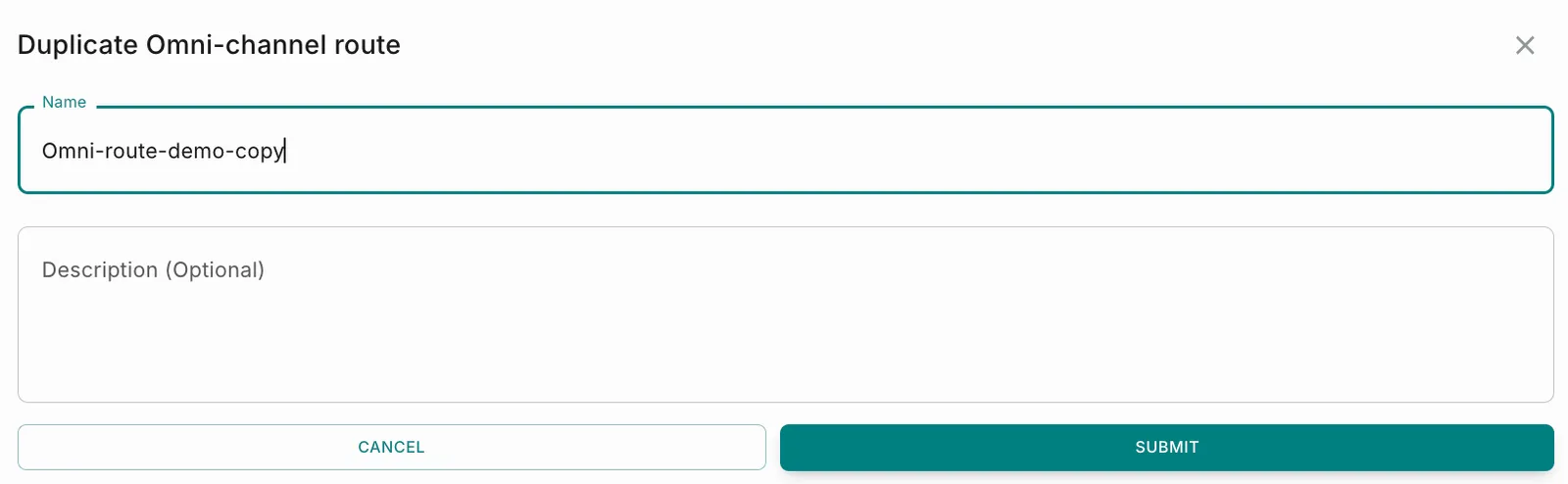
Duplicate a route
See how to create an Omnichannel Route.